jadx turns an Android app’s compiled code back into Java you can read. Point it at an APK and you get a folder of .java files and decoded resources, or open the app in its GUI and search it, jump to declarations and follow where a method is used. It is usually the first thing to reach for when you want to know what an app actually does. It will not decompile all of it, though, and how it marks the parts it gets wrong decides how far you can trust what you are reading.

What is jadx?
jadx is an open-source decompiler for Android, written in Java and released under the Apache 2.0 licence, with a command-line tool and a GUI in the same download. It reads Dalvik bytecode from APK, dex, AAB, XAPK and similar packages, decodes AndroidManifest.xml and the resources in resources.arsc, and turns the code into Java. It also opens plain Java bytecode (jar, class and aar files) and smali, and it has a deobfuscator for apps whose names have been shrunk to single letters.
Advertisement
That makes it a reading tool: triaging a suspicious app, finding the endpoint or the hard-coded key a pentest report needs, or working out which check you will have to patch. It does not rebuild an app. For that you need Apktool, and the two are often used together (more on that below).
The project dates from 2013 and is busy: the current release is 1.5.6, from 10 July 2026, and commits were still landing at the end of October.
How to download and install jadx
Each release on GitHub has three downloads. jadx-1.5.6.zip is the one for every platform, with both tools under bin: jadx and jadx-gui, and .bat versions of each for Windows. It needs a 64-bit Java 11 or later. The two Windows bundles run jadx-gui-1.5.6.exe instead, and the larger with-jre bundle, 99 MB, carries its own Java, so it is the one to take on a Windows machine without a JDK. On a Mac, brew install jadx; on Arch, sudo pacman -S jadx; and Flathub has it as com.github.skylot.jadx. On Kali it is a package too, sudo apt install jadx, and Kali rolling, Arch and Homebrew all carry 1.5.6, according to Repology.
The 1.5.6 zip is 72,646,741 bytes, and its published SHA-256 is:
545ea2be9c242511bc145755cf4bda2485ade42966e096f8b4d3da2a230e8974 |
Check it in PowerShell before you unzip it:
Get-FileHash .\jadx-1.5.6.zip -Algorithm SHA256 |
jadx keeps its settings and cache in your user profile, and it stops if it cannot create them. I ran it in a sandbox with no profile, where every decompile failed at once with “Failed to init common directories” and an access-denied error on AppData\Roaming\skylot. If you hit the same on a locked-down or shared account, point the two folders somewhere you can write with the environment variables the README documents:
Advertisement
$env:JADX_CONFIG_DIR = "C:\apk-work\jadx-config" $env:JADX_CACHE_DIR = "C:\apk-work\jadx-cache" |
How to decompile an APK with jadx from the command line
Give it an output folder with -d and the app. From the unzipped folder, in PowerShell:
.\bin\jadx.bat -d out\binaryeye binaryeye.apk |
On Linux or a Mac it is bin/jadx, or plain jadx after a package install. To see it on a real app, I used Binary Eye 1.75.5, the open-source barcode scanner from F-Droid that I also took apart for the Apktool guide, on Temurin 21. jadx worked through 2,539 classes in 23.6 seconds:
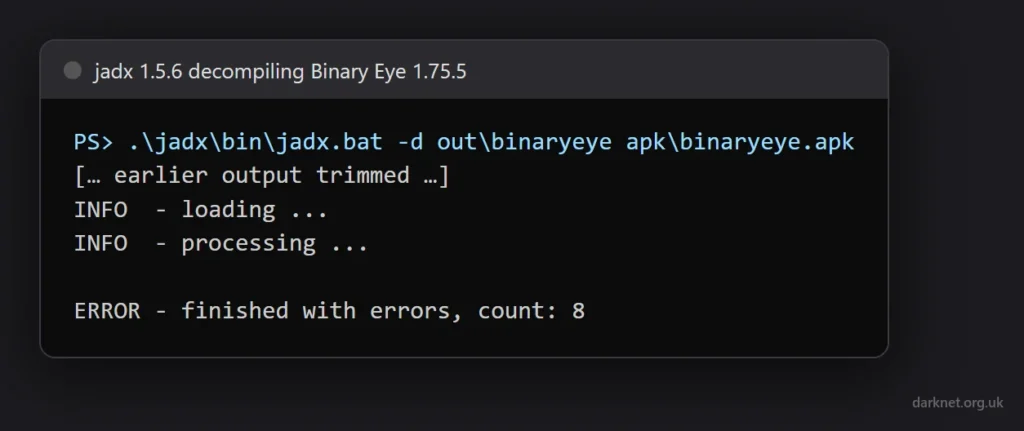
The output has two folders, sources with 2,798 Java files and resources with the decoded manifest and resources. Look at the last line, though. jadx reported “finished with errors, count: 8” and exited with code 1, although the output was complete and perfectly usable. The sandbox run that failed at start-up, before decompiling anything, exited with 1 as well. So if you script jadx, the exit code alone cannot tell you which of the two you have: read the log too. The usable run worked through its progress count and ended on “finished with errors”; the failed one stopped at “Process error” within nine seconds, before any progress line.
A few options are worth knowing from the start. -s (--no-src) skips the code and -r (--no-res) skips the resources, so you can decode only the half you need. --single-class decompiles just one class by its full name. -j sets the number of threads, which by default is half your CPU threads. And --deobf renames the shrunk classes and members: on Binary Eye it moved the R8-renamed classes that jadx had put in a folder called defpackage to one called p000, with the same number of files. Readable names help when you are following code around; they are jadx’s guesses, not the originals.
What jadx does when it cannot decompile a method
It warns you in the code, and by default it shows you the bytecode instead of guessing. The README is upfront that in most cases jadx cannot decompile all of an app, and Binary Eye bore that out: 406 of the Java files carry at least one JADX WARN or WARNING comment, 20 contain a method marked “Code decompiled incorrectly”, and 12 have a method whose dump was skipped altogether.
None of those 20 is in the app’s own code, the 86 Java files under de.markusfisch.android.binaryeye. They are all in AndroidX, Material Components and the classes R8 renamed. On a real target, look at where the warnings are before deciding how far to trust the output: the code you came for may decompile cleanly while the libraries around it fail, or the other way round.
Here is one of the failures, the onCreate method of AndroidX’s InitializationProvider, as jadx writes it by default:
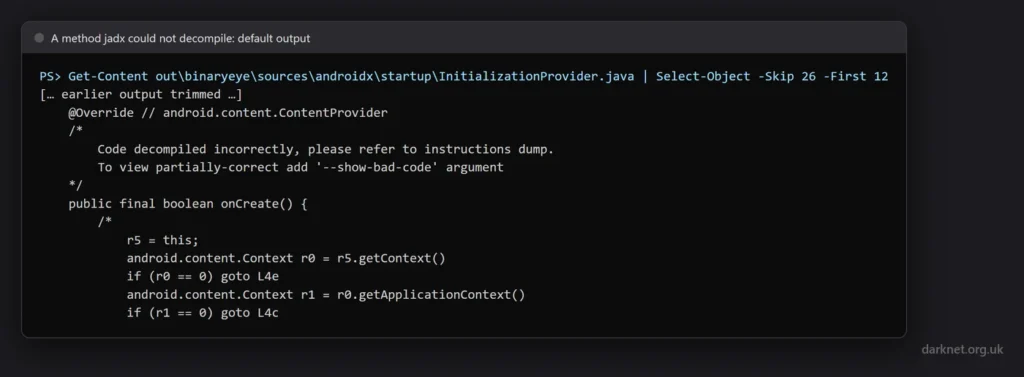
The body is there, but as registers and goto labels inside a comment, so nothing in it pretends to be Java. The comment points you at --show-bad-code, and with it the same method reads like ordinary code:
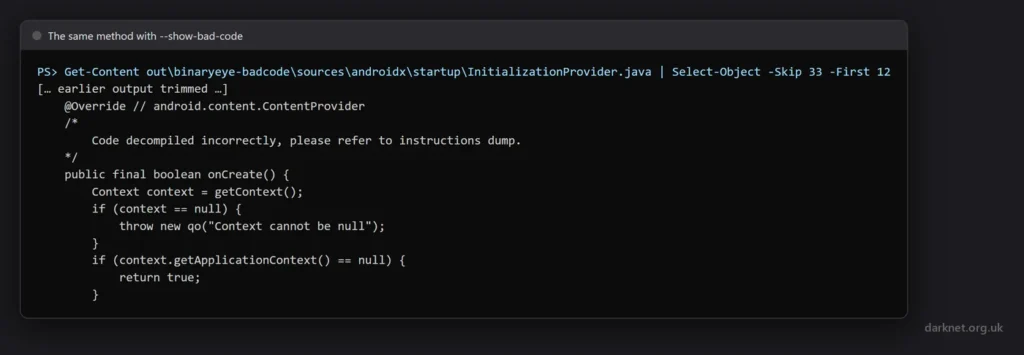
--show-bad-code: readable, and still flagged as incorrect.That is far easier to follow, and the warning comment stays above it. jadx’s own help calls this “inconsistent code”, and the comment’s word for it is “partially-correct”, so read it for the shape of the logic and check anything you depend on, such as a condition you intend to patch, against the smali. The project’s troubleshooting guide covers the usual workarounds.
How to export an APK as a Gradle project
-e (--export-gradle) writes the result as a Gradle project you can open in Android Studio or IntelliJ, which is the comfortable way to read a big app with an IDE’s search and navigation. Binary Eye came out as an app folder with build.gradle and settings.gradle beside it, and the app’s build.gradle filled in from the APK: the package name, version 1.75.5, a minimum SDK of 21 and a target of 37.
Bear in mind that those Gradle files are built from strings inside an app that someone else wrote, and opening a Gradle project in an IDE can run its build scripts. That is the area one of 1.5.6’s security fixes covers.
What changed in jadx 1.5.6
The 1.5.6 release notes open with three security fixes: jadx now rejects zip entries with an absolute path or a path to the current directory, sanitises every string value it writes into Gradle scripts on export, and adds escaping that was missing on its summary page. The notes list them without saying more. All three sit where an app’s own contents meet your machine or your IDE, so if you open apps you did not build, and in this job you mostly do, update to 1.5.6.
The same release adds graph views to the GUI and keeps the code pane in step with them, along with smaller GUI changes and a new module for working with call graphs.
One change from 1.5.4, in February, catches out older guides. The scripting plugin is no longer included in the release bundle: it is now a separate project, jadx-script-kotlin, with its own installation instructions. A tutorial that runs a .jadx.kts script against a fresh download was written for a bundle that no longer exists. jadx now manages plugins itself, with a plugins command whose --available option lists what can be installed and --install adds one.
jadx-gui
Run jadx-gui (or the .exe in a Windows bundle) and open the APK. According to the README you get the decompiled code with syntax highlighting, jump to declaration, find usage and full-text search across the app, which is how most people use jadx day to day: search for a URL, an API name or a string from the app’s screens, and work outward from where it turns up. The GUI also has a smali debugger, which the project’s wiki explains how to set up.
The GUI decompiles the same way as the command line, so everything above about failed methods applies to what it shows you too.
jadx vs Apktool, and other decompilers
jadx is for reading and Apktool is for changing. Apktool gives you smali rather than Java, which is harder to read but is what you edit, and it rebuilds the edited folder into an APK; jadx’s README lists no build step. So the usual pattern is to find the logic in jadx, then make the change in Apktool’s smali, rebuild and sign.
JD-GUI turns up beside jadx in searches, but its last release, 1.6.6, dates from December 2019, and jadx opens jar and class files as well as Android apps. From our archive, Androguard is the route when you want to script analysis across many APKs in Python.
You can download jadx here:
Or read more here.
Advertisement