
MFA to Passkeys in Microsoft Entra ID series · Part 5 of 7
A passkey proves who the user is at the moment of sign-in. Then Entra ID hands out tokens so the user doesn't have to prove it again for every email, file and Teams message. Those tokens are what attackers want in the end, and some of the ways to steal them never touch the sign-in page.
This doesn't weaken the case for passkeys. It defines where passkeys stop and other controls take over.
Authentication and sessions are different problems
| Artifact | What it is | Lifetime (typical) | Stolen by |
|---|---|---|---|
| Session cookie (ESTSAUTH…) | Browser session with Entra ID | Hours to days; rolling | AiTM proxy, infostealer |
| Refresh token | Lets an app get new access tokens silently | Up to 90 days, rolling | Infostealer, malicious app, device code phishing |
| Primary Refresh Token (PRT) | Device-level SSO token on joined/registered Windows, macOS, iOS | Up to 14 days, renewed | Malware with local admin / TPM bypass attempts |
| Access token | Presented to Exchange, SharePoint, Graph… | ~60–90 minutes (longer with CAE) | Any of the above, or a compromised app |
Match each attack to what stops it:
| Attack | Passkey stops it? | Controls that help |
|---|---|---|
| AiTM proxy relays sign-in, steals the cookie | Yes. The proxy can't complete a passkey ceremony | Phishing-resistant strength (Part 3) |
| Device code phishing | No. The user signs in on the real site | Block device code flow (Part 3) |
| Infostealer copies browser cookies / refresh tokens | No. The sign-in was legitimate | Compliant device, token protection, EDR, CAE, detection |
| Malicious OAuth app consent | No | Admin consent workflow, app governance |
| Help desk registers the attacker's passkey | No | Registration controls (Part 4) |
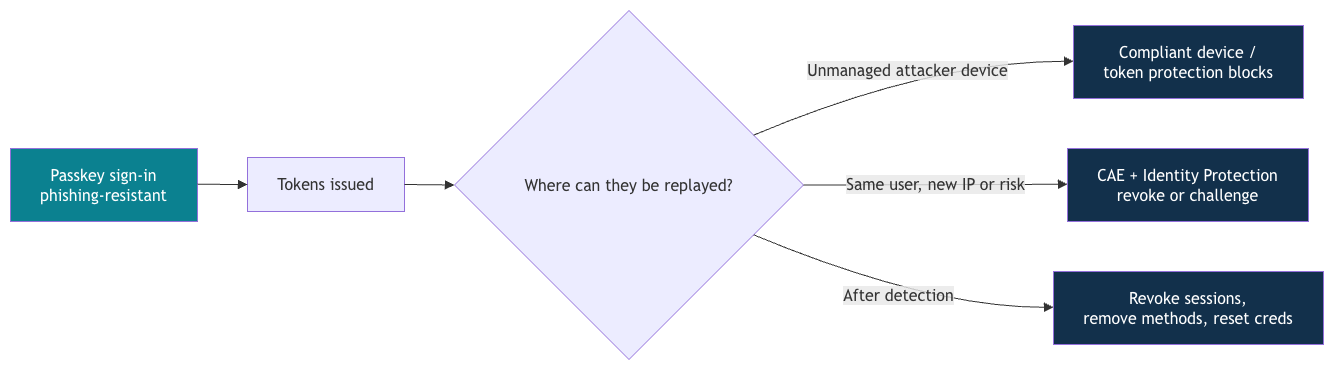
Layer 1: tie access to trusted devices
A Conditional Access policy that requires a compliant (Intune) or Microsoft Entra hybrid joined device for sensitive apps makes a stolen cookie much less useful. When it's replayed from the attacker's laptop, the device claim fails.
This is the single most effective control against token replay today. Its limits are coverage: BYOD, contractors, and browser access from unmanaged devices. Combine it with app-enforced restrictions or session controls for those populations.
Layer 2: token protection
Token protection is a Conditional Access session control, Require token protection for sign-in sessions. It cryptographically binds the sign-in session token to the device, so a token copied to another machine is rejected. It requires Entra ID P1.
| Platform | Native apps | Browser apps |
|---|---|---|
| Windows | Generally available | Preview, supported web apps accessing Azure Resource Manager |
| macOS | Generally available | Preview, Azure Resource Manager web apps |
| iOS / iPadOS | Generally available | Not supported |
As published on Microsoft Learn, September 2026. Some sections of the same page still label Apple platforms as preview, so check the current matrix before relying on it.
Supported resources for native apps:
- Exchange Online
- SharePoint Online
- Microsoft Teams
- On Windows only: Azure Virtual Desktop and Windows 365
Apple devices need macOS 14+ or iOS 16+ with the Enterprise SSO plug-in, on MDM-managed devices.
How to deploy it (deployment guide):
- Target Exchange, SharePoint and Teams individually. Microsoft warns that selecting the whole Office 365 app group "might result in unintended failures".
- Scope client apps to Mobile apps and desktop clients.
- Run it in report-only first and read the Token Protection – Sign In Session field in the sign-in log. The status codes tell you why a request was Unbound:
- 1002: no device state
- 1003: device doesn't meet requirements
- 1006: unsupported OS
- 1008: client not integrated with the broker (WAM)
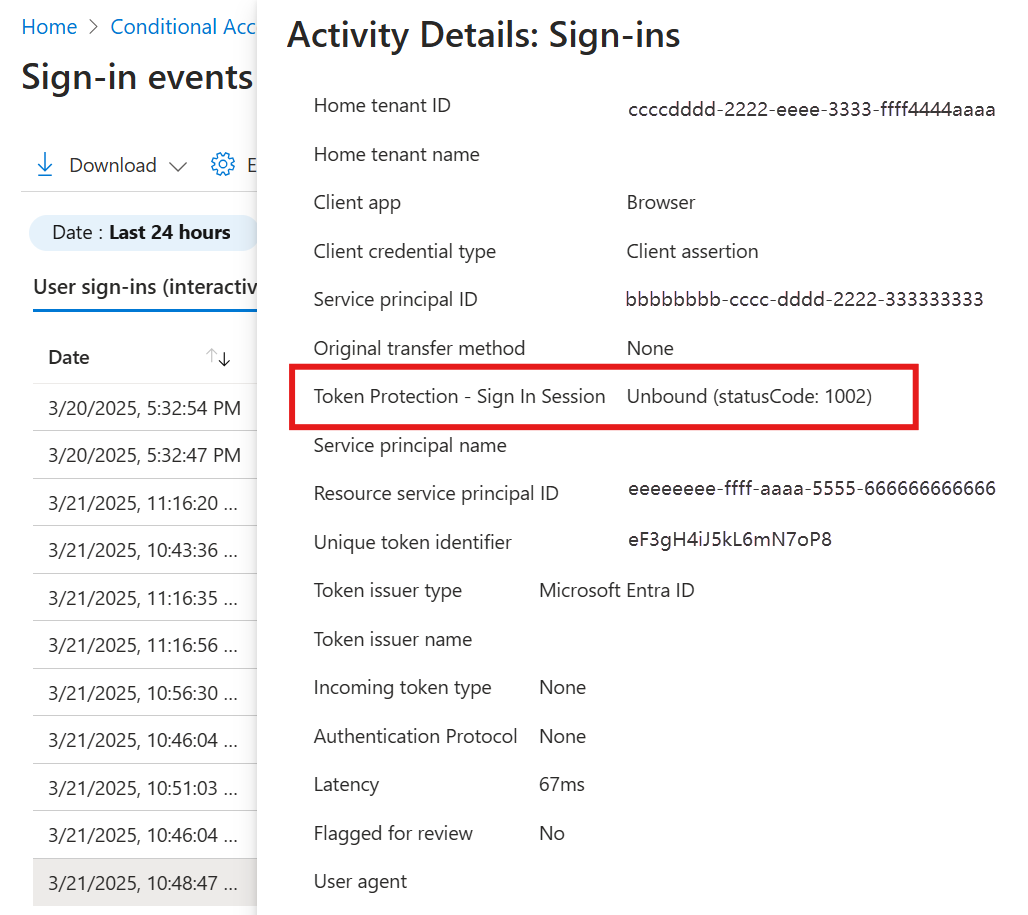
Sign-in log showing an unbound token protection session with status 1002
Token protection is valuable but not universal. It covers specific clients, platforms and resources. Plan it as one layer, not as "the fix for token theft".
Layer 3: continuous access evaluation and session lifetime
Continuous access evaluation (CAE) lets supporting resources (Exchange, SharePoint, Teams, Graph) react in near real time to critical events instead of waiting for a token to expire (CAE). The critical events are:
- the account is deleted or disabled;
- the password is changed or reset;
- MFA is enabled for the user;
- an administrator explicitly revokes all refresh tokens;
- Identity Protection detects high user risk.
Critical event evaluation doesn't depend on Conditional Access policies, so it works in every tenant. SharePoint doesn't support user-risk events.
Sign-in frequency controls how often users must re-authenticate. The default is a rolling 90-day window. Shorter frequencies for high-risk apps or unmanaged devices limit how long a stolen token stays useful. Remember the known issue from Part 3: authentication strength and sign-in frequency can be satisfied at two different times.
Layer 4: detection and response
Keep monitoring after the passkey rollout:
- Identity Protection risk detections, including anomalous token and token issuer anomalies, unfamiliar sign-in properties, and attacker-in-the-middle detections.
- Defender for Endpoint and Defender XDR infostealer and credential-access alerts. Correlate them with the user's sign-ins.
- Sign-ins whose method class changed. A user who has signed in with a passkey for months and suddenly satisfies MFA with SMS deserves a look.
Response order matters
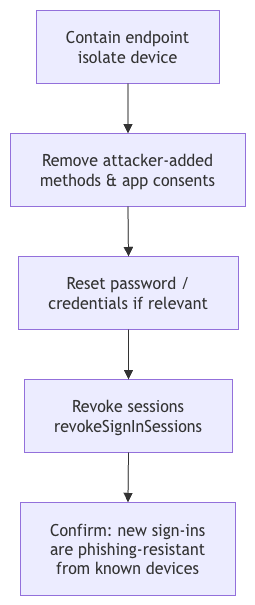
If you revoke sessions first, an attacker who still has a registered method or a working credential signs in again. Revocation also leaves existing access tokens alone. If the resource doesn't support CAE, those tokens stay valid until they expire. And it doesn't revoke sessions for external users in your tenant.
Hands-on: measure real usage and respond
Connect-MgGraph -TenantId $tenantId -ContextScope Process -NoWelcome `
    -Scopes 'AuditLog.Read.All', 'Policy.Read.All'
Which methods do users actually sign in with? Get-EptSignInMethod
Registration reports (Part 1) tell you what users could use. Sign-in logs tell you what they did use.
The fields you need are authenticationDetails, authenticationProtocol, originalTransferMethod and tokenProtectionStatusDetails. They exist only in the beta sign-in API, so this function uses /beta/auditLogs/signIns. Pin the module version and retest after Graph changes.
Microsoft documents only some of the method strings that appear in authenticationDetails. The MethodClass column is therefore a heuristic. Run with -Verbose to see the raw strings in your tenant and adjust the patterns if needed.
function Get-EptSignInMethod {
    <#
    .SYNOPSIS
        Returns sign-ins with the authentication methods actually used, the protocol, and token-protection state.
    .DESCRIPTION
        Uses the BETA sign-in endpoint (GET /beta/auditLogs/signIns), because authenticationDetails,
        authenticationProtocol, originalTransferMethod and tokenProtectionStatusDetails are not
        exposed in v1.0. Beta APIs can change; pin a module version and re-test after upgrades.

        Each sign-in gets a MethodClass derived from the method names in authenticationDetails:
        PhishingResistant, Phishable, Telephony, SingleFactor or Unknown. Microsoft documents only a subset of
        these strings, so the classification is a heuristic. Spot-check new strings with -Verbose.

        By default only interactive user sign-ins are returned (the API default). Keep -Days small in
        large tenants, and use Log Analytics / Sentinel for anything beyond the API retention window.

        Requires: AuditLog.Read.All + Policy.Read.All (for Conditional Access details), Security Reader
        or Reports Reader, and Entra ID P1/P2.
    .EXAMPLE
        Get-EptSignInMethod -Days 7 | Measure-EptSignInMethod
    .EXAMPLE
        Get-EptSignInMethod -Days 30 -Protocol deviceCode | Group-Object UserPrincipalName, AppDisplayName | Sort-Object Count -Descending
    .EXAMPLE
        Get-EptPrivilegedUser | Get-EptSignInMethod -Days 14 | Where-Object MethodClass -ne 'PhishingResistant'
    #>
    [Diagnostics.CodeAnalysis.SuppressMessageAttribute('PSReviewUnusedParameter', '',
        Justification = '-Protocol and -SuccessOnly are read inside the nested Invoke-Query helper.')]
    [CmdletBinding()]
    [OutputType('Ept.SignInMethod')]
    param(
        [Parameter(ValueFromPipeline, ValueFromPipelineByPropertyName)]
        [Alias('UPN')]
        [string[]] $UserPrincipalName,

        [ValidateRange(1, 30)]
        [int] $Days = 1,

        # Client-side filter on authenticationProtocol, e.g. deviceCode, ropc, saml20, wsFederation.
        [string] $Protocol,

        [switch] $SuccessOnly
    )
    begin {
        Assert-EptGraphConnection -RequiredScope 'AuditLog.Read.All'
        $since = (Get-Date).ToUniversalTime().AddDays(-$Days).ToString('yyyy-MM-ddTHH:mm:ssZ')
        $headers = @{ Prefer = 'include-unknown-enum-members' }   # needed to see authenticationTransfer

        function Get-MethodClass([string[]] $methods) {
            $joined = $methods -join '|'
            if (-not $joined) { return 'Unknown' }
            if ($joined -match 'passkey|FIDO|Windows Hello|certificate|Platform Credential|Secure Enclave') { return 'PhishingResistant' }
            if ($joined -match 'SMS|Text message|Voice|phone call') { return 'Telephony' }
            if ($joined -match 'Authenticator|OATH|notification|verification code|Temporary Access Pass|QR code') { return 'Phishable' }
            if ($joined -match 'Previously satisfied|Satisfied by token') { return 'SatisfiedByToken' }
            if ($joined -match '^Password$') { return 'SingleFactor' }
            'Unknown'
        }

        function Invoke-Query([string] $filter) {
            $uri = 'https://graph.microsoft.com/beta/auditLogs/signIns?$filter=' + [uri]::EscapeDataString($filter)
            Invoke-EptGraphRequest -Uri $uri -Headers $headers | ForEach-Object {
                $used = @($_.authenticationDetails | Where-Object succeeded | ForEach-Object authenticationMethod | Select-Object -Unique)
                Write-Verbose "$($_.userPrincipalName): methods '$($used -join ', ')'"
                $row = [pscustomobject]@{
                    PSTypeName             = 'Ept.SignInMethod'
                    Time                   = [datetime]$_.createdDateTime
                    UserPrincipalName      = $_.userPrincipalName
                    AppDisplayName         = $_.appDisplayName
                    ResourceDisplayName    = $_.resourceDisplayName
                    IPAddress              = $_.ipAddress
                    Country                = $_.location.countryOrRegion
                    Succeeded              = ($_.status.errorCode -eq 0)
                    ErrorCode              = $_.status.errorCode
                    AuthRequirement        = $_.authenticationRequirement
                    Protocol               = $_.authenticationProtocol
                    OriginalTransferMethod = $_.originalTransferMethod
                    MethodsUsed            = $used -join '; '
                    MethodClass            = Get-MethodClass $used
                    ConditionalAccess      = $_.conditionalAccessStatus
                    TokenProtection        = $_.tokenProtectionStatusDetails.signInSessionStatus
                    DeviceCompliant        = $_.deviceDetail.isCompliant
                    CorrelationId          = $_.correlationId
                }
                if ($Protocol -and $row.Protocol -ne $Protocol) { return }
                if ($SuccessOnly -and -not $row.Succeeded) { return }
                $row
            }
        }
        $anyUser = $false
    }
    process {
        foreach ($u in $UserPrincipalName) {
            if (-not $u) { continue }
            $anyUser = $true
            Invoke-Query ("createdDateTime ge $since and userPrincipalName eq '{0}'" -f ($u -replace "'", "''"))
        }
    }
    end {
        if (-not $anyUser) { Invoke-Query "createdDateTime ge $since" }
    }
}
Source: EntraPasskeyToolkit/Public/Session.ps1
The function requests Prefer: include-unknown-enum-members. Without that header, newer protocol values such as authenticationTransfer come back as unknownFutureValue.
The metric that matters: Measure-EptSignInMethod
It counts only successful sign-ins that required MFA, and reports what share used each class of method.
function Measure-EptSignInMethod {
    <#
    .SYNOPSIS
        Aggregates Get-EptSignInMethod output: how many successful MFA sign-ins used each class of method.
    .DESCRIPTION
        This is the usage metric that registration reports cannot give you. "80% registered a passkey"
        means little if 60% of MFA sign-ins still use push or SMS.
    .EXAMPLE
        Get-EptSignInMethod -Days 7 | Measure-EptSignInMethod
    .EXAMPLE
        Get-EptSignInMethod -Days 7 | Measure-EptSignInMethod -GroupBy AppDisplayName | Sort-Object PhishingResistantPct
    #>
    [CmdletBinding()]
    [OutputType('Ept.SignInMethodSummary')]
    param(
        [Parameter(Mandatory, ValueFromPipeline)]
        [PSTypeName('Ept.SignInMethod')] $InputObject,

        [string] $GroupBy
    )
    begin { $rows = [System.Collections.Generic.List[object]]::new() }
    process {
        if ($InputObject.Succeeded -and $InputObject.AuthRequirement -eq 'multiFactorAuthentication') { $rows.Add($InputObject) }
    }
    end {
        $groups = if ($GroupBy) { $rows | Group-Object -Property $GroupBy } else { , @{ Name = 'All'; Group = $rows } }
        foreach ($g in $groups) {
            $set = @($g.Group); $n = $set.Count
            if (-not $n) { continue }
            $count = { param($c) @($set | Where-Object MethodClass -eq $c).Count }
            [pscustomobject]@{
                PSTypeName           = 'Ept.SignInMethodSummary'
                Group                = $g.Name
                MfaSignIns           = $n
                PhishingResistantPct = [math]::Round(100 * (& $count 'PhishingResistant') / $n, 1)
                PhishablePct         = [math]::Round(100 * (& $count 'Phishable') / $n, 1)
                TelephonyPct         = [math]::Round(100 * (& $count 'Telephony') / $n, 1)
                SatisfiedByTokenPct  = [math]::Round(100 * (& $count 'SatisfiedByToken') / $n, 1)
                DistinctUsers        = @($set.UserPrincipalName | Select-Object -Unique).Count
                TelephonyUsers       = @($set | Where-Object MethodClass -eq 'Telephony' | ForEach-Object UserPrincipalName | Select-Object -Unique)
            }
        }
    }
}
Source: EntraPasskeyToolkit/Public/Session.ps1
# Tenant-wide, last 7 days
Get-EptSignInMethod -Days 7 | Measure-EptSignInMethod | Format-List

# Per application: which apps still see phishable MFA?
Get-EptSignInMethod -Days 7 | Measure-EptSignInMethod -GroupBy AppDisplayName |
    Sort-Object PhishingResistantPct | Format-Table Group, MfaSignIns, PhishingResistantPct, PhishablePct, TelephonyPct

# Admins who satisfied MFA with anything other than a phishing-resistant method
Get-EptPrivilegedUser | Get-EptSignInMethod -Days 14 -SuccessOnly |
    Where-Object { $_.AuthRequirement -eq 'multiFactorAuthentication' -and $_.MethodClass -notin 'PhishingResistant', 'SatisfiedByToken' } |
    Format-Table Time, UserPrincipalName, AppDisplayName, MethodsUsed, IPAddress

# Token protection readiness: bound vs. unbound sessions by app
Get-EptSignInMethod -Days 3 | Where-Object TokenProtection |
    Group-Object AppDisplayName, TokenProtection -NoElement | Sort-Object Name
Put PhishingResistantPct from Measure-EptSignInMethod next to PhishingResistantPct from Measure-EptMfaPosture (Part 1). The difference between registered and used is the clearest progress metric a passkey programme has.

Screenshot: Microsoft Learn. The Authentication Details tab in the portal is the source of the MethodsUsed column. Microsoft notes it "can initially show incomplete or inaccurate data" for very recent sign-ins.
Contain: Revoke-EptUserSession
This is a thin, pipeline-friendly wrapper for POST /users/{id}/revokeSignInSessions. It has a mandatory -Reason parameter, runs ShouldProcess at High impact, and returns one result object per user so you have evidence for the incident record.
function Revoke-EptUserSession {
    <#
    .SYNOPSIS
        Revokes a user's refresh tokens and session cookies (POST /users/{id}/revokeSignInSessions).
    .DESCRIPTION
        WRITE OPERATION. Invalidates refresh tokens and browser session cookies issued to the user
        by resetting signInSessionsValidFromDateTime. Access tokens that are already issued stay valid
        until they expire, unless the resource supports Continuous Access Evaluation (CAE).

        Revocation is a containment step, not remediation. If the attacker still holds a working
        credential or a registered method, they can sign in again. Order matters in an incident:
        remove attacker-registered methods and reset credentials first, then revoke.

        Requires: User.RevokeSessions.All (or Directory.ReadWrite.All) plus a role such as
        User Administrator, Helpdesk Administrator (non-admin targets) or Privileged Authentication Administrator.
    .EXAMPLE
        '[email protected]' | Revoke-EptUserSession -Reason 'INC0012345 AiTM phishing' -WhatIf
    .EXAMPLE
        Get-EptAuthMethodAuditEvent -Days 1 -Activity '*registered*' |
            Where-Object { -not $_.SelfService } |
            Select-Object @{ n = 'UserPrincipalName'; e = { $_.TargetUpn } } -Unique |
            Revoke-EptUserSession -Reason 'Unexpected admin-registered method'
    #>
    [CmdletBinding(SupportsShouldProcess, ConfirmImpact = 'High')]
    [OutputType('Ept.SessionRevocation')]
    param(
        [Parameter(Mandatory, ValueFromPipeline, ValueFromPipelineByPropertyName)]
        [Alias('Id', 'UserId', 'UPN')]
        [string] $UserPrincipalName,

        [Parameter(Mandatory)]
        [string] $Reason
    )
    begin { Assert-EptGraphConnection -RequiredScope 'User.RevokeSessions.All' }
    process {
        if (-not $PSCmdlet.ShouldProcess($UserPrincipalName, "Revoke all sign-in sessions ($Reason)")) { return }
        $uri = "https://graph.microsoft.com/v1.0/users/$(Resolve-EptUserId $UserPrincipalName)/revokeSignInSessions"
        $ok = $false
        try {
            # The API returns { "value": true }; the helper unwraps 'value' for us.
            $ok = [bool](Invoke-EptGraphRequest -Method POST -Uri $uri)
        }
        catch { Write-Error "Revocation failed for ${UserPrincipalName}: $($_.Exception.Message)" }
        [pscustomobject]@{
            PSTypeName        = 'Ept.SessionRevocation'
            UserPrincipalName = $UserPrincipalName
            Revoked           = $ok
            Reason            = $Reason
            Time              = (Get-Date).ToUniversalTime()
        }
    }
}
Source: EntraPasskeyToolkit/Public/Session.ps1
An incident response pipeline
Suppose Defender flags an infostealer on a laptop used by [email protected]. Following the response order above:
$user = '[email protected]'
$case = 'INC0012399'

Connect-MgGraph -TenantId $tenantId -ContextScope Process -NoWelcome -Scopes `
    'AuditLog.Read.All', 'Policy.Read.All', 'UserAuthenticationMethod.ReadWrite.All', 'User.RevokeSessions.All'

# 1. Evidence: what changed on the account recently, and from where?
$audit   = $user | Get-EptAuthMethodAuditEvent -Days 14
$signIns = $user | Get-EptSignInMethod -Days 7
$audit | Format-Table Time, Activity, Initiator, InitiatorIp, Details -Wrap
$signIns | Group-Object IPAddress, Country -NoElement | Sort-Object Count -Descending

# 2. Remove any passkey registered during the suspected compromise window (review first!)
$windowStart = (Get-Date).AddDays(-3)
Get-EptUserPasskey -UserPrincipalName $user |
    Where-Object Created -gt $windowStart |
    Remove-EptUserPasskey -WhatIf      # re-run without -WhatIf once confirmed

# 3. Reset the password through your normal process (not shown), then revoke sessions
$user | Revoke-EptUserSession -Reason "$case infostealer on endpoint" |
    Export-Csv "./$case-revocation.csv" -NoTypeInformation

# 4. Verify: new sign-ins should be phishing-resistant, from the reimaged or known device
$user | Get-EptSignInMethod -Days 1 | Format-Table Time, MethodClass, IPAddress, DeviceCompliant, TokenProtection
Best practices
- Pair passkeys with device-based Conditional Access for sensitive apps. That's the control that makes stolen tokens hard to replay.
- Pilot token protection on Windows for Exchange, SharePoint and Teams. Use the sign-in log status codes to find unsupported clients before enforcing.
- Rely on CAE-capable clients and resources, and shorten sign-in frequency on unmanaged devices.
- Measure used-method percentages, not only registrations, and alert when a privileged account's method class drops.
- Respond in this order: contain, remove persistence, reset, revoke, verify.
- Keep EDR in scope. Passkeys push attackers toward the endpoint, and the endpoint team needs to know that.
Next, Part 6 covers the accounts where all of this matters most: admins, break-glass accounts, and the "hidden admins" who never appear in a role report.
References
- Token protection and deployment guide for Windows, Microsoft Learn
- Continuous access evaluation, Microsoft Learn
- Session lifetime and sign-in frequency, Microsoft Learn
- Sign-in log activity details, Microsoft Learn
- signIn resource (beta) and list sign-ins, Microsoft Graph
- user: revokeSignInSessions, Microsoft Graph
- Identity Protection risk detections, Microsoft Learn