
Reading a physical book is a wonderfully tactile experience. You can underline a sentence, fold a pa 2026-9-29 05:30:19 Author: hackernoon.com(查看原文) 阅读量:3 收藏
Reading a physical book is a wonderfully tactile experience. You can underline a sentence, fold a page corner, or write a thought in the margin. But once the book is closed, those moments can be difficult to find again.
Dogear is a minimal iOS app for the books you want to read, the books you are reading, and the passages you want to remember. It brings your collection, quotes, highlights, bookmarks, and notes into one calm space. I introduced that idea in Introducing Dogear: Never Lose a Book Worth Reading. This walkthrough follows the same screens, and spends longer on the part that changed the app: scan-to-save, the step that keeps a line from a physical page, not only the title on the shelf.
The app is now available on the App Store, so you can download Dogear and try it for yourself.
To show how Dogear works, let’s walk through the main screens and features.
Empty View: A Simple Starting Point
The first screen is the Empty View. Rather than a blank state, Dogear shows seven trending books. Those seven titles come from Open Library’s daily trending list. They give a new reader something to explore, and they are not generated by the app.
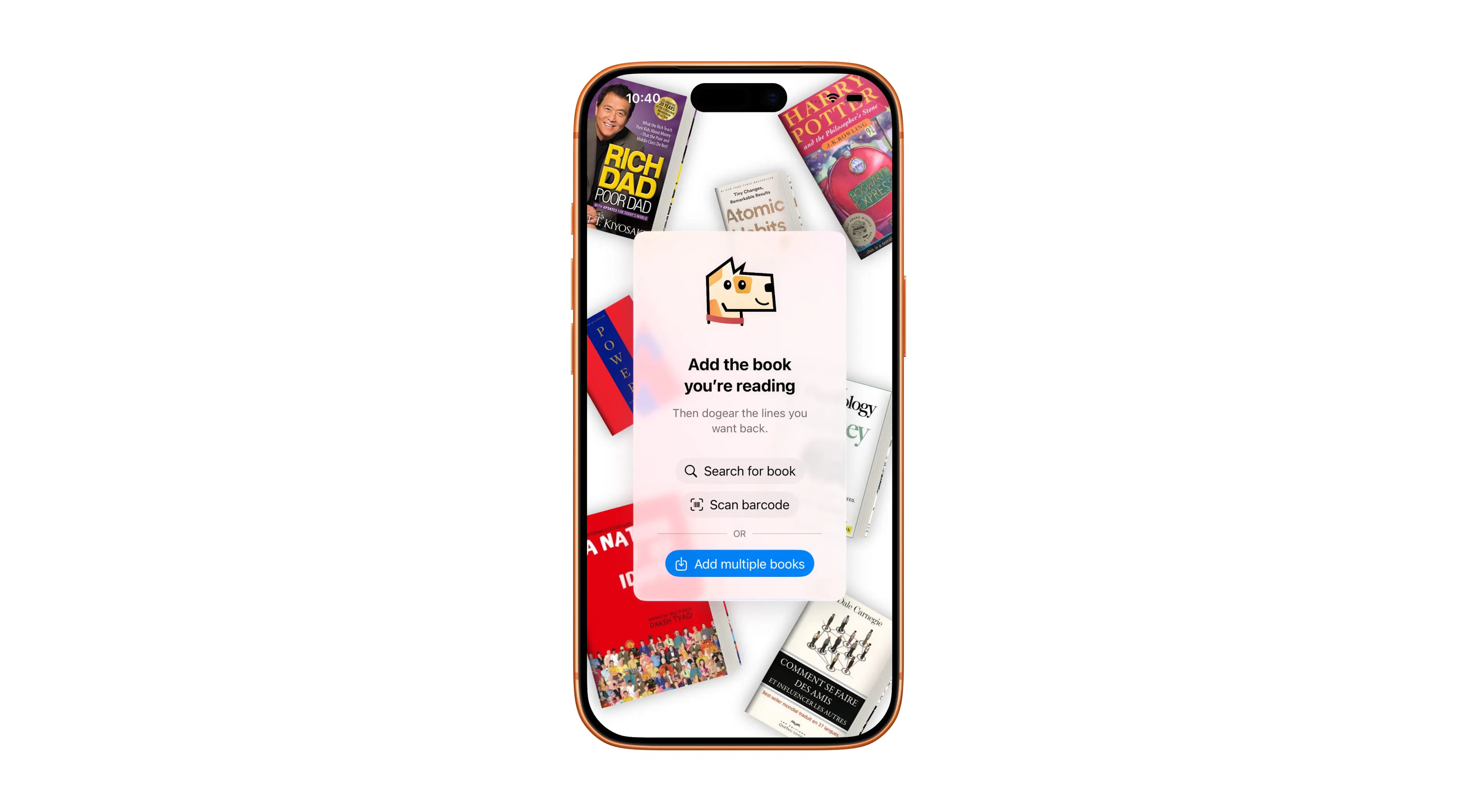 Empty View
The main actions sit on this screen, so the first book does not require a tour of several pages. The intention is obvious: choose a book, add it, and start a personal library.
From the Empty View, users can:
- Add a single book.
- Add multiple books at once.
- Import multiple books using a CSV file.
- Import book lists exported from other reading apps, including Goodreads.
Adding a Book: Search or Scan
Dogear provides two ways to add a book:
- Search by title, author, or ISBN.
- Scan a book’s barcode using the camera.
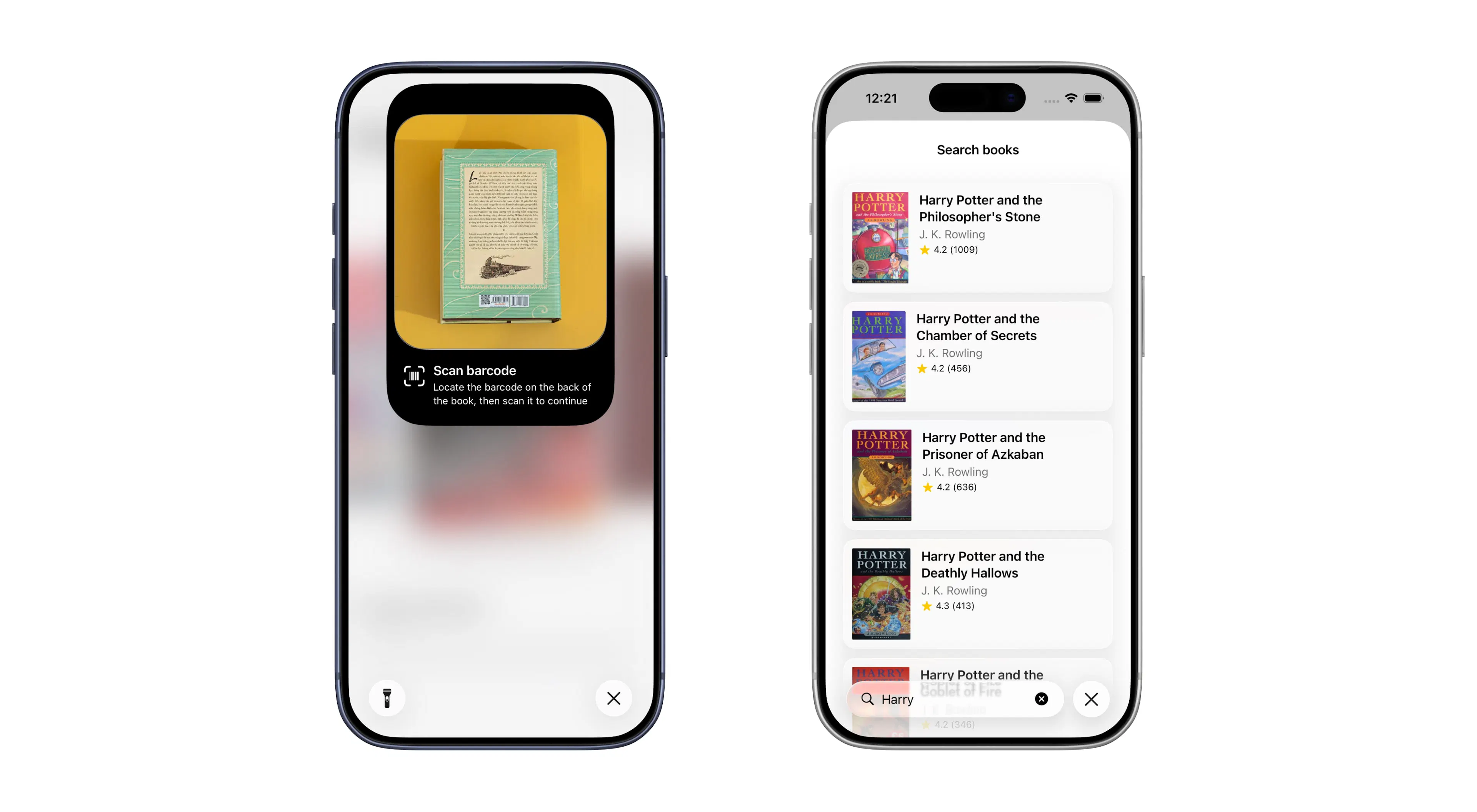 Scan or Search to add books
Search combines Open Library and Apple Books. Cover art comes from those catalogs, and from Google Books when the catalog has no usable jacket. Barcode scan is only for identifying the book. It reads the ISBN. It does not read the page.
After a book is found, Dogear shows a one-sentence summary and a famous or interesting line associated with that title, plus a short insight sheet. All of that copy is generated by OpenAI from the catalog record through full title, author, publisher, year, page count, ISBN, and subjects. It is not scraped from a quote database, and it is not read off a photo of the page.
The brief and the insight sheet use one model. The line uses a second, stricter pass, because books in a series were picking up each other’s sentences. Dogear asks for a famous line from that exact title. If the model is not confident the line belongs to that book, it returns nothing, and Dogear asks once more for an interesting authentic line. If that also fails, no line is shown.
The insight sheet is three short lists: what you take away, when the book is worth reading, and who it suits. That last list is the “type of reader” note. Spoiler-free briefs stay on premise, setting, themes, and tone instead of giving away the plot. There is no separate themes feed. Free accounts see the one-sentence brief. Longer summaries and the insight sheet are part of Dogear++.
Once you add the book, you assign a reading status:
- To Be Read.
- Currently Reading.
- Finished.
The book then appears on your Bookshelf.
Bookshelf: The Main Hub
The Bookshelf is the center of Dogear. It is where saved books live, and where most of the main actions start.
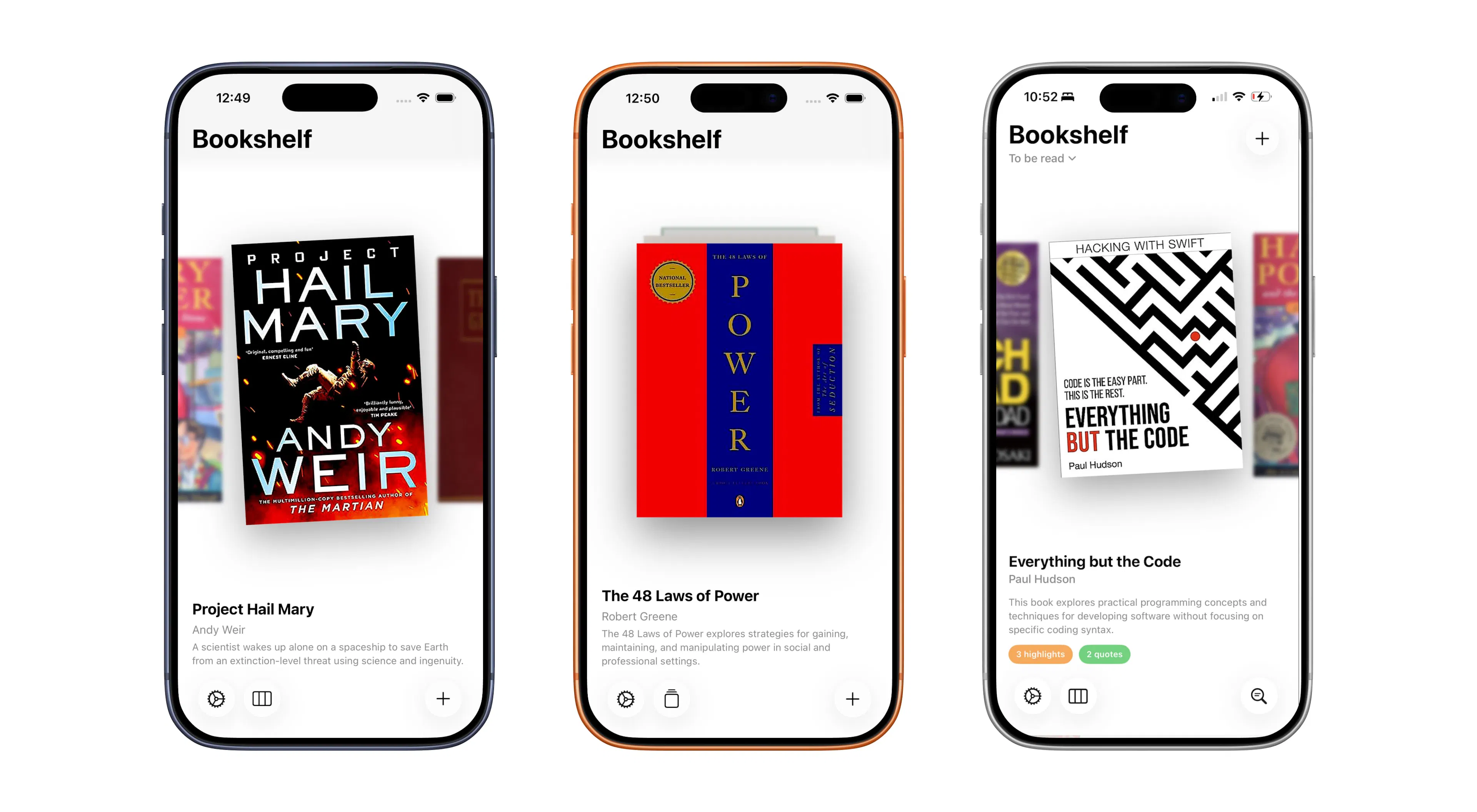 Bookshelf
Below each cover, Dogear shows the title and either a short summary or one of your saved passages. Bookshelf settings control which of those appears.
From the Bookshelf, you can:
- Open Settings.
- Search saved passages across the collection.
- Add more books.
- Tap a book to open its details.
Book Details: A Home for Every Passage
Book Details is where everything saved for that book lives: quotes, highlights, bookmarks, and notes.
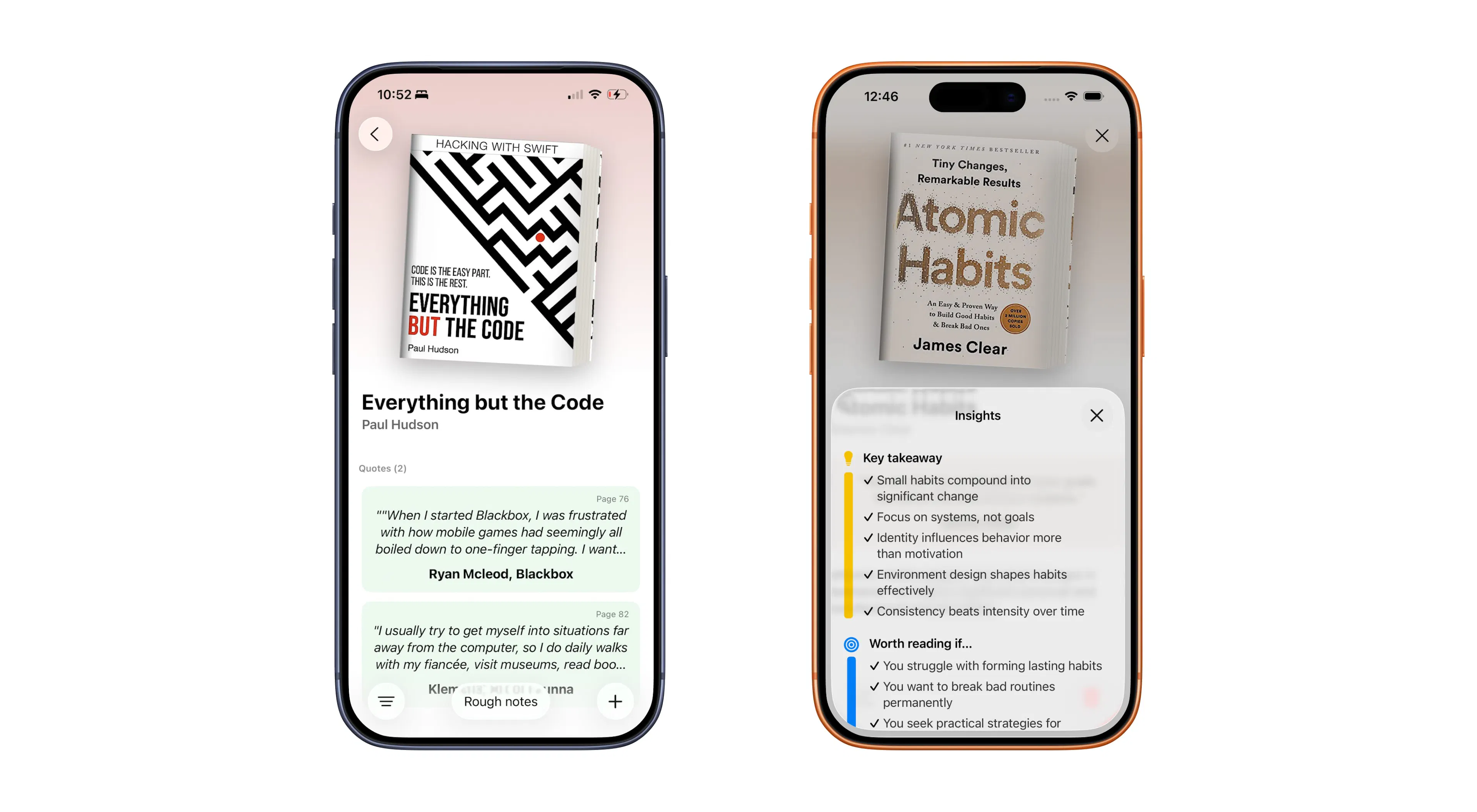 Book detail view
Users can:
- View all saved passages.
- Add new passages.
- Move the book between reading statuses.
- Delete the book.
- Write rough notes.
Rough Notes are for unfinished thoughts, reminders, and observations. They stay on that book. They are not shown elsewhere in the app.
Tap a passage to edit it. Swipe it to delete it.
Adding Passages: Three Options
A passage always belongs to a book already on the shelf. Dogear supports three ways to save one:
- Manual entry.
- A page image from the Gallery.
- A scan with the camera.
Manual entry is for a line you have already copied or want to type. You write or paste it, mark it as a highlight or a quote, add a page number, and add a note. Gallery is the “capture now, organize later” door: a photo taken earlier, then the same text-selection and review steps as a fresh scan.
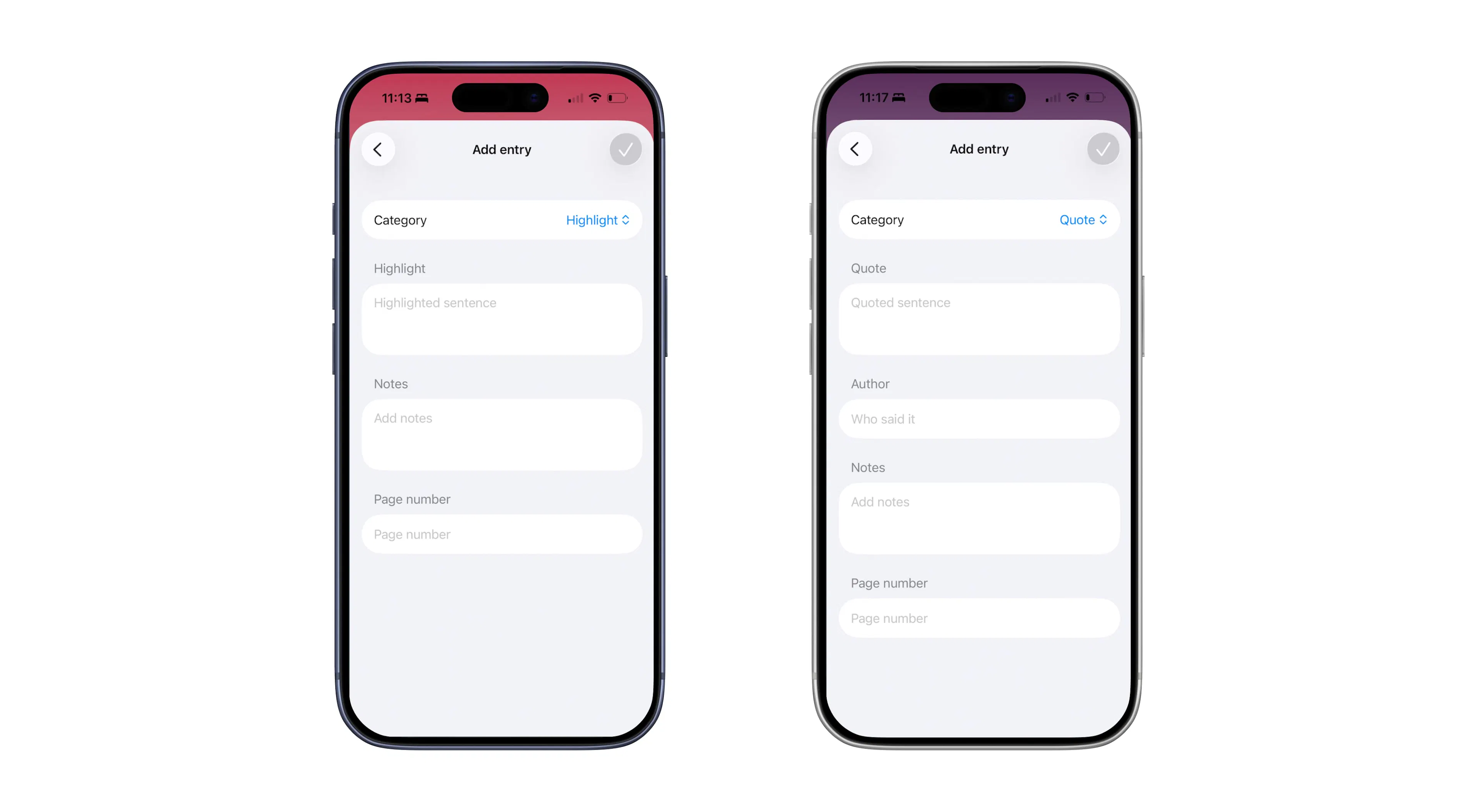 Manual passage entry variations
Why scanning exists
The shelf can remember the book. It cannot remember the sentence you stopped on. Scanning is for readers who want that sentence off the paper without retyping it. I added it because a folded corner only works while the book is in your hand. After it goes back on the shelf, the line has to live somewhere you can search.
Scanning a page
You can scan one page or several. The camera is Apple’s document scanner. It frames, deskews, and crops the page. Filters and auto-capture are hidden, and the close control is labeled Back, so the shot stays deliberate. You are in the middle of a flow, not grading a photo.
The next screen is where you choose the line. Dogear shows the scanned page and asks you to select the text you want to keep. You can:
- Select specific parts of the page.
- Add each selection as a passage.
- Bookmark the whole page from the control on the image.
- Move through every page from the same session.
A bookmark keeps the page image, not only the sentence you pinned.
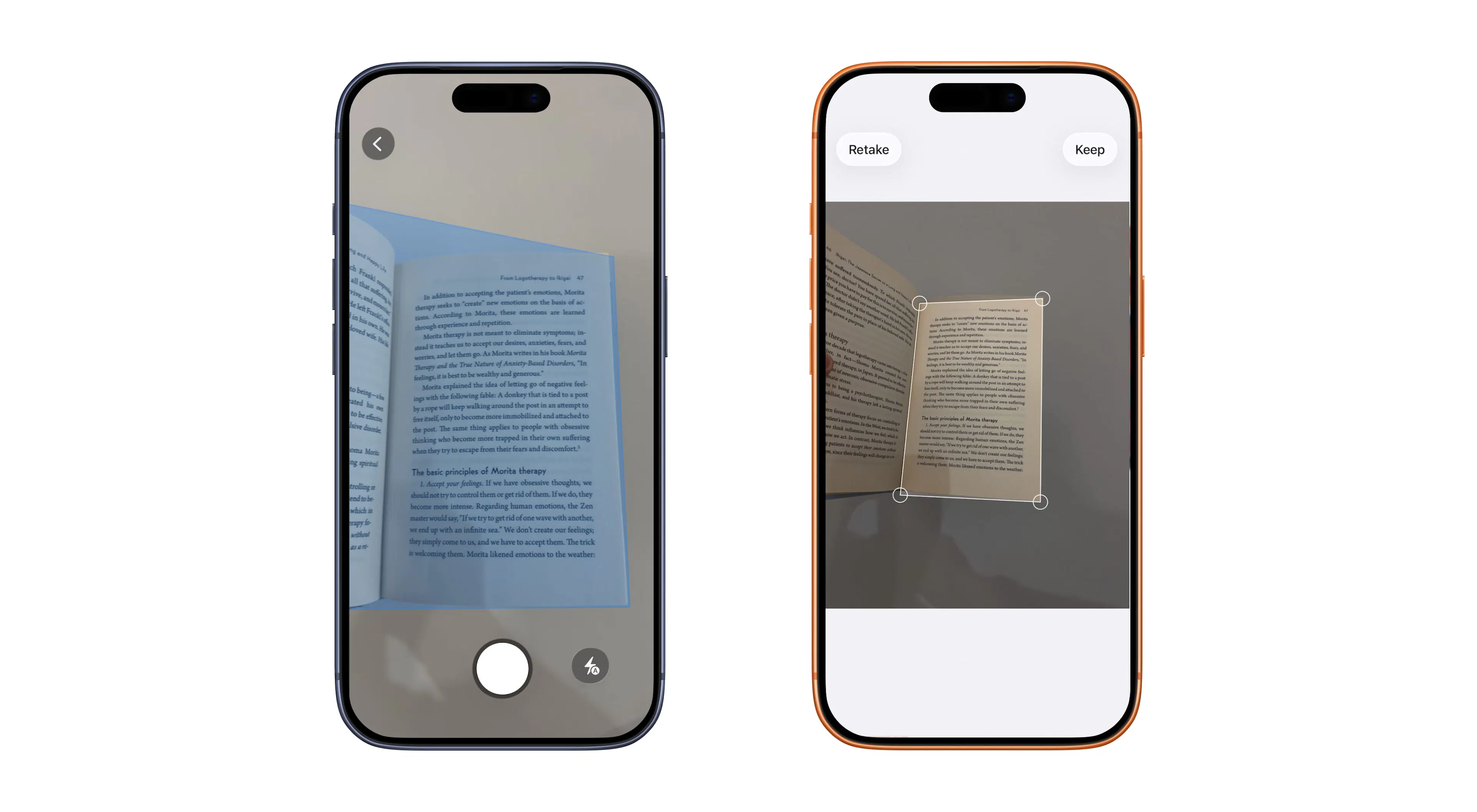 OCR flow to scan book pages
How the text is read
Scanned pages are processed on the device. The photograph is not uploaded, and it is not sent to OpenAI. The generated summary and famous line never see it.
Two on-device passes run together. Live Text lets you drag across the sentence, or double-tap to extend the selection toward a full sentence. A second Vision pass reads the page for structure: where each line sits, a page number guessed from the header or footer, and a transcript stored with a bookmark so search can find a line you never pinned. Language correction stays on for the prose selection and off for the page number, because correction helps broken letters and hurts digits in a footer.
Quote versus highlight is also decided on the device, from simple patterns such as quotation marks and “said” or “wrote.” You can change that choice before saving. Nothing is written to the book until you confirm it.
Review, then save
Before anything is added, Dogear opens a review step. You can fix the extracted text, switch a highlight to a quote, name the speaker, confirm the page number, add a note, and remove a passage you do not want.
Save puts the passages on that book’s Details page. They are stored on the phone with the book. Search and the Home Screen widgets read those saved strings. They do not scan the page again.
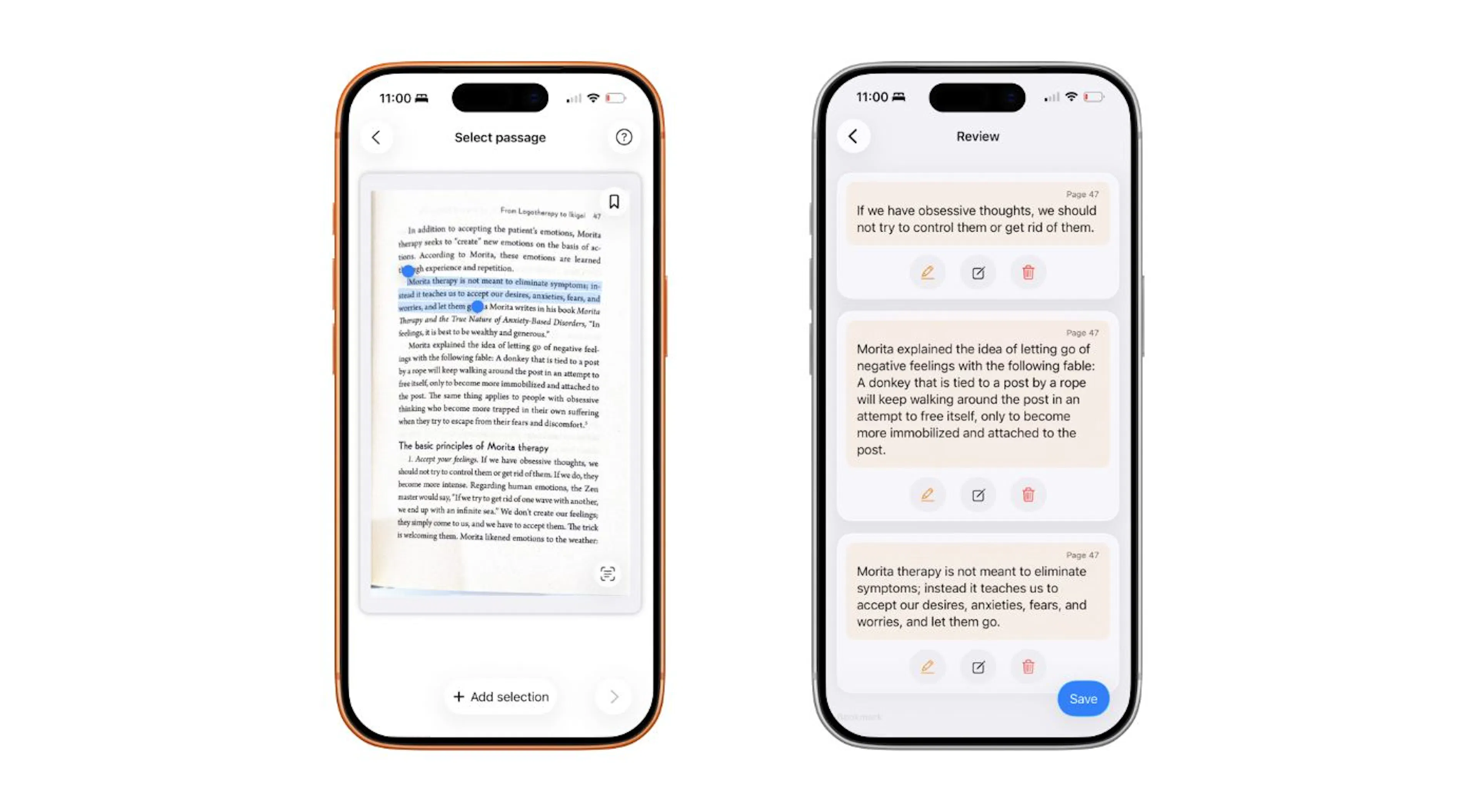 Highlight and Review pages
What simplifying that flow taught me
The first version wanted to hand back the whole page as text. That is a transcript, and a transcript is a chore. Readers already know which sentence they stopped for. Asking them to point at it is the simpler product.
The other temptation was to send the page away to be cleaned up: fix the OCR, split quotes from narration, invent the page number. That would have made a private page leave the phone. Keeping recognition, classification, and storage on the device, with a review step in front of Save, is slower to build and easier to trust. A bad crop is retaken. A bad guess is edited. Save is the only commit.
Shipaton 2026: Design and HAMM
Dogear is my Shipaton 2026 project. I entered it in the Design and HAMM categories.
Design, here, is the scan flow as much as the shelf. The decisions I would point a judge to:
- The empty shelf starts with seven real trending titles, and adding a book happens on that same screen.
- The Bookshelf treats covers as the collection, with the title and either a brief or a saved passage under each one.
- Scan-to-save asks for a sentence, not a dump of the page. The document camera hides filters and auto-capture, and Back replaces Close, because the reader is mid-flow.
- Selection uses the system’s Live Text gesture, including a double-tap toward a sentence, so highlighting a page feels like highlighting text anywhere else on the phone.
- A review step sits in front of Save. Quote or highlight is only a guess until you confirm it.
- Rough notes stay private to the book. Passages are what the rest of the app can search.
The Bookshelf is still the place you return to. Scan-to-save is what makes it more than a grid of covers.
HAMM is Help Apps Make Money. Dogear uses RevenueCat for two models that match how people actually buy books.
Library: Dogear++ is a subscription. Using that you can keep as many books as you like, with unlimited passages, longer briefs, insights, and passage widgets. RevenueCatUI presents the paywall. A custom variable tells it why it appeared: the shelf, a longer brief, insights, or another passage.
Bookstore: Most of the time you do not need the whole library. You need the one book in your hands. It unlocks unlimited quotes and highlights for a single book, and that book does not take one of the two free spots on the shelf. It has its own RevenueCat offering, which is not marked Current, so the subscription paywall does not sell the consumable by accident. The subscription entitlement is not attached to the slot. Buying one book must not unlock the entire account.
A consumable is awkward to restore, because the App Store receipt does not name the book. Each purchase stamps a stable token for that book onto the transaction. The unlocked book ids are also kept in iCloud and on a RevenueCat subscriber attribute, so a restore can find the same cover again.
The free tier is large enough to learn the app: two books on the shelf, twenty passages on each, and the one-sentence brief. On a free book, Add opens the paywall once those twenty passages are saved. That is the library asking to be opened. Book Slot is the bookstore door beside it, for the single title you are dog-earing.
Why Dogear Exists
Many reading apps are built around a social feed, a recommendation engine, or a streak. Dogear is for readers who:
- Prefer physical books and real pages.
- Want to save quotes, highlights, and thoughts.
- Prefer a quiet, focused place to return to.
- Value a short path from the page to the saved line.
The name comes from folding down the corner of a page. Dogear keeps that instinct without replacing the book in your hands.
Dogear is now available on the App Store. If you enjoy reading physical books and want a simple place to organize your collection and remember the passages that matter, download the app and try it yourself.
如有侵权请联系:admin#unsafe.sh