
In short, WordPress security plugins are tools you add to your site to strengthen your settings, sca 2026-9-5 03:1:24 Author: blog.sucuri.net(查看原文) 阅读量:29 收藏
In short, WordPress security plugins are tools you add to your site to strengthen your settings, scan for malware, watch for file changes, and block suspicious activity from within WordPress. Most sites should use one, along with a firewall that filters traffic before WordPress even loads. Look for layered protection, good detection, clear handling of false alarms, minimal impact on performance, and real human support.
If you manage a WordPress site, you have probably searched for “best WordPress security plugin” at some point. This often happens after seeing a plugin update warning, getting a strange login attempt email, or noticing a browser warning about your site.
The challenge is that “security plugin” can mean at least four different types of tools, each solving a different problem. Some strengthen your settings, some scan for malware, some filter out bad traffic, and some handle backups for recovery. Many site owners are caught off guard when they buy one plugin and think they are fully protected.
This guide covers what WordPress security plugins really do, their limitations, how to evaluate them, and what a practical security checklist looks like after installation. It is meant for people managing a live site without a dedicated security team.
Contents:
- What is a WordPress security plugin?
- Why do WordPress sites need extra security in the first place?
- What are the types of WordPress security plugins?
- What’s the difference between a WordPress security plugin and a server-level firewall?
- How do you choose a WordPress security plugin?
- WordPress security plugins vs. WordPress security services: which do you need?
- WordPress security checklist
- What are the WordPress security best practices that matter most long-term?
- Is a free WordPress security plugin enough?
- How many security plugins should you run at once?
- Frequently asked questions
What is a WordPress security plugin?
A WordPress security plugin is an add-on you install in WordPress that provides protection, detection, or recovery features that WordPress itself does not offer.
Since it is a plugin, it works inside WordPress. This gives it strong access to things like users, roles, posts, plugin and theme files, the database, and login activity. However, it only starts working after PHP and WordPress have loaded, so it cannot block traffic before it reaches your server.
Most security plugins bundle some combination of five capabilities:
- Security hardening — changing configuration and permissions so common attacks stop working. Security hardening means reducing the number of ways a site can be attacked, rather than trying to detect attacks after the fact.
- Malware detection — scanning files, the database, and the public-facing pages of the site for injected code, spam content, and backdoors. Malware detection is the process of identifying unauthorized or malicious code that has already made it onto the site.
- Integrity monitoring — comparing your files against known-good versions and alerting you when something changes unexpectedly.
- Activity and access logging — recording logins, failed logins, user creation, plugin activation, and content edits.
- Application-level filtering — inspecting incoming requests and blocking ones that match attack patterns.
A plugin that does one of these jobs well is helpful. If a plugin claims to do all five perfectly, without any setup or compromises, it is likely exaggerating.
WordPress core is maintained by a dedicated security team and patched regularly. The risk is rarely core itself. It is everything layered on top and around it.
The recurring causes of compromise we see look like this:
- Outdated plugins and themes. A WordPress vulnerability is a flaw in code (usually a third-party plugin or theme) that lets an attacker do something they should not be able to do, like upload a file, write to the database, or create an administrator account. Once a vulnerability is publicly disclosed and patched, automated scanning for unpatched sites follows quickly. The window between “patch available” and “exploited at scale” is short.
- Weak or reused credentials. Automated login attempts against wp-login.php and XML-RPC are constant background noise on the internet. XML-RPC in particular allows many credential guesses in a single request, which is why it has historically been abused for brute force amplification attacks against WordPress XMLRPC.
- Pirated or “nulled” software. Free copies of premium plugins and themes are a well-established malware delivery channel. We have covered the security risks of using nulled WordPress plugins in detail; there is no safe way to use them.
- Insecure configuration. Overly permissive file permissions, exposed backup files, world-readable configuration, unused admin accounts that never got removed.
- Shared hosting cross-contamination. On some hosting setups, a compromise in one site under the same account can spread to neighboring sites.
Many of these issues are not about WordPress code quality, but about how the site is managed. This is important when choosing tools, since a plugin cannot fix problems with your processes.
What are the types of WordPress security plugins?
It is more helpful to group security tools by what they do, rather than just ranking them.
1. Hardening and access control plugins
These change configuration to shrink your attack surface. Typical features: enforcing strong passwords, adding two-factor authentication, limiting login attempts, disabling the theme and plugin file editor, blocking PHP execution in upload directories, disabling XML-RPC, changing the login URL, and setting security headers.
Hardening offers the most value for the lowest cost to most site owners. Many of these changes can also be done manually, such as rotating your authentication keys or fixing file and folder permissions. Using a plugin mainly saves time and helps prevent mistakes.
2. Malware scanning and integrity monitoring plugins
These answer the question “is something already wrong?” They compare core files against official checksums, look for known malicious patterns and obfuscated code, check the database for injected spam or redirect scripts, and alert you when a file changes.
Two important distinctions when comparing scanners:
- Server-side scanning reads the actual files and database on the host. It sees backdoors and dormant code, but it needs access and consumes resources.
- Remote scanning loads your pages the way a visitor or search engine would. It catches visible infections, malicious redirects, and blocklist status, but it cannot see a backdoor sitting quietly in a plugin directory.
For a quick external check, you can run your URL through Sucuri SiteCheck.
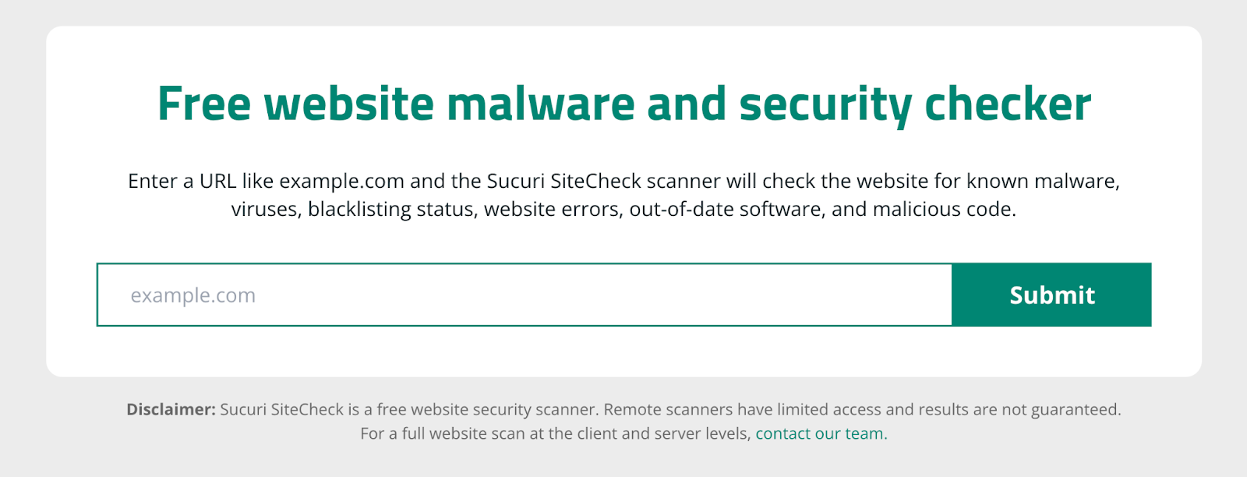
It scans the site’s public-facing pages for known malware, injected spam, defacements, website errors, and blocklist status. Because it is a remote scanner, however, a clean result does not rule out dormant malware or backdoors hidden in server files.

Eventually, you will want both types of scanning. A scanner that only does one is not incorrect, but it is incomplete.
3. Firewall and traffic-filtering plugins
These inspect incoming requests and block ones that look like exploitation attempts, credential stuffing, or abusive crawling. Implemented as a plugin, this is an application-level firewall: it runs inside PHP, after the request has already reached your server.
This is genuinely useful because it can block a request before it reaches a vulnerable plugin. However, it does not reduce the overall load of an attack, and attackers can sometimes bypass it if they find a way that does not start WordPress. Filtering that happens before traffic reaches your server is a different approach, which is explained in the next section.
4. Backup and recovery plugins
Not marketed as security tools, but functionally essential. Backups are your recovery layer when prevention and detection both fail.
What matters is not “do you have backups” but: are they stored off-server, are they versioned far enough back to predate a slow-burning compromise, do they include the database as well as files, and, the part everyone skips, have you ever actually restored one?
5. Suites that combine several of the above
Most popular options are bundled suites. They are convenient, but it is risky to assume that having a suite means you are fully protected. Often, only one or two parts are strong, while the rest are just basic features.
What’s the difference between a WordPress security plugin and a server-level firewall?
This is the single most important technical distinction in this guide, so it gets its own section.
A plugin-based firewall lives inside WordPress. The request arrives at your host, your server spins up PHP, WordPress loads, the plugin inspects the request, and then it allows or blocks it. Protection happens at the last possible moment.
A server-level or cloud-based firewall (often called a WAF, web application firewall) sits in front of your site. Traffic is inspected and filtered before it reaches your origin server at all. Malicious requests are dropped upstream, so they never consume your PHP workers, database connections, or bandwidth.
The practical differences:
| Where it runs | Inside WordPress, after PHP loads | Before traffic reaches your server |
| Server load during an attack | Still consumed | Absorbed upstream |
| Effect on DDoS / heavy floods | Limited | Can absorb volume |
| Virtual patching of a known flaw | Possible, but only if WordPress boots | Possible without touching your code |
| Survives site being taken offline | No | Yes – can still serve or block |
| Can be disabled by a compromise | Yes, if the attacker has file access | No, it is outside the site |
The last row is the one people underestimate. If an attacker gains file write access, they can deactivate a security plugin. They cannot deactivate infrastructure that is not running on your server.
This is not a reason to avoid plugins. Instead, it supports the idea of defense in depth, which means you should not rely on just one layer of protection. For WordPress, this means hardening reduces the attack surface, a firewall filters traffic, a scanner finds what gets through, and backups help you recover if all else fails.
How do you choose a WordPress security plugin?
Do not focus on how many features a plugin has. Instead, use these criteria to evaluate your options.
1. Which layers does it actually cover, and which are you leaving uncovered?
List the five layers: hardening, filtering, detection, monitoring, and recovery. Note which ones the tool handles well, which ones it only covers a little, and which ones you still need to manage. This list, not just the plugin, shows your real security position.
2. How does it handle detection quality and false positives?
A scanner that wrongly flags your custom code can be worse than useless because it makes you ignore alerts. Check if you can whitelist files or rules, if alerts are explained clearly with details, and if you can ask a person for help with unclear results. Alert fatigue is a common reason security tools fail, and you will not see this in feature lists.
3. What does it cost you in performance?
Every plugin that inspects requests, scans files, or writes logs uses resources on your server. Scanning schedules, log retention, and database bloat all add up. If your host is modest, on-server scanning can meaningfully affect page load or hit resource limits.
4. What happens on a bad day?
This is where products really differ. If your site is infected, blocklisted by search engines, and a customer contacts you about it, does your tool just alert you or does it actually fix the problem? Detection and cleanup are separate services. Make sure you know which one you are getting, if cleanup is included or costs extra, and if a real person will review your site.
5. Is support human, and how fast?
During an incident you need a person. Check response time commitments, hours of coverage, and whether support can look at your site or only answer generic questions.
6. Does it work with how you manage the site?
If you manage multiple sites, look for tools with centralized management. If you use staging and deployment workflows, make sure hardening rules do not interfere with them. If you manage sites using the command line, remember that updates can be done with WP-CLI, and your security tools should work smoothly with that.
7. Does it help you avoid over-installing?
Using three security plugins does not give you three times the protection. Overlapping firewalls and scanners can conflict, create duplicate alerts, and slow down your site. It is better to have one well-integrated setup than a mix of many plugins.
WordPress security plugins vs. WordPress security services: which do you need?
A plugin is software you install and operate. A WordPress security service is an ongoing arrangement where someone else handles part of the work – typically monitoring, firewall operation, and malware cleanup.
A plugin makes sense when you have the time and comfort level to review alerts, apply updates promptly, interpret scan results, and clean up an infection if one happens.
A service makes sense when downtime has real cost, when nobody on your team wants to be responsible for malware removal at 2 a.m., when you manage sites for clients, or when you have already been hacked once and do not want to repeat the experience.
In reality, most secure WordPress sites use both a plugin for hardening and visibility inside WordPress, and an external firewall and monitoring service for filtering, uptime checks, blocklist monitoring, and cleanup. This layered approach is what Sucuri uses: a WordPress plugin for hardening and monitoring, a cloud firewall in front of the site, and cleanup help if something gets through.
One caution when comparing paid options: read what “unlimited cleanups” or “guaranteed removal” means in the actual terms, including response times and what happens with sites on unsupported or heavily customized hosting.
WordPress security checklist
A plugin should come after other steps, not be your first move. Here is the checklist we recommend for any site owner.
Access and accounts
- Audit every user account. Remove accounts nobody uses. Downgrade anyone who does not need Administrator.
2. Enforce strong, unique passwords for every account with dashboard access, including your host, registrar, and email.
3. Enable two-factor authentication for all administrator accounts.
4. Rotate authentication keys and salts in wp-config.php, which invalidates existing sessions.
5. Use key-based authentication instead of passwords for SFTP and SSH where your host supports it. See enhancing file transfer security with SSH key authentication.
Software
- Update WordPress core, plugins, and themes on a defined schedule. Enable automatic updates for core security releases at minimum.
7. Delete deactivated plugins and unused themes. Deactivated code is still code on disk. Our guide to auditing and cleaning up WordPress plugins and themes walks through this.
8. Remove any nulled or pirated plugin or theme immediately and treat the site as potentially compromised.
9. Only install software from the official repository or the vendor directly, and check that it is still actively maintained.
Configuration and hardening
- Correct file and directory permissions; nothing should be world-writable.
11. Disable the built-in plugin and theme file editor.
12. Block PHP execution in /wp-content/uploads/.
13. Disable XML-RPC if nothing you use depends on it.
14. Serve the entire site over HTTPS and confirm there are no mixed-content warnings.
15. Harden any public forms against abuse. Our post on best practices for web form security covers spam, injection, and validation.
Detection
- Run scheduled malware and integrity scans, and make sure alerts reach an inbox someone reads.
17. Monitor for blocklist status so you learn about a problem before your visitors do.
18. Keep an eye on user creation and plugin activation events in your activity log.
Filtering and recovery
- Put a firewall in front of the site so malicious traffic is filtered before it reaches your server.
20. Take automated, off-server, versioned backups of files and database, then test a restore.
21. Write down your incident steps now: who to contact, where credentials live, how to take the site offline.
If you only follow ten of these steps, start with the account, update, and backup tasks. These prevent more problems than any single plugin setting.
What are the WordPress security best practices that matter most long-term?
Tools can become outdated, but good habits last.
- Treat updates as a routine, not an interruption: Pick a day. Update on staging if you have one. The most common root cause of compromise is a known vulnerability that had a patch available.
- Limit the number of plugins you use: Each plugin is extra code running with your site’s permissions. Using fewer, well-maintained plugins is important for both security and performance.
- Assume least privilege everywhere: Contributors do not need Administrator. Your database user does not need permissions it never uses. Your CI token does not need write access to everything.
- Separate environments and credentials: Staging should not share credentials with production. Developers who leave should lose access the same day.
- Make sure someone actually reads your monitoring alerts: If no one checks them, they are not useful. Send alerts to a visible place and assign someone to handle them.
- Practice restoring your site: Restore a backup in a test environment every few months. You do not want your first restore to happen during a real emergency.
- Write down important details: Like where your DNS is managed, who owns the registrar account, what your hosting plan covers, and which plugins are essential for your business. Incidents often take longer to resolve because this information is hard to find.
- Don’t rely on simply hiding things: Hiding your login URL or WordPress version only makes it a bit harder for basic scans, but it is not real protection. Always prioritize patching, strong credentials, and proper filtering.
Is a free WordPress security plugin enough?
Free plugins do a lot of genuinely valuable work: hardening, file integrity monitoring, activity logging, basic malware scanning, and login protection. For a low-risk personal or brochure site with good update discipline and off-server backups, a free plugin plus solid habits is a reasonable baseline. The Sucuri WordPress plugin is free for exactly this reason.

Where free tiers typically stop:
- Filtering before traffic hits your server: Running infrastructure in front of your site costs money to operate, so it is rarely free.
- Rapid protection against newly disclosed vulnerabilities: Rule updates that arrive quickly, and virtual patching that shields a vulnerable plugin before you can update it, generally sit behind a paid tier.
- Remediation: Free tools tell you there is malware. Cleaning it, including finding every backdoor, not just the visible symptom, is labor.
- Human support during an incident: Community forums are not an incident response channel.
- Blocklist removal and reputation monitoring: Getting delisted by search engines and browser vendors involves process work.
To be clear, free tools mean you have to do more of the work yourself. This is fine if you have the time and skills, but not a good idea if your site makes money and you lack the expertise.
How many security plugins should you run at once?
In almost every case, you should use just one security plugin, along with separate tools for backups and, ideally, a firewall that is not a plugin.
Using two security suites can cause real issues. Two firewalls may inspect the same requests and have conflicting rules. Two scanners might flag each other’s files as threats. Two login protection tools can lock you out or break password resets. Getting duplicate alerts can also make you ignore them.
If you switch plugins, make sure to deactivate and completely remove the old one first. Also, check that any changes it made, like .htaccess rules, permissions, login URL changes, or database tables, have been undone. Leftover rules from old plugins often cause problems that are hard to diagnose.
For most sites, we recommend using one plugin for hardening and monitoring inside WordPress, a firewall in front of your site, a backup solution that stores copies off the server, and a clear plan for who handles what if something goes wrong.
Frequently asked questions
Do I need both a security plugin and a WAF?
For most sites, yes. A plugin hardens WordPress and detects changes from the inside, but it only runs after WordPress loads. A web application firewall filters malicious requests before they reach your server, absorbing attack traffic and staying operational even if the site itself is compromised. They cover different layers.
What’s the difference between a WordPress security plugin and a server-level firewall?
A plugin runs inside WordPress, so protection happens after PHP and WordPress have already loaded and consumed server resources. A server-level or cloud firewall sits in front of your site and drops malicious requests upstream. Because it lives outside your installation, an attacker with file access cannot disable it.
Can free WordPress security plugins protect against zero-days?
Only partially. A zero-day is a flaw with no patch available yet, so free plugins can offer hardening and detection but rarely rapid rule updates or virtual patching. Filtering that blocks exploitation before a vendor releases a fix usually requires a maintained firewall service, not a free plugin alone.
What should be on a WordPress security checklist?
Audit user accounts and enforce two-factor authentication, update core, plugins, and themes on a schedule, delete unused extensions, fix file permissions, disable the file editor, block PHP in uploads, serve everything over HTTPS, run scheduled malware scans, put a firewall in front of the site, and test off-server backups.
Are WordPress security plugins bad for site performance?
They have a cost, but it is manageable. Scanning files, inspecting requests, and writing activity logs all consume server resources, and unbounded log tables can bloat your database. Tune scan schedules and log retention, avoid running two overlapping suites, and prefer filtering that happens before traffic reaches your server.
Do I still need a security plugin if my host says it handles security?
Usually yes. Managed hosts often patch the server, restrict some file writes, and offer basic malware scanning, but coverage varies widely and most do not remediate infections in your WordPress files. Ask your host in writing what is monitored, what is filtered, and what happens if your site is compromised.
What’s the difference between a WordPress security plugin and a WordPress security service?
A plugin is software you install and operate yourself. You review alerts, apply hardening, and handle cleanup. A service is an ongoing arrangement where a provider runs the firewall, monitors the site, and remediates malware. Many sites use both: a plugin for in-WordPress visibility, a service for filtering and response.

如有侵权请联系:admin#unsafe.sh