Updating WordPress directly on a live website can cause avoidable problems. A plugin update might br 2026-8-11 17:50:3 Author: blog.sucuri.net(查看原文) 阅读量:39 收藏
Updating WordPress directly on a live website can cause avoidable problems. A plugin update might break checkout, or a theme change could create layout issues visitors see immediately.
A WordPress staging site gives you a separate place to test changes before they reach your live website.
Staging reduces operational risk, but it also creates another website that needs protection. A copied site may contain administrator accounts, customer records, API keys, or vulnerable software.
This guide explains how WordPress staging works, how beginners can create one, and how to secure it.
What is a WordPress staging site?
A WordPress staging site is a private testing copy of your live, or production, website.

It lets you safely test:
- WordPress core updates
- Plugin and theme updates
- Design changes
- New plugins
- PHP upgrades
- Forms and checkout
- Troubleshooting fixes
Staging should behave enough like production that you can identify problems without affecting visitors.
For beginners, a hosting provider’s built-in staging tool is usually the easiest way to create one.
Why staging sites still need security
A staging site can contain much of the same sensitive information as production.
Cloning a live website may also copy:
- WordPress user accounts
- Customer records
- Form submissions
- Database credentials
- API keys
- Plugin and theme vulnerabilities
- Private content
Because staging sites are often treated as temporary, they may receive less attention than production. That can make them an unnecessary security risk.
Treat staging as a real website with a limited purpose. Restrict access, keep its software updated, monitor it, and remove it when it is no longer needed.
How to create a WordPress staging site
Use your hosting provider’s staging feature
For most beginners, this is the simplest option.
The exact interface varies, but the workflow usually looks like this:
- Sign in to your hosting dashboard.
- Select the live WordPress website.
- Find Staging, Clone, or Copy Site.
- Create a copy of the files and database.
- Restrict access to the staging environment.
- Confirm the copied site works correctly.
Create a current WordPress backup before cloning or deploying changes. This gives you a recovery point if something goes wrong.
Create staging manually
A manual staging environment usually requires:
- A separate subdomain
- Separate WordPress files
- A separate database
- Updated database credentials
- Updated site URLs
- Access restrictions
This approach gives you more control, but it also creates more opportunities to connect the wrong database or expose configuration details.
If you are not comfortable working with databases and wp-config.php, use a host-provided staging tool or work with an experienced administrator.
How to secure a WordPress staging site
1. Restrict access
A staging site should not be openly available to anyone who discovers its URL.
Common access controls include:
- HTTP password protection
- IP allowlisting
- Private networks or VPNs
- Hosting-level access controls
Do not rely on the WordPress login page alone. It may protect the dashboard while leaving public pages, files, APIs, or plugin endpoints accessible.
2. Discourage search engine indexing
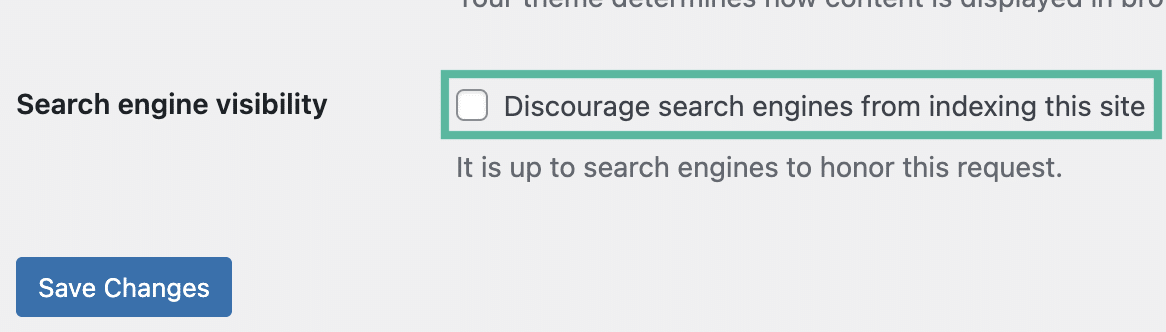
In WordPress, go to Settings > Reading and enable:
Discourage search engines from indexing this site

This reduces the chance that unfinished staging content appears in search results.
However, it is not a security control. It does not prevent people or malicious bots from accessing the site.
Use it together with proper access restrictions.
3. Mark WordPress as a staging environment
You can identify the site as staging in wp-config.php:
define( ‘WP_ENVIRONMENT_TYPE’, ‘staging’ );
Place it above:
/* That’s all, stop editing! Happy publishing. */
This helps WordPress and compatible software recognize that the site is not production.
It does not protect the site by itself.
4. Avoid reusing production credentials
Where possible, use separate credentials for staging.
This may include:
- WordPress administrator passwords
- Database credentials
- SFTP or SSH accounts
- API keys
- Payment credentials
- Email credentials
- Webhooks
After cloning, review wp-config.php, plugin settings, and environment variables for production secrets the staging site does not need.
5. Remove unnecessary customer data
A staging site usually does not need a complete production database.
Consider removing or replacing:
- Names
- Email addresses
- Phone numbers
- Addresses
- Orders
- Form submissions
- Membership records
- Authentication tokens
For an ecommerce site, a few test orders may be enough. For a membership site, create test accounts rather than using real customer records.
6. Disable live payments, email, and integrations
A cloned WordPress site may continue communicating with production services.
Check whether staging can:
- Send customer emails
- Process payments
- Update inventory
- Trigger marketing workflows
- Send SMS messages
- Deliver production webhooks
Use test or sandbox payment credentials. Redirect or block outbound email. Replace production API keys and webhook destinations.
Do this early. Scheduled tasks may start running as soon as the staging copy is created.
7. Use HTTPS
Protect staging with a valid TLS certificate.
HTTPS encrypts credentials and test data while they travel between the browser and server.
It does not replace authentication, updates, or monitoring, but it remains an important security layer.
8. Keep staging updated
Staging should not become a permanent archive of outdated software.
Maintain:
- WordPress core
- Plugins
- Themes
- PHP
- Server software
Remove plugins and themes that are no longer needed. Inactive software can still contain files that are accessible from the web.
9. Limit user permissions
Give each person only the access required for their task.
A content reviewer may only need Editor permissions. A contractor testing a form may not need hosting access.
Review cloned user accounts as well. Old agency, contractor, or staff accounts may still exist in the copied database.
Sucuri’s guide to WordPress user roles and least privilege explains how to reduce unnecessary account permissions.
10. Monitor staging
Add staging to your website inventory and assign someone responsibility for it.
Watch for:
- Unexpected file changes
- New administrator accounts
- Failed logins
- Malware indicators
- Unexpected public access
Sucuri offers website monitoring and malware scanning, and SiteCheck can inspect publicly accessible pages for known malware indicators and certain security issues.
Internet-accessible staging environments may also benefit from a website firewall to filter malicious traffic before it reaches WordPress.
A safe WordPress staging workflow
Before testing
- Create and verify a production backup.
- Restrict access to staging.
- Discourage search engine indexing.
- Remove unnecessary customer data.
- Replace production credentials and integrations.
- Disable real payments and email.
During testing
- Change one major component at a time.
- Test login, forms, search, navigation, and checkout.
- Check desktop and mobile layouts.
- Review errors and logs.
- Confirm no real customer communications were sent.
Before deploying
- Create another production backup.
- Identify exactly what will be copied.
- Review differences between staging and production.
- Document a rollback process.
- Apply the approved changes.
- Test critical features on production.
Be careful when pushing staging to production
One of the biggest staging risks is overwriting newer production data.

Imagine an ecommerce website is copied to staging on Monday. Customers continue placing orders on the live site during the week. On Friday, someone pushes the entire Monday staging database back to production.
Those newer orders could be lost.
The same problem can affect:
- Customer accounts
- Form submissions
- Comments
- Reservations
- Inventory
- Membership activity
Before using Push to Production, understand whether the tool will replace files, database tables, or the whole website.
For small design changes, it may be safer to move only the necessary files or recreate the setting on production.
When should you delete a staging site?
Remove staging when it no longer has a clear purpose.
Before deleting it:
- Confirm approved changes reached production.
- Save any required code or documentation.
- Delete staging files and databases.
- Remove the DNS record.
- Revoke staging credentials and API keys.
- Remove temporary users.
- Confirm the staging URL no longer exposes content.
If staging is permanent, include it in your normal patching, access review, monitoring, backup, and incident response processes.
Frequently asked questions
Can a WordPress staging site be hacked?
Yes. A publicly reachable staging site is still a website. Vulnerable software, weak credentials, or exposed files can be abused whether the site is labeled staging or production.
Should a staging site appear in Google?
Normally, no. Staging can expose unfinished pages or duplicate content. Restrict access and discourage search engine indexing.
Should I back up staging?
Back up anything that would be difficult to recreate. More importantly, always back up production before cloning, deploying, or changing its database.
Make staging part of your WordPress security process
A WordPress staging site lets you test updates and changes without experimenting on the live website.
A secure staging environment should be separated from production, protected from public access, stripped of unnecessary sensitive data, disconnected from live services, monitored, and removed when no longer needed.
Combine a controlled staging workflow with website backups, security monitoring, and a website firewall for stronger protection.

如有侵权请联系:admin#unsafe.sh