Home > FileVault 2, Mac administration, macOS > Validating FileVault recovery keys using a p 2026-8-10 16:47:53 Author: derflounder.wordpress.com(查看原文) 阅读量:47 收藏
Home > FileVault 2, Mac administration, macOS > Validating FileVault recovery keys using a plist file to provide recovery key information on macOS Tahoe
Validating FileVault recovery keys using a plist file to provide recovery key information on macOS Tahoe
As part of a recent discussion in the Mac Admins Slack, it was asked if it was possible to validate a FileVault personal recovery key (PRK) without having to interactively enter it. Normally, to validate a PRK using the fdesetup command line tool, you would use the following command:
This file contains hidden or bidirectional Unicode text that may be interpreted or compiled differently than what appears below. To review, open the file in an editor that reveals hidden Unicode characters.
Learn more about bidirectional Unicode characters
| fdesetup validaterecovery |
You’ll then be prompted to enter the PRK. This is an alphanumeric string separated by dashes, which should look similar to what’s shown below:
XGRX-W8ZG-747N-KWQT-CQAV-FC49
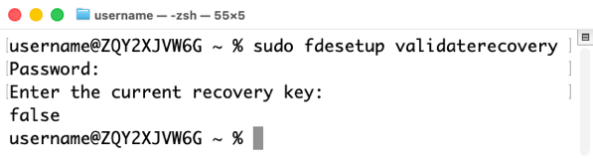
The output of running the command should look similar to what’s shown below. If the PRK is valid, the command should return a value of true.

If not, the command will return a value of false.

This method assumes you can interactively enter the PRK information. If an interactive entry of the PRK information is not an option for some reason, the validaterecovery function includes an -inputplist option. This allows the PRK information to be stored in a plist file and be read from that file. For more details, please see below the jump.
In this scenario, you would create a plist file formatted like the one shown below:
This file contains hidden or bidirectional Unicode text that may be interpreted or compiled differently than what appears below. To review, open the file in an editor that reveals hidden Unicode characters.
Learn more about bidirectional Unicode characters
| <?xml version="1.0" encoding="UTF-8"?> | |
| <!DOCTYPE plist PUBLIC "-//Apple//DTD PLIST 1.0//EN" "http://www.apple.com/DTDs/PropertyList-1.0.dtd"> | |
| <plist version="1.0"> | |
| <dict> | |
| <key>Password</key> | |
| <string>recovery_key_value_goes_here</string> | |
| </dict> | |
| </plist> |
Once you have the plist file created and stored in a location you can access, you can then run the following command to validate the recovery key using the information stored in the plist file:
This file contains hidden or bidirectional Unicode text that may be interpreted or compiled differently than what appears below. To review, open the file in an editor that reveals hidden Unicode characters.
Learn more about bidirectional Unicode characters
| fdesetup validaterecovery -inputplist < /path/to/filename.plist |
Assuming that the PRK was XGRX-W8ZG-747N-KWQT-CQAV-FC49 and stored in a file named recoverykey.plist located in the /Users/Shared directory, the recoverykey.plist file’s contents would look like this:
This file contains hidden or bidirectional Unicode text that may be interpreted or compiled differently than what appears below. To review, open the file in an editor that reveals hidden Unicode characters.
Learn more about bidirectional Unicode characters
| <?xml version="1.0" encoding="UTF-8"?> | |
| <!DOCTYPE plist PUBLIC "-//Apple//DTD PLIST 1.0//EN" "http://www.apple.com/DTDs/PropertyList-1.0.dtd"> | |
| <plist version="1.0"> | |
| <dict> | |
| <key>Password</key> | |
| <string>XGRX-W8ZG-747N-KWQT-CQAV-FC49</string> | |
| </dict> | |
| </plist> |
You could then run the following command to validate the PRK using the recoverykey.plist file stored in the /Users/Shared directory:
This file contains hidden or bidirectional Unicode text that may be interpreted or compiled differently than what appears below. To review, open the file in an editor that reveals hidden Unicode characters.
Learn more about bidirectional Unicode characters
| fdesetup validaterecovery -inputplist < /Users/Shared/recovery.plist |
If the PRK stored in the plist file is the current valid PRK, you should get a value of true.

Otherwise, you will get a value of false.

如有侵权请联系:admin#unsafe.sh