好的,我现在需要帮用户总结一篇文章的内容,控制在100个字以内。首先,我得仔细阅读用户提供的文章内容。 文章主要讲的是苹果从Intel处理器转向Apple Silicon处理器的过程中,Rosetta 2翻译环境的变化。特别是macOS Tahoe 26.4版本开始,当运行Intel应用时会弹出提示信息。苹果提供了管理配置文件来禁用这些提示信息,具体是通过设置com.apple.applicationaccess域下的allowRosettaUsageAwareness为false来实现的。 接下来,我需要提取关键点:Rosetta 2的变化、新提示信息的出现、管理配置文件的使用以及具体的设置方法。然后,把这些点浓缩成一段简短的文字,确保不超过100个字,并且直接描述内容,不需要开头语。 最后,检查一下语言是否流畅,信息是否完整。确保没有遗漏重要细节,并且表达清晰。 </think> 文章介绍了如何通过配置文件禁用macOS Tahoe上运行Intel应用时显示的Rosetta 2翻译环境提示信息。该功能通过设置`com.apple.applicationaccess`域中的`allowRosettaUsageAwareness`为`false`实现,并提供了示例配置文件链接。 2026-3-25 18:43:6 Author: derflounder.wordpress.com(查看原文) 阅读量:35 收藏
Home > Mac administration, macOS, Management Profiles, Rosetta 2 > Disabling Rosetta awareness messages on macOS Tahoe
Disabling Rosetta awareness messages on macOS Tahoe
As part of Apple’s move from using Intel processors to Apple Silicon processors for all Mac models, Apple has announced a transition timeline for macOS’s Rosetta 2 translation environment. Rosetta 2 will continue in its current form on both macOS 26 and macOS 27, but there will be as-yet unspecified changes occurring beyond macOS 27.
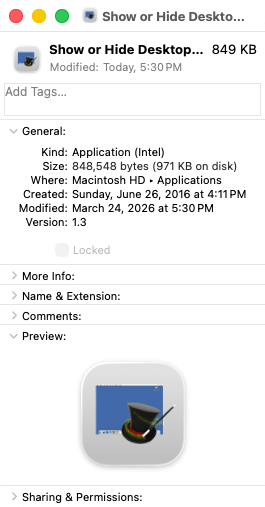
As part of this transition process, as of macOS Tahoe 26.4 there is a new window that will be periodically displayed when apps which are Intel-based get launched on Apple Silicon Macs. For example, an earlier version of an Automator app I wrote named Show or Hide Desktop Icons.app is an Intel-based app.

On macOS 26.4 and later, launching this earlier version of the Show or Hide Desktop Icons app will periodically result in the following message being displayed by the OS.

This new message may not be desirable to display in all Mac environments, so Apple has provided management options to prevent this message from being shown. For more details, please see below the jump.
The relevant preference domain and key values are below:
- Preference domain: com.apple.applicationaccess
- Key: allowRosettaUsageAwareness
- Value: Boolean
This setting can be managed by a configuration profile, where setting a boolean value of false will prevent the message from being displayed. Please see below for an example profile. This profile is also available via the following link:
https://github.com/rtrouton/profiles/tree/main/DisableRosettaUsageAwareness
This file contains hidden or bidirectional Unicode text that may be interpreted or compiled differently than what appears below. To review, open the file in an editor that reveals hidden Unicode characters.
Learn more about bidirectional Unicode characters
| <?xml version="1.0" encoding="UTF-8"?> | |
| <!DOCTYPE plist PUBLIC "-//Apple//DTD PLIST 1.0//EN" "http://www.apple.com/DTDs/PropertyList-1.0.dtd"> | |
| <plist version="1"> | |
| <dict> | |
| <key>PayloadUUID</key> | |
| <string>A3A6F8B9-3A59-4D39-8569-FF38DA9A8C1F</string> | |
| <key>PayloadType</key> | |
| <string>Configuration</string> | |
| <key>PayloadOrganization</key> | |
| <string>Company Name</string> | |
| <key>PayloadIdentifier</key> | |
| <string>A3A6F8B9-3A59-4D39-8569-FF38DA9A8C1F</string> | |
| <key>PayloadDisplayName</key> | |
| <string>Disable Rosetta Usage Awareness</string> | |
| <key>PayloadDescription</key> | |
| <string>Disables Rosetta Usage Awareness Dialog Window</string> | |
| <key>PayloadVersion</key> | |
| <integer>1</integer> | |
| <key>PayloadEnabled</key> | |
| <true /> | |
| <key>PayloadRemovalDisallowed</key> | |
| <false /> | |
| <key>PayloadScope</key> | |
| <string>System</string> | |
| <key>PayloadContent</key> | |
| <array> | |
| <dict> | |
| <key>PayloadDisplayName</key> | |
| <string>Custom Settings</string> | |
| <key>PayloadIdentifier</key> | |
| <string>E36A3269-B3A0-42F1-B045-1DB4D27CE7A2</string> | |
| <key>PayloadOrganization</key> | |
| <string>Company Name</string> | |
| <key>PayloadType</key> | |
| <string>com.apple.ManagedClient.preferences</string> | |
| <key>PayloadUUID</key> | |
| <string>E36A3269-B3A0-42F1-B045-1DB4D27CE7A2</string> | |
| <key>PayloadVersion</key> | |
| <integer>1</integer> | |
| <key>PayloadContent</key> | |
| <dict> | |
| <key>com.apple.applicationaccess</key> | |
| <dict> | |
| <key>Forced</key> | |
| <array> | |
| <dict> | |
| <key>mcx_preference_settings</key> | |
| <dict> | |
| <key>allowRosettaUsageAwareness</key> | |
| <false /> | |
| </dict> | |
| </dict> | |
| </array> | |
| </dict> | |
| </dict> | |
| </dict> | |
| </array> | |
| </dict> | |
| </plist> |
如有侵权请联系:admin#unsafe.sh