嗯,用户让我总结一下这篇文章的内容,控制在100字以内,而且不需要用“文章内容总结”之类的开头。首先,我需要通读整篇文章,理解它的主要观点。 文章主要讲的是如何使用Jamf Pro的蓝图功能来自动安装macOS的背景安全改进(BSI)。作者之前可能误解了某个管理选项的作用,现在纠正了这个错误。他详细说明了在蓝图的软件更新设置中如何配置,包括允许或限制BSI的安装,并且提到了自动安装选项的位置。 此外,文章还提到自动安装不仅适用于BSI,还包括其他安全更新如Gatekeeper和XProtect。如果禁用自动安装,可能会对整体安全性产生影响。因此,用户需要谨慎考虑。 总结时要抓住关键点: Jamf Pro蓝图、背景安全改进、自动安装配置、影响范围。确保在100字以内清晰表达这些内容。 </think> 文章介绍如何通过Jamf Pro的蓝图功能管理macOS的背景安全改进(BSI)自动安装。详细说明了在软件更新设置中启用或限制BSI手动安装,并介绍了如何通过Install Actions设置自动安装所有背景安全更新(包括BSI、Gatekeeper和XProtect等)。强调禁用自动安装可能影响整体安全性。 2026-3-20 19:15:19 Author: derflounder.wordpress.com(查看原文) 阅读量:36 收藏
Home > Declarative Device Management, Jamf Pro, Jamf Pro Blueprints, Mac administration, macOS > Managing automatic installation of Background Security Improvements for macOS using Blueprints in Jamf Pro
Managing automatic installation of Background Security Improvements for macOS using Blueprints in Jamf Pro
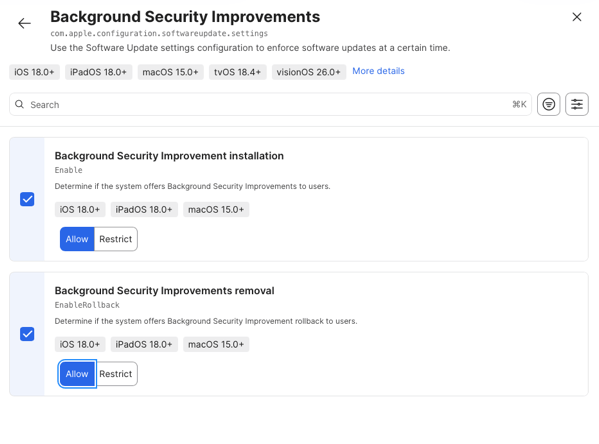
As a follow-up to my previous post for managing Background Security Improvements (BSIs) using Jamf Pro’s Blueprints, it looks like I misunderstood what one of the management options was actually doing. As part of my prior post, I had said that in order to set this:
- Background Security Improvements will be automatically installed
You needed to do the following in the Blueprint’s Software Update Settings component:
1. Go to the Background Security Improvements section
2. Select the following options to apply the desired settings:
- Background Security Improvements updates will be installed:
- Select Allow for Background Security Improvements installation

That enables an installation option, but not the automatic installation option. For more details, please see below the jump.
What installation option is being enabled? As it turns out, what’s enabled is the logged-in user’s ability to manually select installing the BSI. You can see this by setting the Background Security Improvements installation setting to Allow.

Once that’s been set and deployed to devices, look at System Settings: Privacy & Security: Background Security Improvements on a device that the setting has been deployed to. If there’s a BSI available to install, you’ll see it listed there along with an Install button.

Next, let’s set Background Security Improvements installation to Restrict and deploy the settings to devices.

Now when we look at System Settings: Privacy & Security: Background Security Improvements on a managed device, that section and its Install button have disappeared.

That means that the only install option available now is the automatic install option. Where’s that managed from? That is also managed in the Software Update Settings component, but in a different section. To set management for automatic installation of BSI updates:
1. Go to the Install Actions section
2. Select the following options to apply the desired settings:
- Automatic installs of available security updates:
- Select Always

When those settings are deployed to devices, you can go to System Settings: Privacy & Security: Background Security Improvements on a managed device and see that the Automatically Install setting is enabled and grayed out. There should also be a message that the setting is managed by your organization.

You can also disable automatic installation of BSIs, but a very important thing to be aware of is that the Automatic installs of available security updates setting is managing all background security updates for macOS, not only BSIs. This includes updates for Gatekeeper, XProtect and verifying the firmware that your Mac uses. Please keep that in mind if you want to disable automatic installs of BSIs.
If you’ve considered this information and still want to disable automatic installs of BSI updates, you can do so by using the following process:
1. Go to the Install Actions section
2. Select the following options to apply the desired settings:
- Automatic installs of available security updates:
- Select Never

When those settings are deployed to devices, you can go to System Settings: Privacy & Security: Background Security Improvements on a managed device and see that the Automatically Install setting is disabled and grayed out. There should also be a message that the setting is managed by your organization.

如有侵权请联系:admin#unsafe.sh