好的,我现在需要帮用户总结一篇文章的内容,控制在100字以内。用户提供的文章是关于Apple在WWDC 2023上发布的Declarative Device Management(DDM),特别是 Jamf Pro 如何利用这个功能来管理软件更新,包括背景安全改进。 首先,我需要理解文章的主要内容。文章详细介绍了 Jamf Pro 的Blueprints如何通过DDM来管理软件更新,特别是背景安全改进的自动安装和移除功能。还提到了具体的配置步骤,包括登录Jamf Pro、创建蓝图、添加组件、配置设置以及部署到目标设备。 接下来,我需要将这些信息浓缩到100字以内。重点在于Apple发布的新功能DDM,Jamf Pro如何利用它管理软件更新,特别是背景安全改进的两个方面:自动安装和允许移除。同时,文章还提供了配置步骤和验证方法。 因此,总结时应包含以下关键点: 1. Apple在WWDC 2023上发布DDM。 2. DDM支持软件更新管理。 3. Jamf Pro的Blueprints利用此功能。 4. 管理背景安全改进的自动安装和移除。 5. 配置步骤和验证方法。 现在,将这些点整合成简洁的中文描述: Apple在WWDC 2023上发布的Declarative Device Management(DDM)支持软件更新管理。Jamf Pro的Blueprints可利用此功能管理背景安全改进的自动安装和移除,并提供详细的配置步骤和验证方法。 这样控制在100字以内,并且涵盖了所有关键信息。 </think> Apple在WWDC 2023上发布的Declarative Device Management(DDM)支持软件更新管理。Jamf Pro的Blueprints可利用此功能管理背景安全改进的自动安装和移除,并提供详细的配置步骤和验证方法。 2026-3-18 13:34:39 Author: derflounder.wordpress.com(查看原文) 阅读量:38 收藏
As part of Apple’s unveiling of Declarative Device Management (DDM) at WWDC 2023, Apple announced that DDM management included the ability to manage software updates. Jamf Pro’s Blueprints leverages this capability to support to support managing software updates, including Background Security Improvements. Let’s see how this works using the following software update configuration as an example:
- Background Security Improvements will be automatically installed
- Background Security Improvements can be removed
For more details, please see below the jump.
As of Jamf Pro 11.25.2, there is not a Blueprints template available for creating blueprints which manage software update settings so the blueprint will need to be configured manually. To do this, use the following procedure:
1. Log into Jamf Pro.
2. Select Blueprints
3. Click the Create blueprint button.

4. You should see an unconfigured Blueprint. Click where it says Untitled blueprint and provide a name.
For this example, I’m using Background Security Improvements Management Settings.
5. Scroll down in the list on the left-hand side of the browser window to locate the Software Update Settings component.

6. Click on the Software Update Settings component and drag the Software Update Settings component to the Components in this blueprint section.

7. Once added to the Components in this blueprint section, click anywhere on the Software Update Settings component to open it for editing.
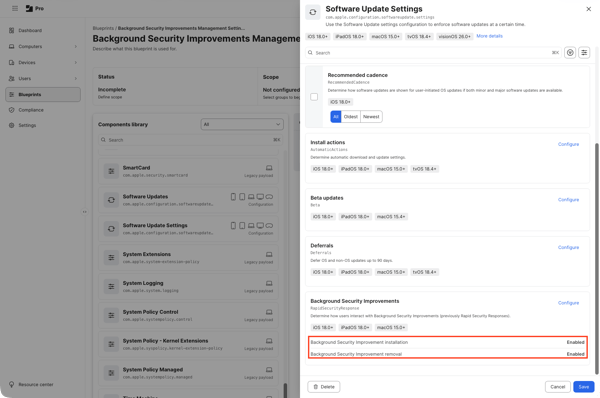
8. At this point, you will see the software update management settings. From there, scroll down to the Background Security Improvements section and click the Configure button.

In the Background Security Improvements section, select the following options to apply the following desired settings:
- Background Security Improvements updates will be installed:
- Select Allow for Background Security Improvements installation
- Background Security Improvements updates can be removed:
- Select Allow for Background Security Improvements removal
Once all choices have been made and verified, click the Update button.

You should now see the following items set to Enabled:
- Background Security Improvements installation
- Background Security Improvements removal

9. Once all the settings choices have been made and verified, click the Save changes button.

10. At this point, you should have a blueprint which has all settings configured but where no target scope has been set. To scope this blueprint, go to the Scope section and click the arrow button.

11. Select a Jamf Pro smart or static group. For this example, I’m selecting a static group named Background Security Improvements Settings Deployment Group.

12. Once everything has been configured, click the Deploy button to deploy the changes to the Macs you want to manage.

18. Once deployed, the Blueprints screen in Jamf Pro should show the newly-created Background Security Improvements Management Settings Blueprint as being deployed.

You can also check on the managed device’s end by opening System Settings: General: Device Management, locating the MDM enrollment profile in the list of profiles and double-clicking on it.
When you scroll to the bottom of the enrollment profile’s window, you should see a Device Declarations section. If you’re deploying a software update configuration via Blueprints, you should see a Software Update listing for Software Update Settings in the Device Declarations section.

If you click on the Software Update Settings listing, you should see the details of what is being managed. In the case of our example where we are setting Background Security Improvements to be automatically installed and allowing the removal option, you should see the the following entries set to On:
- Enable
- Enable Removal

如有侵权请联系:admin#unsafe.sh