嗯,用户让我帮忙总结一篇文章的内容,控制在一百个字以内,而且不需要用“文章内容总结”之类的开头。直接写描述就行。好的,我先看看这篇文章讲的是什么。 文章主要讲的是删除文件后其实并没有真正删除,数据仍然留在磁盘上,直到被其他文件覆盖。这可能被恢复软件读取,尤其是敏感信息。然后介绍了一个叫做File Shredder的工具,它通过多次覆盖数据来彻底删除文件,防止恢复。它支持三种安全级别:基本、彻底和 paranoid,分别对应不同的覆盖次数和模式。 所以,我需要把重点放在删除文件的不安全性、File Shredder的作用以及它的三个安全级别上。控制在100字以内的话,得简洁明了。 可能的结构是:首先说明删除文件不安全,然后介绍File Shredder如何通过多次覆盖解决这个问题,并提到三种安全级别。 比如:“文章指出删除文件并不真正销毁数据,可能被恢复。File Shredder通过多次覆盖数据彻底删除文件,并提供三种安全级别:基本(1次)、彻底(4次)和paranoid(8次),确保敏感信息无法被恢复。” 这样大概在100字左右吧。 </think> 文章指出删除文件并不真正销毁数据,可能被恢复。File Shredder通过多次覆盖数据彻底删除文件,并提供三种安全级别:基本(1次)、彻底(4次)和paranoid(8次),确保敏感信息无法被恢复。 2026-3-16 14:22:31 Author: securityboulevard.com(查看原文) 阅读量:3 收藏
You have done it a thousand times. Right-click. Delete. Empty Trash. Done.
Except it’s not done. That file, your tax return, your private photos, that EmbezzlementPlan.doc… it’s all still sitting on your drive. Invisible to you, but not to anyone with a $30 recovery tool downloaded from the internet.
The problem: Your deleted files aren’t actually gone
Most users assume that deleting a file removes it permanently. In reality, standard deletion only removes the file’s reference from the file system. The underlying data often remains intact on disk until it is overwritten by other files. Think of it like tearing the table of contents out of a book while leaving all the pages intact. The operating system forgets where the file is listed, but the data itself is still there.
The space the file used gets marked as available for new data. Until something else writes over it, the original file may remain fully readable on the disk. Depending on how you use your computer, that could take days, weeks, or even months.
Recovery software exploits this. It scans your drive for data that still exists but is no longer listed in the file system. If you’re trying to recover a file you accidentally deleted, this is a lifesaver. But if you’re trying to permanently dispose of sensitive information, it’s a serious problem.
The answer: Overwrite, don’t just delete
To address this privacy gap, we’ve introduced File Shredder for Windows. It permanently destroys the files and folders you’re trying to delete so they can’t be recovered.
When you overwrite a file, you replace every single byte of its contents with new data. The original information is physically altered on the disk surface. Once overwritten, the original data no longer exists. There is nothing left to recover.
But one overwrite is not always enough. Advanced recovery techniques can sometimes detect traces of previous data, especially on older hard drives where magnetic patterns leave subtle residue. That’s why File Shredder doesn’t just overwrite once. Depending on your chosen security level, it overwrites multiple times, using different patterns each pass.
How it works
File Shredder uses DoD 5220.22-M, a data sanitization standard developed by the US Department of Defense for securely destroying classified data stored on computers.
The standard overwrites data using specific patterns:
- Zero-fill passes (every byte set to 0x00)
- One-fill passes (every byte set to 0xFF)
- Cryptographically random data passes
- Verification to confirm the overwrite was successful
Why these specific patterns? Zeros and ones represent binary data. Random data adds unpredictability. By cycling through these patterns multiple times, the original magnetic or electronic state of the storage medium is thoroughly disrupted, making forensic recovery impractical.
When File Shredder finishes, that file isn’t just deleted. It’s gone.
Three levels of shredding
File Shredder overwrites a file before deleting it, helping prevent recovery after it is removed. This is most meaningful on traditional hard drives, where overwrite passes are more direct and predictable. On SSDs, storage works differently, so multiple passes do not provide the same level of assurance. File Shredder offers a few levels so you can choose the right balance of speed and confidence for your device and use case.
Not every file on your computer will need military-grade destruction. Shredding takes time because each pass means reading and writing the entire file contents. File Shredder gives you three options, so you can balance security against speed.
Basic (1 Pass)
The entire file is overwritten with zeros. This is the fastest option and is effective for everyday file deletion where you want to prevent casual recovery. If someone ran a recovery tool after a Basic shred, they would find nothing but empty data where your file used to be.
Best for: Temporary files, downloads you no longer need, general cleanup where speed matters.
Thorough (4 Passes, DoD 5220.22-M)
The file is overwritten with zeros, then ones, then random data, then zeros again. After these passes complete, File Shredder performs a verification step, reading the file back to confirm the overwrite patterns were successfully written. This catches any disk errors or write failures that might have left original data intact.
Pattern: Zeros (0x00) > Ones (0xFF) > Random > Zeros (0x00)
Best for: Financial documents, tax records, personal identification documents, medical records, anything you would not want exposed in a data breach or if your computer were stolen.
Paranoid (8 Passes, Extended DoD 5220.22-M)
This runs the full zeros-ones-random-zeros sequence twice, with verification after completion. The additional passes provide extra assurance against advanced forensic recovery techniques.
Pattern: Zeros > Ones > Random > Zeros > Zeros > Ones > Random > Zeros
Best for: Highly confidential business data, legal documents, intellectual property, anything subject to regulatory compliance, or situations where you need absolute certainty.
A note on SSDs
Solid-state drives (SSDs) behave differently from traditional hard drives because wear leveling and flash translation layers may redirect writes to different physical blocks. This means overwriting a file once or multiple times does not guarantee the original data was overwritten. Multi-pass shredding methods were designed for HDDs and are less predictable on SSDs.
How to get started
File Shredder lives in the Tools section of your Malwarebytes desktop software, alongside other system utilities. We designed it to be straightforward while ensuring you understand the permanence of what you are about to do.
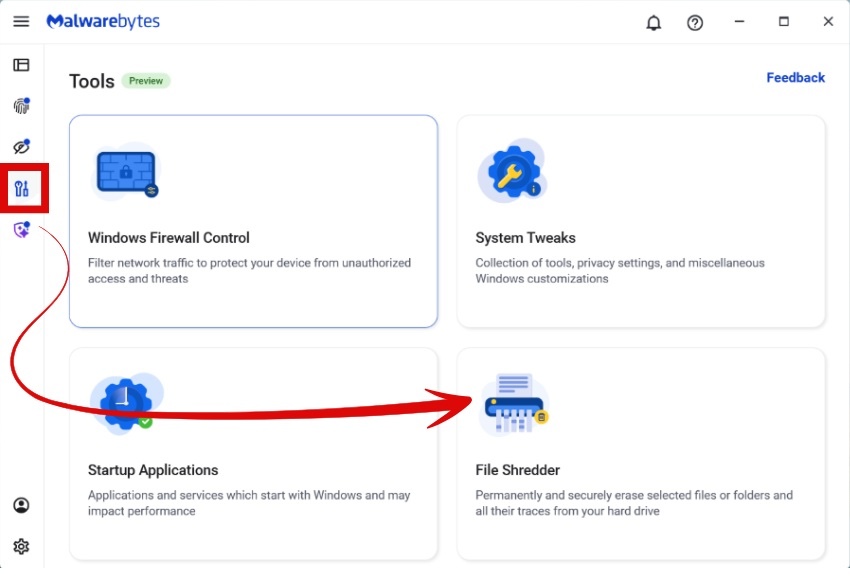
Select
Choose individual files, entire folders, or multiple items at once. File Shredder automatically protects critical system files, so you cannot accidentally shred something that would damage Windows or your Malwarebytes installation. Before anything happens, you’ll see a complete list of every file that will be shredded, with full visibility into file names, locations, and sizes.
Confirm
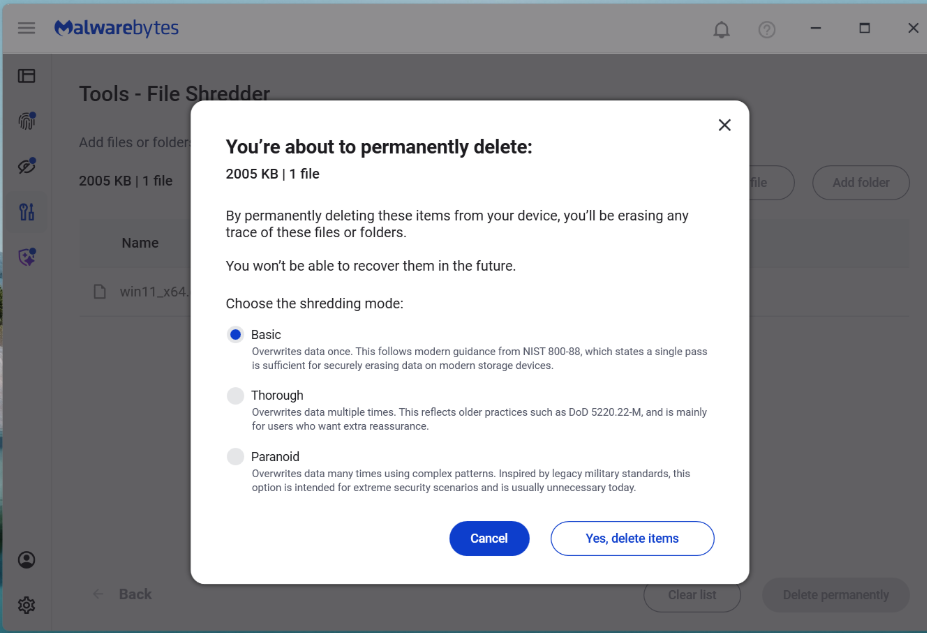
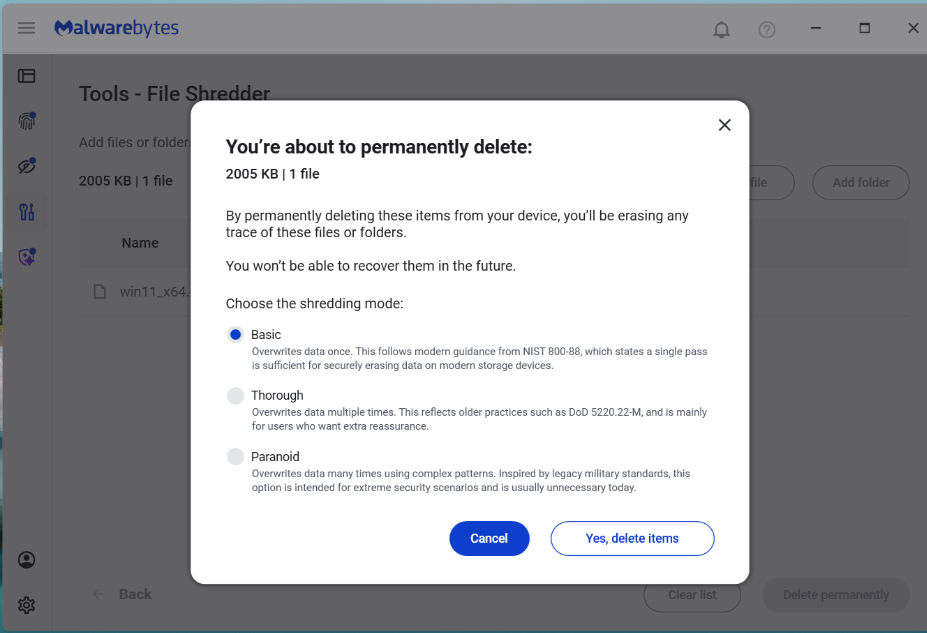
Clear warning dialogs explain that destruction is permanent. You must explicitly acknowledge before anything is destroyed. Once a file is shredded, it cannot be recovered.
Shred
Choose your level (Basic, Thorough, or Paranoid) and confirm. During shredding, you’ll see real-time progress showing:
- which file is being shredded
- how far along the process is
- estimated time remaining
You can pause or cancel the job. However, once File Shredder starts working on a file, it finishes shredding that file before stopping. This prevents files from being left in a partially overwritten state, which could leave them corrupted or difficult to delete properly.
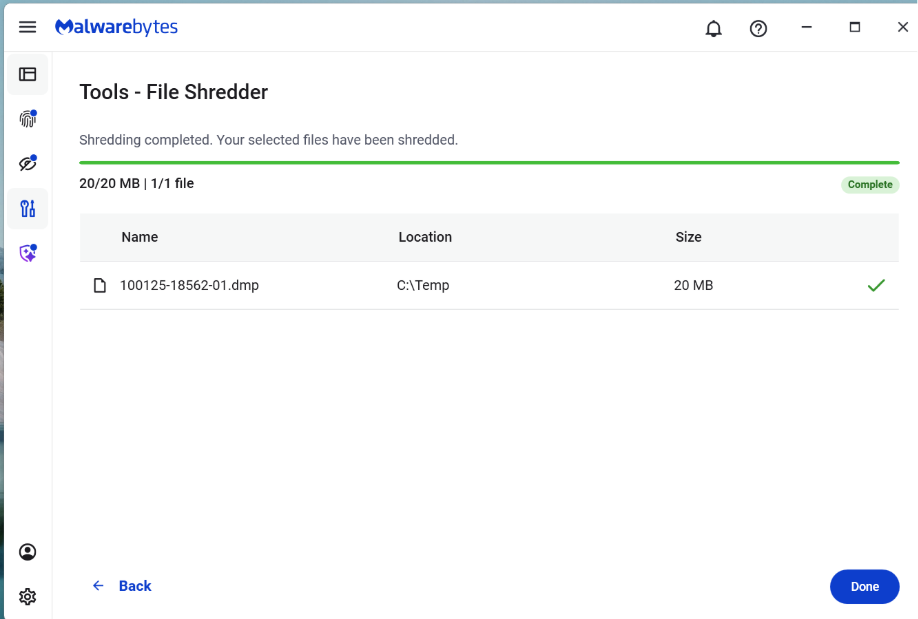
Done
When shredding completes, File Shredder shows a report listing every file that was successfully destroyed. You’ll also receive a notification confirming the job is finished.
How File Shredder handles large files safely
Shredding large files or deeply nested directories can use a lot of CPU and resources on your machine. To balance security with performance, the implementation includes:
- Buffered write operations for efficient disk access
- Chunked overwrite processing to handle large files without excessive memory use
- Recursive folder shredding that processes entire directory trees
- Cancellation handling where feasible, without leaving partial data behind
- Error reporting so you know if any file could not be shredded (for example, if it’s open in another application)
Preventing accidental shredding
Building a feature that claims to permanently destroy data is a serious responsibility. We did not just write the code and assume it worked. We tested aggressively.
Because shredding is irreversible, the UI incorporates multiple safeguards before execution:
- Explicit file or folder selection
- Clear warnings about permanent deletion
- Confirmation prompts before shredding begins
- Shredding prevention on protected system paths or Malwarebytes files
When you’re done with a file, it should really be done
For too long, “delete” has mostly meant out of sight, not out of existence. File Shredder changes that. By securely overwriting files before removing them, it helps ensure your sensitive data stays private even after you delete it.
We don’t just report on threats—we remove them
Cybersecurity risks should never spread beyond a headline. Keep threats off your devices by downloading Malwarebytes today.
*** This is a Security Bloggers Network syndicated blog from Malwarebytes authored by Malwarebytes. Read the original post at: https://www.malwarebytes.com/blog/inside-malwarebytes/2026/03/delete-doesnt-mean-gone-heres-how-file-shredder-fixes-that
如有侵权请联系:admin#unsafe.sh