Before we dive into the setup process, it’s important to understand why GrapheneOS stands out from standard Android and why it’s perfect for privacy-conscious users. GrapheneOS is a security- and privacy-focused operating system that replaces the stock OS on your device, providing enhanced protection against tracking, malware, and unauthorized data access. Unlike typical Android systems, GrapheneOS is built from the ground up to:
- Isolate apps so they can’t access each other’s data.
- Restrict background data to minimize unwanted tracking.
- Give granular control over permissions, letting you decide what each app can access.
Every choice you make during the initial setup has a direct impact on your privacy and security. By paying attention to these steps, you’re not just turning on a device—you’re creating a secure digital environment where:
- Personal data is protected.
- Notifications and apps are compartmentalized.
- Potential attack surfaces are minimized.
We will now continue from where we left off — the “Welcome to GrapheneOS” screen. At this stage:
- Your device has successfully booted into GrapheneOS.
- You’re ready to begin the initial setup process.
- This step allows you to configure privacy preferences, connect to Wi-Fi securely, and decide whether or not to sign in to accounts.
Let’s go through each setup screen carefully to ensure maximum privacy and a smooth start with GrapheneOS.
Step 1 – Once the installation finishes, your device will boot into GrapheneOS, ready for initial setup.

Step 2 – Navigate to the Apps menu and open Settings—this is where you’ll start customizing your device and privacy preferences.

Step 3 – Go to Security & Privacy to access key options for protecting your device and data.

Step 4 – Tap on Device Unlock to manage how you access and secure your phone.

Step 5 – Tap on Screen Lock to set up or change your device’s unlock method.

Step 6 – Enable the Scramble PIN Input Layout toggle to randomize the keypad and enhance your device’s security.

Step 7 – Navigate back and tap on Exploit Protection to access advanced security settings that help safeguard your device against attacks.

Step 8 – Tap on Auto Reboot to enable your device to automatically restart after critical updates or security events.

Step 9 – Select a time for the automatic restart— for example, set it to 18 hours—so your device can reboot securely without interrupting your usage.

Step 10 – Navigate back and tap on USB-C port

Step 11 – Select Charging-Only When Locked to ensure your device only charges while locked, preventing unauthorized data access via USB.

Step 12 – Navigate back and tap on Turn Off Wi-Fi Automatically to manage your device’s Wi-Fi behavior and enhance privacy.

Step 13 – Select the duration based on your usage—for example, 30 minutes—after which Wi-Fi will automatically turn off to save power and improve privacy.

Step 14 – Navigate back and tap on Turn Off Bluetooth Automatically to manage Bluetooth activity and enhance your device’s security and privacy.

Step 15 – Choose a duration that suits your usage, after which Bluetooth will automatically turn off to save power and maintain privacy.

Step 16 – Navigate back and tap on Private Space to access a secure, isolated area for apps and data.

Step 17 – Tap the Set Up button at the bottom to begin creating your Private Space.

Step 18 – A loading screen will appear with the message “Setting up Private Space…” while your secure, isolated environment is being created.

Step 19 – Tap on the Choose New Lock button to set a secure unlock method for your Private Space.

Step 20 – When the All Set screen appears, tap the Done button to complete the Private Space setup.

Step 21 – Open the App Drawer and tap on the Lock icon to access your Private Apps within Private Space.

Step 22 – All your Private Apps will be displayed, giving you access to apps and data isolated within Private Space.

Step 23 – Open your browser, go to f-droid.org and tap the Download F-Droid button to get the app store for open-source applications.

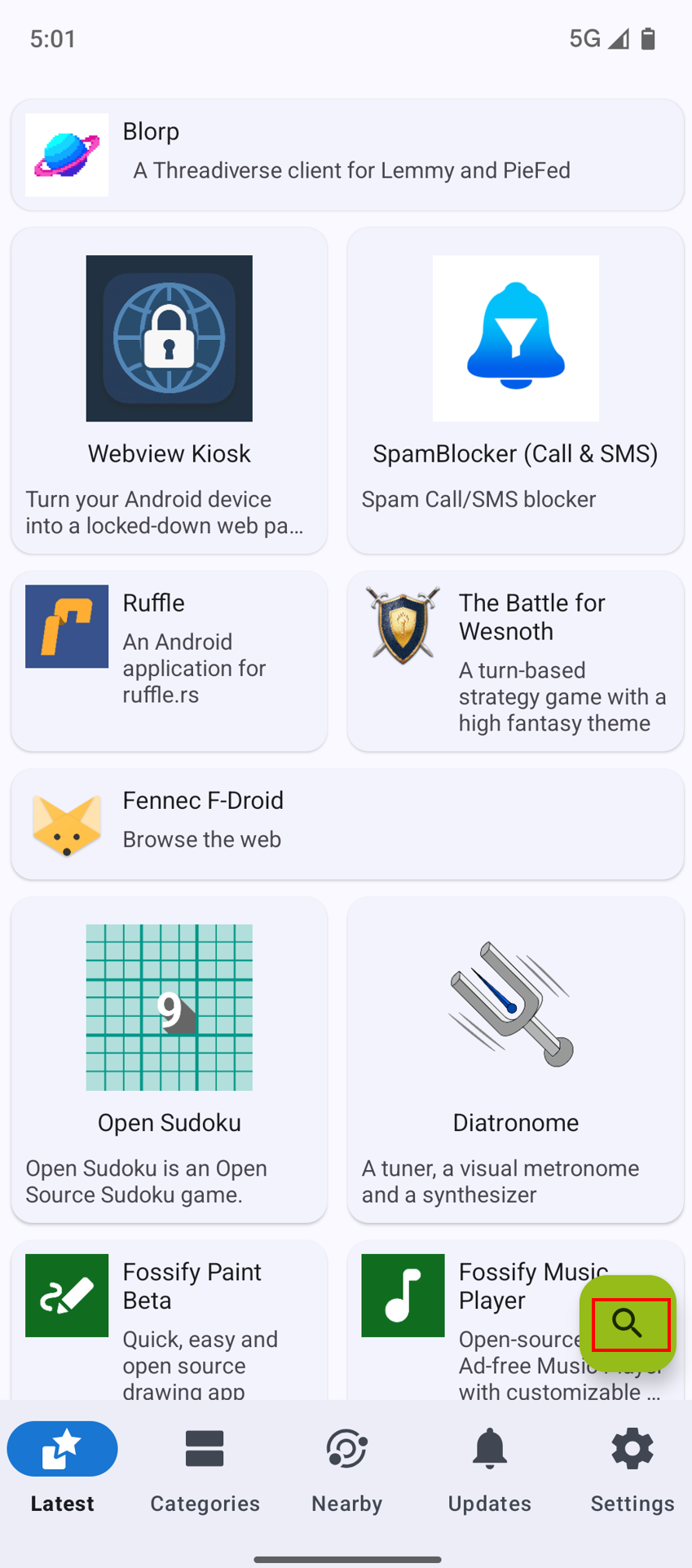
Step 24– This is the F-Droid app interface. The search icon (highlighted in green) at the bottom right corner allows you to search for any app available in F-Droid.

Step 25 – In F-Droid, search for Aurora Store and tap on the first item in the search results.

Step 26 – Tap the Install button to download and install Aurora Store on your device.

Step 27 – Tap Install to begin the installation process.

Step 28– Tap Next to proceed to the next step.

Step 29- The Aurora Store permissions screen, where you need to grant required permissions like Installer permission to allow app installations.

Step 30– It shows the Aurora Store login screen, where you can choose to log in anonymously for better privacy without using a Google account.

Step 31– You can now browse and download any apps you want directly onto your device.

Step 32– Tap on System to access system settings and manage your device’s core features.

Step 33- It shows the System updates section in Android Settings, where you can check and install the latest OS and security updates—currently showing the device is updated to Android 16.

Step 34– This toggle lets you enroll in GrapheneOS security preview releases, giving you early access to security patches before public release, while keeping regular updates if left disabled.

Step 35– This is the GrapheneOS Private Space app drawer, where apps and data are isolated, the “Private” bar lets you lock the space instantly, and the gear icon opens settings for customization.

Conclusion
With your device now successfully running GrapheneOS, completing each setup screen carefully allows you to configure your privacy preferences, connect to Wi-Fi securely, and manage account sign-ins according to your comfort. At this stage, you can also explore advanced privacy options like restricting app permissions, enabling system-level network protections, and activating Private Space for sensitive apps and data. Taking the time here ensures that your device starts with strong privacy and security foundations, minimizing tracking, background data access, and potential vulnerabilities. By paying attention to these initial configurations, you’re not just setting up a phone—you’re creating a personal digital environment that prioritizes your security, enhances your control over data, and leverages GrapheneOS’s unique security-focused features to their fullest potential.
To learn more on Open-Source Intelligence (OSINT). Follow this Link
Author: Muskan Sen is a Researcher and Technical Writer specializing in Information Security. Follow her – Linkedin