This article explains why Chrome’s “preloading” feature can cause scary-looking blocks in Malwarebytes Browser Guard and how to turn it off.
Modern browsers want to provide content instantly. To do that, Chrome includes a feature called page preloading. When this is enabled, Chrome doesn’t just wait for you to click a link. It guesses what you’re likely to click next and starts loading those pages in the background—before you decide whether to visit them.
That guesswork happens in several places. When you type a search into the address bar, Chrome may start preloading one or more of the top search results so that, if you click them, they open almost immediately. It can also preload pages that are linked from the site you’re currently on, based on Google’s prediction that they’re “likely next steps.” All of this happens quietly, without any extra tabs opening, and often without any obvious sign that more pages are being fetched.
From a performance point of view, that’s clever. From a privacy and security point of view, it’s more complicated.
Those preloaded pages can run code, drop cookies, and contact servers, even if you never actually visit them in the traditional sense. In other words, your browser can talk to a site you didn’t consciously choose to open.
Malwarebytes Browser Guard inspects web traffic and blocks connections to domains it considers malicious or suspicious. So, if Chrome decides to preload a search result that leads to a site on our blocklist, Browser Guard will still do its job and stop that background connection. The result can be confusing: You see a warning page (called a block page) for a site you don’t recognize and are sure you never clicked.
Nothing unusual is happening there, and it does not mean your browser is “clicking links by itself.” It simply means Chrome’s preloading feature made a behind-the-scenes request, and Browser Guard intercepted it as designed. Other privacy tools take a similar approach. Some popular content blockers disable preloading by default because it leaks more data and can contact unwanted sites.
For now, the simplest way to stop these unexpected block pages is to turn off preloading in Chrome’s settings, which prevents those speculative background requests.
How to manage Chrome’s preloading setting
We recommend turning off page preloading in Chrome to protect your browsing privacy and to stop seeing unexpected block pages when searching the web. If you don’t want to turn off page preloading, you can try using a different browser and repeating your search.
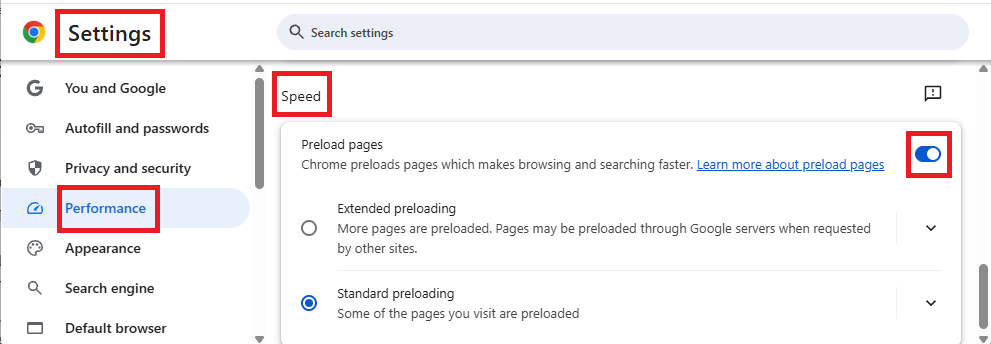
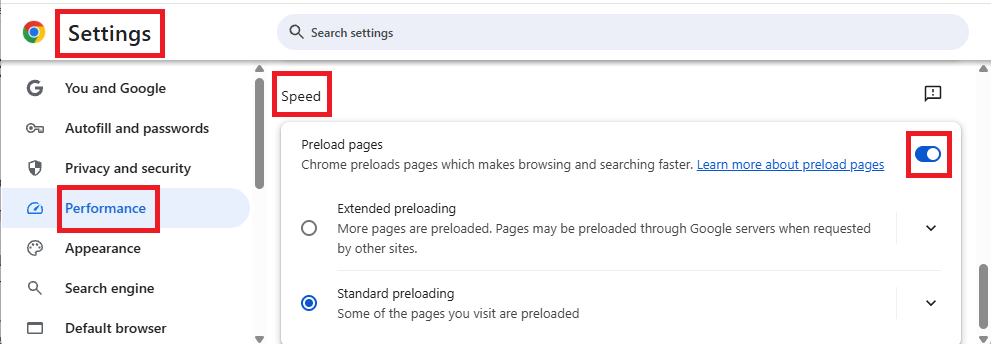
To turn off page preloading:
- In your browser search bar, enter:
chrome://settings - In the left sidebar, click Performance.
- Scroll down to Speed, then toggle Preload pages off.
We don’t just report on data privacy—we help you remove your personal information
Cybersecurity risks should never spread beyond a headline. With Malwarebytes Personal Data Remover, you can scan to find out which sites are exposing your personal information, and then delete that sensitive data from the internet.