好的,我现在需要帮用户总结这篇文章的内容,控制在100字以内。首先,我得通读整篇文章,理解其主要内容和重点。 文章主要讲的是Jamf在2025年11月发布的新功能,允许自动升级Mac的操作系统到最新的版本。但之前的问题是,升级可能会跳到下一个大版本,比如从Sequoia升级到Tahoe。现在Jamf新增了一个选项,可以只升级到当前版本的最新小版本,比如从Sequoia 15.7.1升级到15.7.3,而不是直接升到Tahoe。 接下来,文章详细介绍了如何在Jamf Pro中设置这个功能,包括创建Blueprint、选择组、设置更新选项等步骤。还提到了具体的配置参数,比如忽略大版本更新、设置更新期限和安装时间。 最后,文章通过一个示例展示了这个功能的实际应用效果,并说明了如何验证更新是否成功部署。 总结一下,这篇文章的核心内容是Jamf新增了自动更新MacOS的功能,可以选择只升级小版本而不跳大版本,并详细介绍了如何配置和使用这个功能。因此,在总结时需要涵盖这些关键点: Jamf的新功能、自动更新选项、限制升级到当前版本的最新小版本以及配置方法。 </think> 文章介绍了Jamf新增的MacOS自动更新功能,允许管理员选择仅升级至当前版本的最新小版本而不跳转至新大版本,并详细说明了如何在Jamf Pro中配置此功能以实现按计划自动更新。 2026-2-5 23:45:7 Author: derflounder.wordpress.com(查看原文) 阅读量:30 收藏
Back in November 2025, Jamf released options for automatically upgrading the OS version of a Mac to the latest version of macOS that a particular Mac can support. However, this upgrade option meant that the Mac could potentially be upgraded to a new major version of macOS as part of the upgrade process.
For example, applying this software update declaration to a Mac running macOS Sequoia 15.7.1 would not upgrade it to the latest version of Sequoia, which is 15.7.3 as of February 5, 2026. Instead the Mac would be upgraded to the latest version of macOS available, which is macOS Tahoe 26.2 as of February 5, 2026.
To address this, now there is an option for updating the OS version to the latest minor version of the OS that the Mac is currently running. Using the example above, now a software update declaration can be applied to update a Mac running macOS Sequoia to the very latest version of macOS Sequoia, but not upgrade the Mac to now run macOS Tahoe.
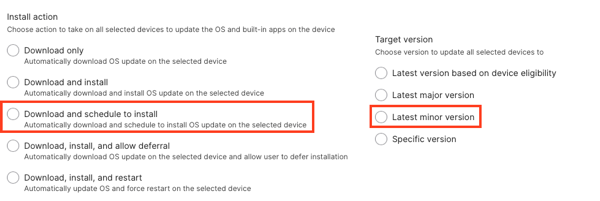
For those familiar with Jamf Pro’s managed software update functionality, the new software update declaration functionality provides the following update options:
- Download and schedule to install
- Latest minor version

The Latest minor version functionality in the managed software update functionality tells the managed Mac to download and install the latest update available to the current version of macOS that a particular Mac is running. The Blueprints software update declaration option provides that same experience, where you can do the following:
- Set that you want the managed Macs to update their OS version using the latest update for the current version of macOS that the Mac is running.
- Set a deadline that you want to have your Macs updated by.
For more details, please see below the jump.
For this example, I have the goal of updating managed Macs to the latest available update for the current version of macOS that the individual Macs are running.
I want to have them all updated within one day of the release of new updates for the current macOS running on the individual Macs, with the install time set as being 6:00 PM (18:00)
I can set up a Blueprint in Jamf Pro to deploy a software update declaration to enforce this using the following procedure:
1. Log into Jamf Pro.
2. Select Blueprints
3. Click on Update software to latest version.

4. Give it a name when prompted. For this example, I’m using Update macOS version.

5. Select a Jamf Pro smart or static group. For this example, I’m selecting a static group named Managed Software Update Deployment Group.

6. In the Software Updates section, I’m choosing the following settings:
- Enforcement type:
- Latest OS version
- Check the Ignore major versions checkbox (this setting is what restricts your Mac to updating to the latest update available for the current version of macOS that a particular Mac is running.)
- Days after release to enforce update:
- 1
- Install at (local device time):
- 18:00
7. Once all the information has been entered and verified to be correct, click the Save button.

8. Click the Deploy button to deploy the changes to the Macs you want to manage.

Once deployed, the Blueprints screen in Jamf Pro should show the newly-created Update macOS version Blueprint as being deployed.

Note: The options available via Blueprints for software declarations are the ones Apple has specified for software update declarations. For more information about this topic, please see the following link:
For this example, I’m deploying this Blueprint to a Mac which is running macOS Tahoe 26.0.1. As mentioned previously, as of February 5, 2026, the latest version of macOS Tahoe is macOS 26.2.
On your managed devices that are not yet up to date with all updates for the current version of macOS being run by the Mac, you can verify that the new software update declaration has been deployed by clicking on the enrollment profile, then scrolling to the bottom. In the case of this example, you should see a Device Declarations section with a listing for Software Update.

Because 26.0.1 has 26.1 and 26.2 as subsequent updates, Required Software Update listings for both 26.1 and 26.2 appear. However the Mac will only install 26.2 since that is the latest update for macOS Tahoe.

The user logged into the macOS 26.0.1 Mac should also be prompted to install macOS 26.2 right away, since the declaration is enforcing installing the update at one day after the macOS update’s release date and macOS Tahoe 26.2 was released on December 12, 2025.

On your managed Macs that are fully up to date, you will not see the Software Update declaration appearing on the enrollment profile. This is because the Mac is already fully updated and there is nothing for the Mac to do in response to the deployed software update declaration.

如有侵权请联系:admin#unsafe.sh