嗯,用户让我总结一下这篇文章的内容,控制在100字以内,而且不需要用“文章内容总结”之类的开头。首先,我得仔细阅读文章,抓住主要信息。 文章讲的是Mac管理员如何延迟macOS更新。苹果提供了延期设置,可以延迟主要升级、次要更新和非操作系统更新,最长90天。管理员可以通过Jamf Pro的Blueprints手动配置这些设置,分步骤操作,比如创建蓝图、添加组件、设置延期天数,然后部署到目标设备。 用户可能是一位Mac管理员或者IT人员,需要管理大规模的Mac设备。他们可能对如何控制软件更新流程感兴趣,特别是如何延迟更新以确保兼容性。深层需求可能是希望有一个清晰、简洁的指南来帮助他们完成这个配置过程。 所以,在总结时要涵盖主要点:延期设置的目的、延期类型、最长天数以及使用Jamf Pro的方法。同时要保持简洁,不超过100字。 </think> 文章介绍了如何通过Apple的Software Update和Jamf Pro的Blueprints功能延迟macOS更新,包括主要操作系统升级、次要更新和非操作系统更新的最长90天延期设置,并详细说明了配置步骤。 2026-1-26 18:1:53 Author: derflounder.wordpress.com(查看原文) 阅读量:35 收藏
As part of the software testing cycle, Mac admins may choose to delay making Apple’s macOS updates generally available to their fleet while they’re testing to make sure all the software used on their organization’s Macs works correctly on new versions of macOS. To assist with this, Apple has made available deferral settings for Apple’s Software Update on macOS, where you can choose to defer the following for up to 90 days:
- Major OS upgrades: An upgrade is a major macOS release with a new name (for example, macOS Sequoia 15 to macOS Tahoe 26).
- Minor OS updates: An update is a minor release within the same macOS version, such as Tahoe 26.0 to 26.2.
- Non-OS updates: These are software updates provided by Apple that are not covered by the prior two categories.
For those who need to know when deferral periods end, Apple has them available for the current shipping OS via the link below:
https://support.apple.com/guide/deployment/about-software-updates-depc4c80847a/web (see the Software release dates section.)
One example of a deferral choice is delaying the release of a new major version of macOS. In this scenario, a Mac admin may want to delay release because mandatory security software for their environment has not yet been certified by the software vendor as being compatible with the new version of macOS. You can use Blueprints in Jamf Pro to distribute these tokens, using the Software Update Settings component in Blueprints.
Let’s take a look on how to deploy deferral settings using using the following software update configuration as an example:
- What’s deferred: Major OS upgrades
- How long: 90 days
For more details, please see below the jump.
As of Jamf Pro 11.24.0, there is not a Blueprints template available for creating blueprints which manage software update settings so the blueprint will need to be configured manually. To do this, use the following procedure:
1. Log into Jamf Pro.
2. Select Blueprints
3. Click the Create blueprint button.

4. You should see an unconfigured Blueprint. Click where it says Untitled blueprint and provide a name.
For this example, I’m using Apple 90 Day Deferral.
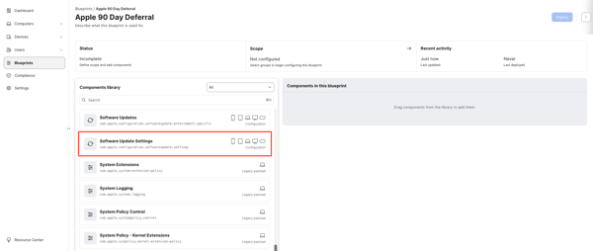
5. Scroll down in the list on the left-hand side of the browser window to locate the Software Update Settings component.

6. Click on the Software Update Settings component and drag the Software Update Settings component to the Declaration group section.

7. Once added to the Declaration group section, click anywhere on the Software Update Settings component to open it for editing.
8. At this point, you will see all available Software Update settings which are available for all Apple platforms. To apply the desired deferral settings, select the following option:
Deferrals
Click the associated Configure button.

Check the checkbox for Number of days to defer a major macOS software update.
Enter the following value in the entry blank:
90
This will configure major OS upgrades to be deferred for the maximum amount of time, which is 90 days following the release of the major OS upgrade.
Once all choices have been made and verified, click the Update button.

9. Once all the settings choices have been made and verified, click the Save button.

10. At this point, you should have a blueprint which has all settings configured but where no target scope has been set. To scope this blueprint, go to the Scope section and click the arrow button.

For this example, I’m selecting a static group named macOS 90 Day Deferral Group. Once the desired smart and/or static groups have been set and verified for the scope, click the Save button.

11. Once everything has been configured, click the Deploy button to deploy the changes to the Macs you want to manage.

12. Once deployed, the Blueprints screen in Jamf Pro should show the newly-created Apple 90 Day Deferral Blueprint as being deployed.

You can also check on the managed device’s end by opening System Settings: General: Device Management, locating the MDM enrollment profile in the list of profiles and double-clicking on it. When you scroll to the bottom of the enrollment profile’s window, you should see a Device Declarations section.
If you’re deploying a software update configuration via Blueprints, you should see a Software Update Settings listing for Software Update in the Device Declarations section.

If you click on the Software Update Settings listing, it should report the following:
- Major period: 90

如有侵权请联系:admin#unsafe.sh