文章介绍了如何通过Apple Business Manager注册AppleSeed for IT项目,允许企业或教育机构管理员代表组织接受协议并为设备 enrol beta 测试计划,无需在设备上使用 Apple 账户登录。 2026-1-4 19:8:42 Author: derflounder.wordpress.com(查看原文) 阅读量:41 收藏
Home > Apple Business Manager, AppleSeed > Signing up for AppleSeed for IT using Apple Business Manager
Signing up for AppleSeed for IT using Apple Business Manager
Apple’s AppleSeed for IT program is designed to help enterprise and education customers test beta versions of Apple’s software.

To assist with making it easier to test these beta versions on devices, it’s possible for a user with the Administrator role in Apple Business Manager or Apple School Manager to accept the AppleSeed program’s terms and conditions on behalf of their organization. In turn, this will enable devices to be enrolled in Apple’s beta programs without the need for the user to sign in with an Apple Account on the device. For more details on how to do this, please see below the jump.
Pre-requisites:
- Apple Business Manager or Apple School Manager instance for your organization
- Managed Apple Account with the Administrator role for that Apple Business Manager or Apple School Manager instance
1. Sign into the Apple Business Manager or Apple School Manager instance via a web browser using a managed Apple Account with the Administrator role.
2. At the bottom left corner of the browser, click on the menu and select Preferences.

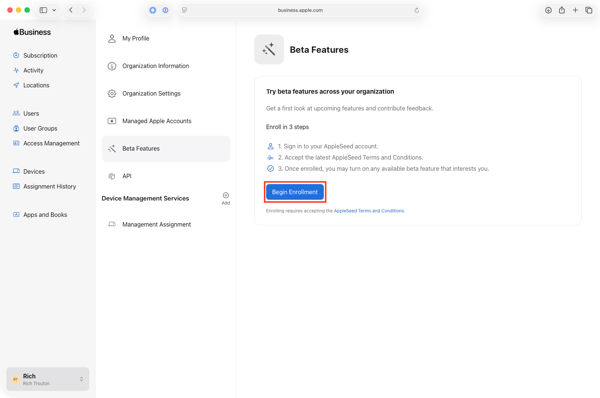
3. Select Beta Features.
4. Click the Begin Enrollment button.

5. At the Agreement window, read through the Apple Beta Software Program Agreement agreement.
6. Once you’ve read through the agreement, click the Agree button.

7. At the Program window, click the Join button for the AppleSeed for IT program.

8. At the Agreement window, read through the AppleSeed for IT agreement.
9. Once you’ve read through the agreement, click the Agree button.

Once you’ve agreed to the AppleSeed for IT agreement, you should now be signed into the AppleSeed for IT website.
With this program signup completed, you should now be able to enroll devices in an Apple beta program using a token. The token-based enrollment method removes the need to sign into the device using an Apple Account. For more details on how to do this, please see the link below:
如有侵权请联系:admin#unsafe.sh