
For those who might not know, I’ve been recovering from shoulder surgery and operating with one arm for the past month. It’s been… interesting to say the least. Typing has been particularly difficult, so I’ve been relying heavily on voice control and dictation. In fact, this entire post has been written using dictation alone on my Mac (more on this later).

Alternatives to Typing
Dictation has come a long way in recent years, and getting it todo typing with a Scottish accent is surprisingly decent, Siri only gets it wrong about half the time, so this blog post took double the time to write as a normal one. Accessibility features across operating systems and mobile devices have become a genuinely useful part of my toolkit.
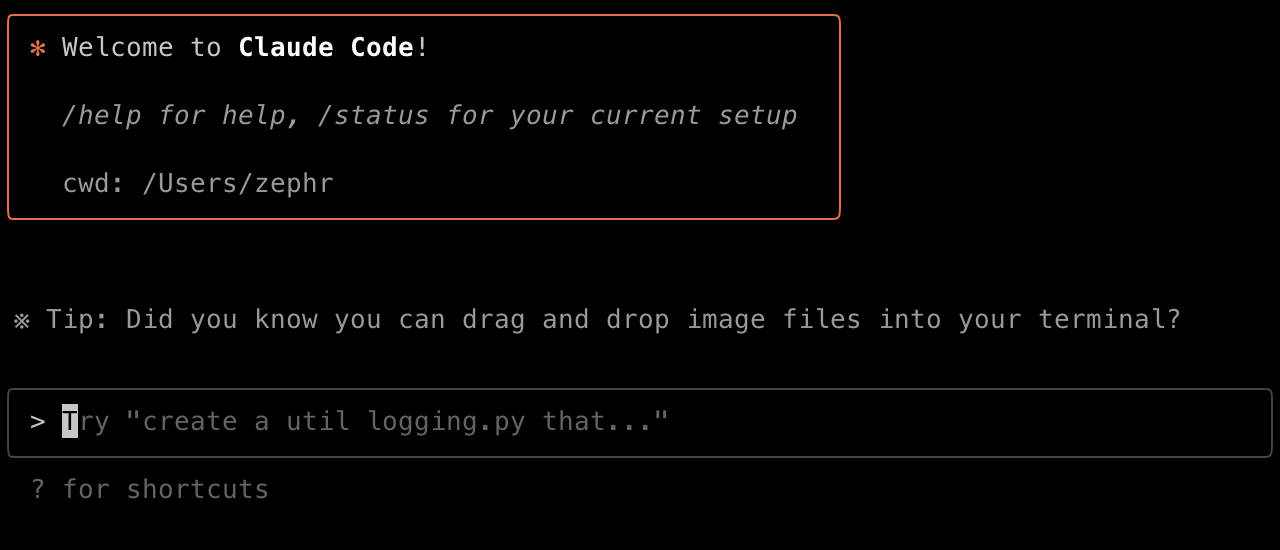
Pairing dictation with tools like Claude Code has been a lifesaver: I can talk at the machine, let it interpret what I’ve said, and have it generate what I need. That workflow is how my pR1 project ended up being released while I was effectively one-handed.
Why Write This?
Accessibility is something most of us ignore until we suddenly need to depend on it. After a few weeks of living the one-armed life, using anything but my hands has become the only way to keep my left shoulder immobilised. I’ve barely been able to do my day job simply because using a mouse or keyboard has been a fight, so relying on other tech has basically been my lifeline. Tasks I normally take for granted using a trackpad, typing with both hands have all been far more slow, awkward, and at times absolute agony a lot more than expected.
If you’ve never tried living one-handed (0/10, would not recommend), imagine how it affects even the simplest everyday tasks. Putting on clothes socks and hats in particular typing, getting a jacket on, zipping it up with one hand… all suddenly become small puzzles. Learning to do everything one-handed has been a steep climb, and honestly I didn’t expect it to be as difficult as it is. Painkillers help, but being able to dictate messages to my computer or phone has been the thing keeping me productive and vaguely sane.
Dictation Isn’t Perfect
One of the more irritating parts of dictation on a Mac is how US-centric it is. A lot of voice shortcuts assume American phrasing, like having to say “space key” instead of simply “space”, which just grates. Add a Scottish accent and dyslexia into the mix and you get some truly unhelpful misinterpretations. Siri, for example, seems convinced her name is “Sarah”, so she’ll respond enthusiastically and then ignore me straight after. Anyone with a non-standard accent Scottish or otherwise knows this pain all too well.
The Sci-Fi Dream vs Reality
We all know the fantasy from Minority Report, Iron Man, and every sci-fi film where voice control looks slick and effortless: speak, and the system just works. We’re getting closer. Voice control is good, dictation is good, but it’s still nowhere near perfect especially when you’re trying to use tools, command-line arguments, or anything even slightly technical.

Try using it for anything technical: command-line arguments, symbols, file paths, or anything that requires precision, and it falls apart fairly quickly. Amazing for prose, tolerable for admin, rough for technical work, however one of the key things that has improved is the use of AI-agents. As you can effectively direct them to write the technical things using prose and while it's not perfect it's certainly easier than trying to dictate Python and Go functions into terminal plus the interpretation of 'pipe' works about one out of five times every time.
What Dictation Gets Wrong (and How to Work Around It)
Dictation is good borderline brilliant at times, but it still gets tripped up by anything outside normal conversational American English (which as a scotsman is really freaking annoying). Technical work, punctuation, symbols, filenames, code, and accents all expose its limits fairly quickly. Here are the main issues I’ve run into, along with the workarounds that actually help.
Symbols and Punctuation
This is where dictation falls apart fastest. Anything a developer types daily is liable to be mangled. Examples:
- Pipe (|) – Interprets it as “type”, “hype”, “wipe”, or just nothing at all.Workaround: Say “vertical bar” instead of “pipe”; works ~80% of the time. Otherwise dictate the command in prose, then let an AI agent construct the actual syntax.
- Slash vs backslash – Often confused or dropped entirely.
Workaround: Say “forward slash” or “back slash” very slowly; macOS voice control picks it up more reliably than Siri dictation. - Quotes – “Quote”, “double quote”, and “apostrophe” all get misapplied. Workaround: Switch to “open quote” / “close quote” for prose, and physically type quotes when writing code—it’s faster and avoids errors.
- Colons and semicolons – Frequently ignored or inserted in the wrong place. Workaround: Dictate sentences fully then edit punctuation manually, or insert them later using voice commands like “insert colon”.
File Paths and Commands
Dictation really isn’t built for things like this command (typing this took many many attempts) colon
/usr/local/bin/python3 -m http.server 8thousand
no 8 zero 80, fuck it, 80 eighty :hidethepain:
Workaround: Talk in full descriptive sentences e.g., “generate a Python command to start a web server on port eighty eighty” and let an AI agent output the correct syntax. You avoid the symbol nightmare entirely.
CLI Arguments
Flags like -v, --verbose, --force, or anything with hyphens get butchered. Hyphens, in particular, are wildly unreliable.
Workaround: Use:
- “dash”
- “double dash”
- “hyphen”
Or dictate the intent and have an agent clean it up.
Capitalisation
Dictation is inconsistent with proper nouns, filenames, or acronyms. For example:
- “SSH” becomes “s s h”
- “GitHub” becomes “get hub”
- “zsec.red” becomes “zed section red”, “zee sec”, or whatever Siri fancies that day, the americanisation is unfortunate that I need to pronounce Z incorrectly as zee rather than zed 😦.
Workaround: Do a pass afterwards with search-and-replace, or create Voice Control macros for terms you use daily (e.g., “insert uppercase S S H”).
Accents and Mishearings
Scottish accents absolutely decimate voice dictation in places. Common issues:
- “Siri” becomes “Sarah”
- “shell” becomes “shall”
- “code” becomes “cold”
- “curl” becomes “Carol”
- “sudo” becomes “pseudo”
Workaround: Use macOS Voice Control rather than Siri dictation it has better accent tolerance. Slow your speech slightly and keep commands clipped and monotone; dictation responds better to “robot mode” than conversational tone.
The Mental Load of Limited Mobility
Something I hadn’t considered is the sheer mental exhaustion of only being able to use one arm. It’s not just physically exhausting it’s a constant cognitive drain trying to solve basic problems you’ve never had to think about before, actions that have been daily autonomy up until this point.
Two very basic things, getting up out of chairs, sitting up and also picking things up, my squat game and core have improved exponentially. To pick anything up or even lean down I need to squat down to grab things which happens more than you might think. The same can be said for getting up, can't push on arm rests or anything because pressure on arm is the last thing I can do so using legs and core for everything has been just as sore too!
Getting dressed becomes a morning strategy exercise. Buttons are the obvious nightmare, but it goes much further. How do put a t-shirt on? Everyone is different but the technique I found that worked was pull the sling through the shirt first, hook it over my head then pull my working arm through the other sleeve. Socks feel impossible at first: you need to hold them open and guide your foot inside at the same time. Belts require threading, pulling, and fastening in a sequence that normally relies on both hands working against each other.
Even something as mindless as pulling up trousers becomes a balancing act when you can’t use your other arm to brace against the wall. The easiest method I’ve found is simply lying on my back and letting gravity do the heavy lifting. Not glamorous, but effective.
Another example: imagine you’re in a car and need to put on a seatbelt or close the door, but you can’t reach the door handle properly and you can’t guide the belt the way you normally would. These are tiny, everyday actions you’ve done automatically your entire life. Lose one arm, and you lose that autonomy instantly.
One-Armed Survival Kit
Living one-handed forces you to rethink every part of your workflow. You end up building a toolkit that isn’t about convenience but working out ways to stay productive, avoid pain, and stop yourself from hurling your laptop out the window (with your working hand) when dictation misbehaves. Here’s the set of tools, settings, and odd hacks that I have found make a massive difference.
Dragon Dictation (Nuance Dragon)
Still the gold standard for voice recognition if you need raw accuracy. Dragon handles accents better than most built-in systems and deals with long-form text surprisingly well. It’s not perfect with technical work, but for writing drafts, responding to emails, or capturing ideas quickly, it’s miles ahead of Siri or macOS dictation.
Why it matters one-handed:
- Best accuracy with non-standard accents (Scottish included).
- You can train custom vocabulary for technical terms.
- Far fewer misfires than mainstream dictation engines.
macOS Dictation

macOS dictation is decent and, importantly, always there. Enhanced Dictation (offline mode) improves speed and reduces lag, which makes it less maddening. It’s less forgiving with command-line or technical content, but for general writing, it’s quick to trigger and easy to use.
Make it tolerable by:
- Enabling Enhanced Dictation in System Settings.
- Using Voice Control for cursor movements and edits.
- Creating custom commands for things you say often, like “insert pipe symbol”, “new paragraph”, or technical terms the system constantly butchers.
AI Agents (Claude Code, ChatGPT, Gemini)

The biggest game-changer has been using AI agents to fill in the gaps where dictation falls on its face. Instead of trying to dictate precise syntax (“pipe! no, pipe! vertical bar! no stop that”), you dictate intent and let the agent write the technical content.
How AI helps one-handed:
- You dictate the idea, the agent writes the actual code.
- Agents normalise punctuation and structure automatically.
- They avoid repeated fiddling with tiny symbols or braces.
- They work as a buffer between your accent and the machine.
Even if dictation gets your words wrong, the agent usually works out what you meant.
Word Processors & Note-Taking Tools
Tools like Microsoft Word, Google Docs and Obsidian become essential purely because they offer forgiving environments: autocorrect, grammar checking, formatting aids, and undo buttons become your friends.
Why these matter:
- Dictation dumps messy text word processors clean it up.
- Grammar and spell-check catch the nonsense your mic picked up.
- Voice-triggered formatting (“bold that”, “insert bullet list”) works well.
If you’re doing longer writing sessions, Word and Google Docs handle dictation better than most editors.
Keyboard Shortcuts and Automations
Even one-handed, a few shortcuts still help mainly the ones you can hit with your working hand:
- Cmd + Space – Launch Spotlight (or Raycast, if you use it).
- Cmd + A / C / V – Select all, copy, paste.
- Cmd + Tab – App switching.
Pair this with macOS Shortcuts, Keyboard Maestro, or Automator, and you can chain actions together so a single shortcut replaces three or four fiddly mouse moves you physically can’t do easily.
Hardware Helpers
Not software, but worth calling out:
- Vertical mice or trackballs – Less wrist strain, more control one-handed.
- Macro pads – Assign common actions to big, easy-hit buttons, I've got a streamdeck setup on my desktop for easier navigation, bookmarks and apps along with functions.
- Phone/tablet stands – So you’re not trying to grip anything with your bad arm.
Even a cheap stand in the right angle is the difference between functional and miserable.
Conclusion
If there’s one thing the past month has taught me, it’s that accessibility tools aren’t optional extras, they're also not perfect. Unfortunately we're not at the sci-fi levels of functionality just yet but they have become essential infrastructure the moment your body stops cooperating. Dictation, voice control, AI agents, smarter word processors, automation, and a handful of cheap bits of hardware were the only reason I’ve been able to keep working, communicating, and staying vaguely functional while everything took twice as long and hurt three times as much. One of the other things I've grown to appreciate is the 'lightness' of newer tech, something I hadn't considered is the weight of my iPad for example, the M4 is feather weight and excellent when you're using it with one hand.
None of these tools are perfect. Dictation still mangles half my sentences, accents continue to be second-class citizens in anything voice controlled. Dictating anything in reality remains an exercise in patience and profanity. But the combination of these tools the survival kit makes the difference between “unable to work at all” and “slow but manageable” and the addition of AI agents has accelerated being able todo things I'd otherwise be unable to.
What’s surprised me the most is that I’ll likely keep using a lot of this setup even after I’m finally out of the sling fully. Once you get past the initial awkwardness, these tools genuinely make day-to-day work easier less strain, fewer repetitive movements, and far quicker ways of getting thoughts out of your head and onto a screen. Accessibility tech might have been forced on me by circumstance, but I can see it becoming part of my normal workflow long after this injury is behind me.
I will say however that I don't love how AI writes prose content and the phrasing that it adds to things, it's hellish at times and the robotic tone plus lack of emotion certainly removes from writing.
Learn and enable your accessibility options before you need them for depending upon. Get familiar with dictation, voice commands, automation, and whatever tools your platform offers. You don’t notice how much autonomy lives in tiny, mundane actions until you suddenly can’t perform them. And once you do need help, having those tools already set up and ready makes the shift from two-handed life to one-handed improvisation far less miserable.
If nothing else, you’ll appreciate just how much accessibility tech has improved and how much further it still needs to go.