
好的,我现在要帮用户总结一下这篇文章的内容。用户的要求是用中文总结,控制在100字以内,不需要特定的开头,直接描述文章内容。 首先,我需要通读整篇文章,了解其主要内容。文章主要介绍如何在Unraid系统上安装和配置YTPTube,这是一个基于网页的GUI工具,用于通过yt-dlp下载YouTube视频。文章详细说明了安装步骤、配置下载预设、下载视频、安排自动下载、集成Plex以及设置通知等功能。 接下来,我需要提取关键信息:YTPTube的功能、安装方法、配置选项以及优势。比如,YTPTube使用的是最新的yt-dlp而不是过时的youtube-dl,支持自定义预设,方便用户根据需求调整视频格式和存储结构。 然后,我要确保总结控制在100字以内,并且语言简洁明了。可能的结构是先介绍YTPTube是什么,然后说明它如何安装和使用,最后提到它的优势。 现在开始组织语言: YTPTube是一个基于网页的GUI工具,用于通过yt-dlp下载YouTube视频。文章详细介绍了如何在Unraid上安装和配置它,并展示了如何设置自定义下载预设、安排自动下载以及集成Plex媒体服务器。它支持多种功能如播放列表下载、通知设置等,并提供了详细的步骤指南。 检查一下字数是否符合要求:大约100字左右。 最后,确保没有使用“文章内容总结”之类的开头词,直接描述内容即可。 </think> YTPTube 是一个基于网页的 GUI 工具,用于通过 yt-dlp 下载 YouTube 视频。文章详细介绍了如何在 Unraid 上安装和配置它,并展示了如何设置自定义下载预设、安排自动下载以及集成 Plex 媒体服务器。它支持多种功能如播放列表下载、通知设置等,并提供了详细的步骤指南。 2025-11-3 16:40:9 Author: www.blackmoreops.com(查看原文) 阅读量:38 收藏
YTPTube is a web-based GUI for yt-dlp that makes downloading YouTube videos through your browser simple. This guide shows you how to Install YTPTube on Unraid using the Community Applications store, configure it and the set a preset to download using the best codecs, download subtitles if available and auto-create folders for the downloaded content. I chose YTPTube over other Unraid apps because it uses yt-dlp instead of the older youtube-dl. yt-dlp is actively maintained with frequent updates to keep up with YouTube’s changes, while youtube-dl often breaks and stays broken for weeks. More importantly, YTPTube’s preset system lets me create custom download configurations for exactly how I want my videos—whether it’s H.265 for Plex, specific resolutions, subtitle formats, or organised folder structures. This flexibility means I can have different presets for different content types (tech videos, tutorials, entertainment) with the exact codec, quality, and organisation that works for my setup. Other web GUIs are either too basic or use outdated youtube-dl, but YTPTube gives me the power of yt-dlp’s command-line flexibility through a simple browser interface.
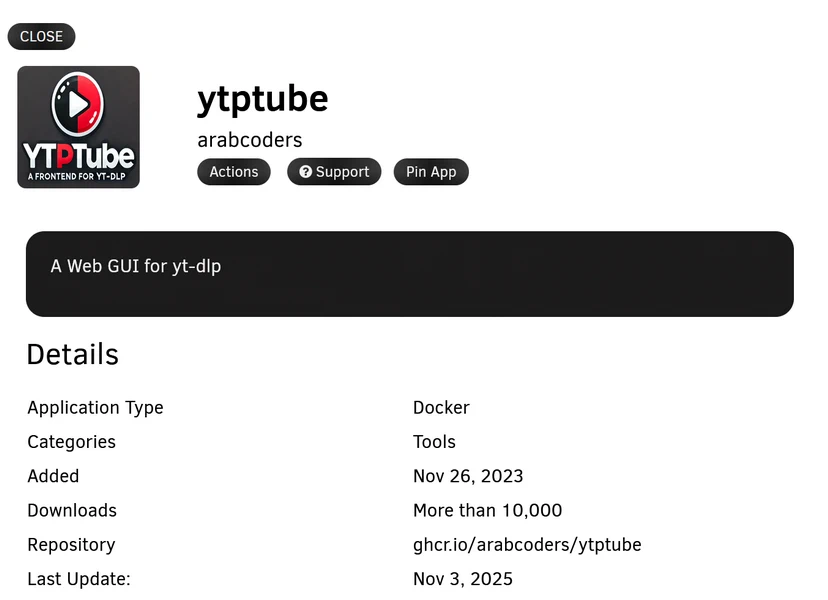
YTPTube is a web-based GUI for yt-dlp, designed to make downloading videos from video platforms easier and user-friendly. It supports downloading playlists, channels, live streams and includes features like scheduling downloads, sending notifications, and built-in video player.
Prerequisites
- Unraid 6.9 or newer
- Community Applications plugin installed
If you don’t have Unraid set up yet, check our Unraid NAS installation guide.
Install YTPTube from Community Applications
- Open Unraid web interface
- Click Apps tab
- Search for “YTPTube”
- Click Install on the YTPTube container
- Configure paths:
Container Settings:
- Container Port:
8081(or change if needed) - Config Path:
/mnt/user/appdata/ytptube - Downloads Path:
/mnt/user/data/YouTube(or your preferred location)
- Click Apply
Unraid will download and start the YTPTube container.
Access YTPTube: http://UNRAID_IP:8081
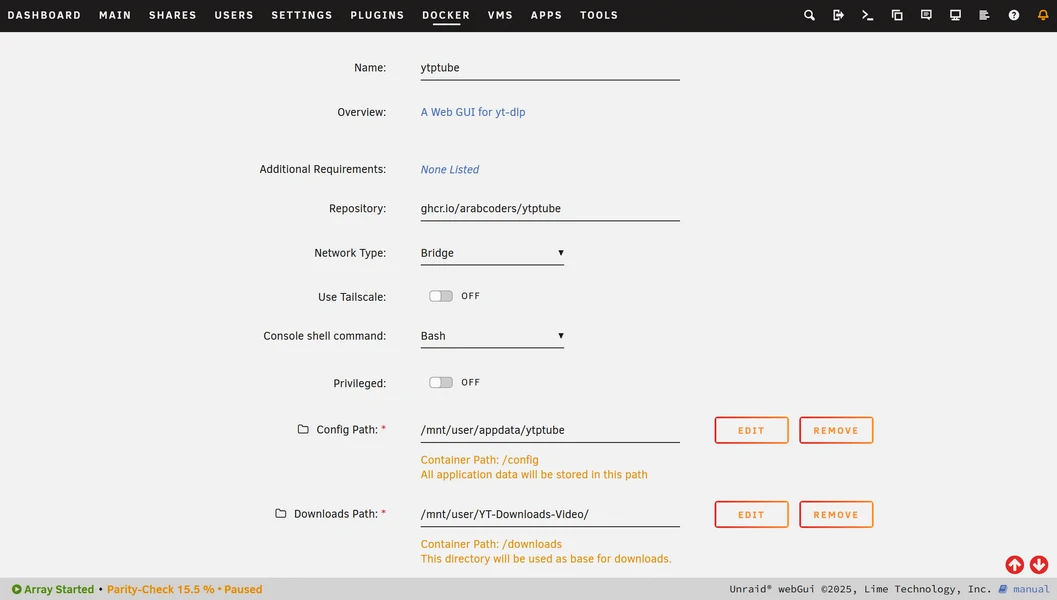
YTPTube Docker container configuration on Unraid
Alternative: Install Using Docker Compose
If YTPTube isn’t in Community Applications, use Docker Compose plugin:
- Install Docker Compose Manager from Apps
- Create new stack named ytptube
- Add this configuration:
services:
  ytptube:
    user: "${UID:-1000}:${UID:-1000}"
    image: ghcr.io/arabcoders/ytptube:latest
    container_name: ytptube
    restart: unless-stopped
    ports:
      - "8081:8081"
    volumes:
      - /mnt/user/appdata/ytptube:/config:rw
      - /mnt/user/data/YouTube:/downloads:rw
    tmpfs:
      - /tmp
Note: Change 1000:1000 to your user ID if needed (usually 99:100 for Unraid).
- Click Compose Up
Configure Download Preset
- Open YTPTube interface:
http://UNRAID_IP:8081 - Click Presets → Add New Preset
- Fill in:
- Name: Plex Downloads
- Command options:
-S codec:h265 -f bestvideo*+bestaudio/best --write-subs --sub-langs en --convert-subs srt -o %(uploader)s/%(title)s/%(title)s.%(ext)s
- Click Save
This downloads videos with H.265 codec, English subtitles, organised by channel and video name—perfect for Plex.
YTPTube preset configuration on Unraid
YTPTube preset configuration on Unraid
Download Your First Video
- Click Add Download
- Paste YouTube URL
- Select Plex Downloads preset
- Click Download
Videos download to /mnt/user/data/YouTube/ organised like:
Channel Name/
└── Video Title/
    ├── Video Title.mp4
    └── Video Title.en.srt
Schedule Automatic Downloads
To automatically download new videos from channels:
- Click Tasks → Add New Task
- Configure:
- Name: Daily Tech Videos
- URL:
https://www.youtube.com/@channel/videos - Schedule:
0 3 * * *(3 AM daily) - Preset: Plex Downloads
- Auto-start: Yes
- Click Save
YTPTube checks daily for new videos and downloads them automatically.
YTPTube scheduled tasks on Unraid
YTPTube scheduled tasks on Unraid
Integrate with Plex on Unraid
If you’re running Plex on Unraid:
- Update download path to your Plex library location
- In YTPTube container settings (or compose.yaml), set:
- Downloads:
/mnt/user/media/YouTube
- Downloads:
- In Plex, add library:
- Type: Movies or Other Videos
- Scanner: Personal Media
- Folder:
/mnt/user/media/YouTube
Plex automatically detects new downloads and adds them to your library.
Set Up Notifications (Optional)
Get notified when downloads complete:
- Click Settings → Notifications
- Configure your preferred service:
- Discord webhook
- Telegram bot
- Apprise (50+ services)
- Test and Save
Update YTPTube
Community Applications install:
- Go to Docker tab
- Click Check for Updates
- Update YTPTube if available
Docker Compose install:
- Open Docker Compose Manager
- Select ytptube stack
- Click Compose Pull
- Click Compose Up
YTPTube auto-updates yt-dlp on container restart.
Access from Other Devices
YTPTube is accessible from any device on your network:
- Desktop:
http://UNRAID_IP:8081 - Mobile:
http://UNRAID_IP:8081 - Tablet:
http://UNRAID_IP:8081
Add a bookmark for quick access.
Next Steps
Now that YTPTube is running on Unraid:
- Learn yt-dlp commands for advanced usage
- Explore top Docker apps for Unraid
- Set up Plex on Unraid
- Alternatively, you can install YTPTube on Ubuntu Linux
That’s it, Enjoy!
如有侵权请联系:admin#unsafe.sh