
介绍如何在Linux、Windows和macOS上安装yt-dlp,支持从1000多个网站下载视频和音频。详细说明了多种安装方法,包括使用二进制文件、包管理器和Python pip,并介绍了FFmpeg的安装要求以及更新和维护建议。 2025-11-1 07:15:44 Author: www.blackmoreops.com(查看原文) 阅读量:16 收藏
Installing yt-dlp opens up a world of video downloading possibilities from over 1,000 websites including YouTube, Vimeo, and countless others. Whether you’re on Linux, Windows, or macOS, this comprehensive step by step guide on how to install yt-dlp walks you through every installation method to get yt-dlp running on your system quickly and reliably.
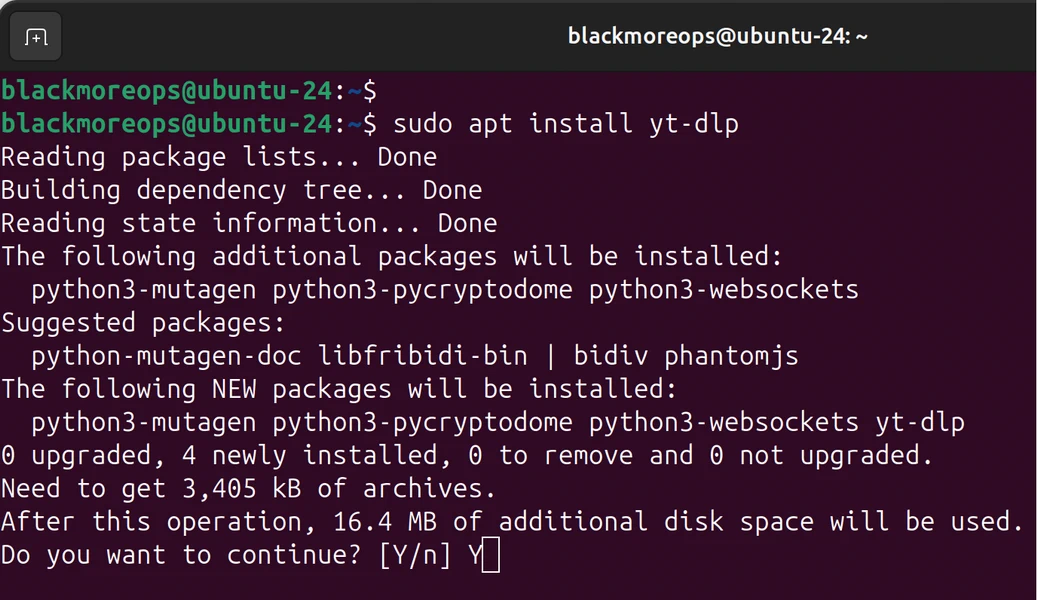
yt-dlp installation command line interface on Ubuntu Linux terminal
yt-dlp can be installed either using official releases or through your favourite package manager, with standalone binaries available for all major operating systems. Let’s explore the best installation methods for your platform.
What is yt-dlp?
yt-dlp is a powerful tool for downloading videos and audio from various websites, supporting a wide range of video and audio formats, and can also download subtitles and metadata. It’s a fork of the popular youtube-dl project, offering enhanced features, faster updates, and better reliability.
The tool’s active development community ensures it stays compatible with constantly changing video platforms. Unlike sketchy browser extensions or ad-filled sites, yt-dlp values your privacy and lets you fully control your downloads.
Prerequisites: Installing FFmpeg
Before installing yt-dlp, you’ll need FFmpeg for video format conversion and merging video/audio streams. This is crucial for how to install yt-dlp on Linux Windows macOS properly.
Installing FFmpeg on Ubuntu/Debian:
sudo apt update
sudo apt install ffmpeg
I pefer this as then I don’t have to worry about updating or run additional commands.
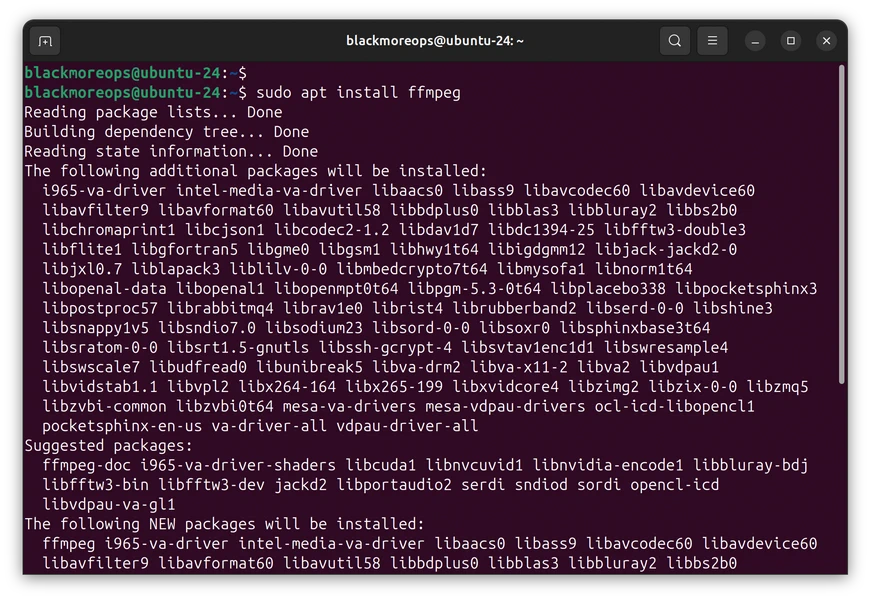
Installing FFmpeg on Fedora:
sudo dnf install ffmpeg
Installing FFmpeg on macOS (with Homebrew):
brew install ffmpeg
Installing FFmpeg on Windows (with Chocolatey):
choco install ffmpeg
How to Install yt-dlp on Linux
Linux users have multiple installation options depending on their distribution and preference level. Here are the most reliable methods for how to install yt-dlp on Linux Windows macOS systems.
Method 1: Direct Binary Installation
For UNIX-like systems including Linux, macOS, and BSD, you can install the application into a location in your PATH, such as ~/.local/bin:
sudo wget https://github.com/yt-dlp/yt-dlp/releases/latest/download/yt-dlp -O /usr/local/bin/yt-dlp
sudo chmod a+rx /usr/local/bin/yt-dlp
Alternatively, using curl:
sudo curl -L https://github.com/yt-dlp/yt-dlp/releases/latest/download/yt-dlp -o /usr/local/bin/yt-dlp
sudo chmod a+rx /usr/local/bin/yt-dlp
Verify installation:
yt-dlp --version
Update yt-dlp:
sudo yt-dlp -U
Method 2: Ubuntu/Debian PPA Installation (Recommended)
For recent Ubuntu and other related Debian-based distributions, you can install yt-dlp by adding the official PPA repository:
sudo add-apt-repository ppa:tomtomtom/yt-dlp
sudo apt update
sudo apt install yt-dlp
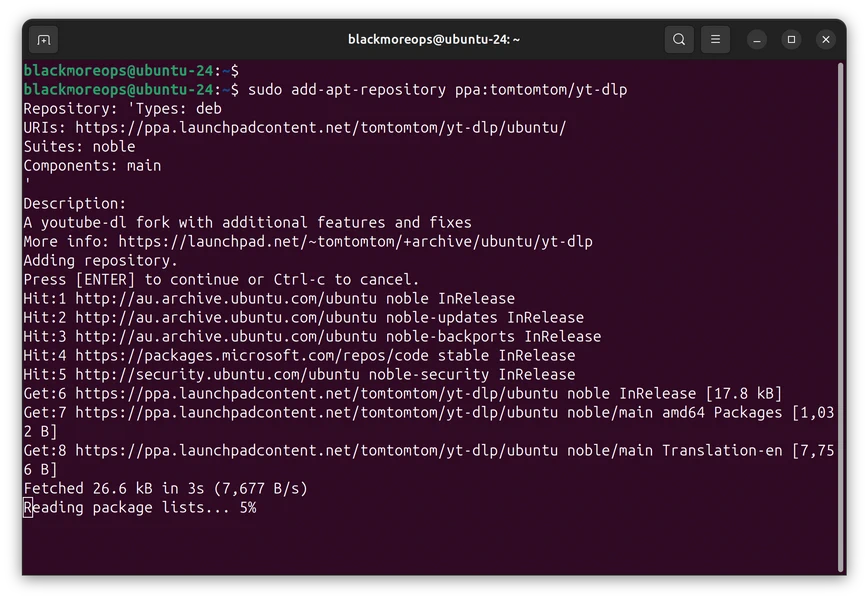
Update with system updates:
sudo apt update && sudo apt upgrade
I pefer this as then I don’t have to worry about updating or run additional commands.
Method 3: Python pip Installation
For users who prefer Python package management:
python3 -m pip install -U pip hatchling wheel
python3 -m pip install -U "yt-dlp[default]"
Update yt-dlp:
python3 -m pip install -U "yt-dlp[default]"
Method 4: Distribution-Specific Package Managers (Recommended)
Arch Linux:
sudo pacman -S yt-dlp
Fedora:
sudo dnf install yt-dlp
Alpine Linux:
sudo apk add yt-dlp
Note: Repository versions may lag behind the latest release. For bleeding-edge features, use the direct binary installation method.
How to Install yt-dlp on macOS
macOS users have several convenient options for how to install yt-dlp on Linux Windows macOS systems. The easiest way to get yt-dlp, ffmpeg, and all its dependencies on Mac is using the Homebrew package manager.
Method 1: Homebrew Installation (Recommended)
Homebrew currently supports macOS 12 Monterey or newer, allowing you to install many command-line applications and utilities with simple terminal commands.
Install Homebrew (if not already installed):
Open Terminal (Cmd+Space, type “Terminal”) and run:
/bin/bash -c "$(curl -fsSL https://raw.githubusercontent.com/Homebrew/install/HEAD/install.sh)"
Install yt-dlp and FFmpeg:
brew install yt-dlp ffmpeg
Update yt-dlp:
brew upgrade yt-dlp
Update all Homebrew packages:
brew update && brew upgrade
Method 2: Direct Binary Installation
If you prefer not to use Homebrew:
curl -L https://github.com/yt-dlp/yt-dlp/releases/latest/download/yt-dlp -o ~/.local/bin/yt-dlp
chmod a+rx ~/.local/bin/yt-dlp
Ensure ~/.local/bin is in your PATH by adding this to ~/.zshrc or ~/.bash_profile:
export PATH="$HOME/.local/bin:$PATH"
Reload your shell configuration:
source ~/.zshrc
Method 3: MacPorts Installation
For MacPorts users:
sudo port install yt-dlp
How to Install yt-dlp on Windows
Windows users have multiple methods for how to install yt-dlp on Linux Windows macOS systems. The easiest method for Windows is using the Chocolatey package manager, which requires PowerShell with administrator permissions.
Method 1: Chocolatey Installation (Recommended)
Install Chocolatey:
Open PowerShell as Administrator (right-click PowerShell → “Run as administrator”) and run:
Set-ExecutionPolicy Bypass -Scope Process -Force; [System.Net.ServicePointManager]::SecurityProtocol = [System.Net.ServicePointManager]::SecurityProtocol -bor 3072; iex ((New-Object System.Net.WebClient).DownloadString('https://community.chocolatey.org/install.ps1'))
Install yt-dlp and FFmpeg:
choco install yt-dlp ffmpeg
Update yt-dlp:
choco upgrade yt-dlp
Method 2: Scoop Installation
Scoop is another popular Windows package manager:
Install Scoop:
Set-ExecutionPolicy RemoteSigned -Scope CurrentUser
irm get.scoop.sh | iex
Install yt-dlp:
scoop install yt-dlp ffmpeg
Update yt-dlp:
scoop update yt-dlp
Method 3: winget Installation
Windows 11 and Windows 10 (with App Installer) include winget:
winget install yt-dlp
Method 4: Direct Binary Download
Download the Windows executable from yt-dlp releases:
- Download
yt-dlp.exe - Create a folder:
C:\Program Files\yt-dlp\ - Move
yt-dlp.exeto this folder - Add
C:\Program Files\yt-dlp\to your system PATH
Adding to PATH:
- Right-click “This PC” → Properties
- Click “Advanced system settings”
- Click “Environment Variables”
- Under “System variables”, find and edit “Path”
- Add new entry:
C:\Program Files\yt-dlp\ - Click OK on all windows
Installing yt-dlp on Android
Android installation requires Termux, which provides a Linux environment on Android devices:
Install Termux from F-Droid (not Google Play Store version).
In Termux, run:
termux-setup-storage
pkg update && pkg upgrade
pkg install python ffmpeg
pip install -U "yt-dlp[default]"
Verify installation:
yt-dlp --version
Verifying Your Installation
Regardless of the method used for how to install yt-dlp on Linux Windows macOS, verify it works:
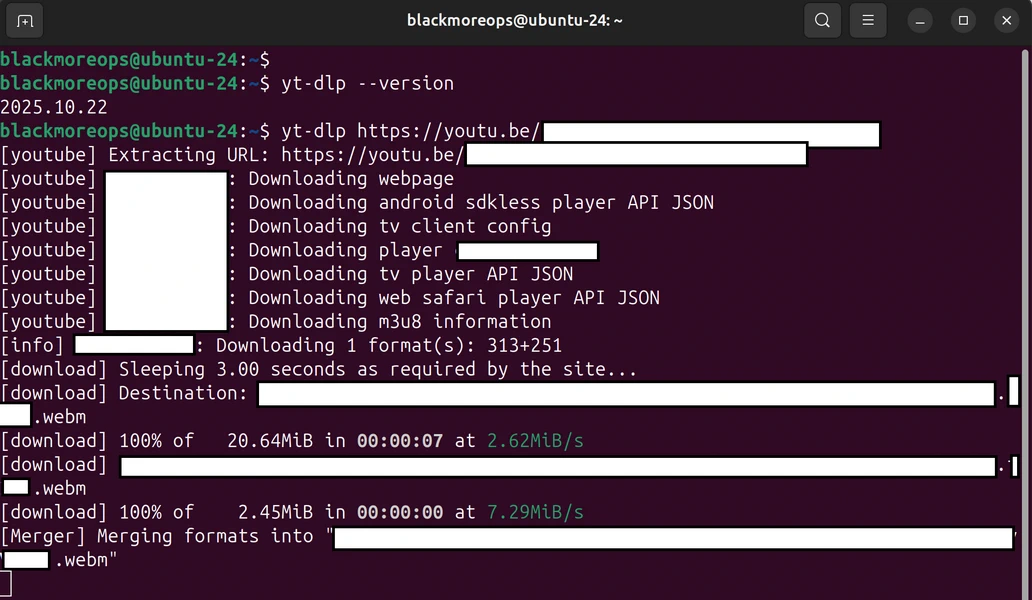
yt-dlp --version
This should display the version number, confirming successful installation.
Test with a download:
yt-dlp --list-formats https://www.youtube.com/watch?v=dQw4w9WgXcQ
This lists available formats without downloading, perfect for testing.
Troubleshooting Common Installation Issues
“Command not found” Error
Linux/macOS:
- Ensure yt-dlp is in your PATH
- Check installation location:
which yt-dlp - Verify executable permissions:
ls -l /usr/local/bin/yt-dlp
Windows:
- Verify PATH includes yt-dlp directory
- Restart Command Prompt/PowerShell after PATH changes
- Run
where yt-dlpto confirm location
Python Version Issues
yt-dlp exclusively supports Python 3.7 and above, unlike youtube-dl which extends compatibility to Python 2.6+. Verify your Python version:
python3 --version
If below 3.7, update Python before installing yt-dlp via pip.
FFmpeg Not Found
Always install ffmpeg alongside yt-dlp as it’s required for merging video and audio streams, format conversion, and many advanced features.
Test FFmpeg installation:
ffmpeg -version
If not found, revisit the FFmpeg installation section for your operating system.
Permission Denied Errors
Linux/macOS:
sudo chmod +x /usr/local/bin/yt-dlp
Windows: Run Command Prompt or PowerShell as Administrator.
Updating yt-dlp
The yt-dlp project uses calendar versioning where the version number directly tells you the release date, and if you don’t have the most recent release, the team won’t care about your bug reports. Regular updates are essential as video platforms constantly change their interfaces.
Update Methods by Installation Type:
Binary installation:
sudo yt-dlp -U
Homebrew (macOS):
brew upgrade yt-dlp
pip installation:
python3 -m pip install -U "yt-dlp[default]"
Chocolatey (Windows):
choco upgrade yt-dlp
APT (Ubuntu/Debian):
sudo apt update && sudo apt upgrade
Hey, look at that … update some as part of standard APT package manager. Unless you’re really pushing for some bleeding edge stuffs which I am not … I recommend using package manager to do most of the work on Linux where possible.
Creating a Configuration File
Once you’ve learned how to install yt-dlp on Linux Windows macOS, create a configuration file for default settings.
Linux/macOS location: ~/.config/yt-dlp/config
Windows location: %APPDATA%\yt-dlp\config.txt
Example configuration:
# Default output location
-o ~/Downloads/%(title)s.%(ext)s

# Prefer 1080p or best available
-f "bestvideo[height<=1080]+bestaudio/best"

# Download subtitles
--write-subs
--sub-langs en

# Embed metadata
--embed-metadata
--embed-thumbnail
Save this file and yt-dlp will use these settings automatically.
Next Steps
Now that you’ve successfully completed how to install yt-dlp on Linux Windows macOS, you’re ready to:
- Learn yt-dlp commands for downloading with subtitles and organised folders (coming soon)
- Set up YTPTube web GUI for easier video management (coming soon)
- Integrate downloads with your Plex media server
For Docker enthusiasts managing media servers, explore our guide on installing Docker and Portainer to run containerised applications alongside your video downloads.
If you’re building a comprehensive home lab setup, check out our article on top self-hosted Docker apps on Unraid Server for additional media management tools.
Conclusion
Learning how to install yt-dlp on Linux Windows macOS provides you with a powerful, privacy-respecting tool for downloading videos from thousands of websites. Whether you chose the binary installation, package manager method, or pip installation, you now have a reliable video downloader ready for action.
Remember to keep yt-dlp updated regularly, as video platforms constantly evolve their interfaces. With proper installation and maintenance, yt-dlp becomes an invaluable tool for archiving content, offline viewing, and building personal media libraries.
如有侵权请联系:admin#unsafe.sh