好的,我现在需要帮用户总结一篇文章的内容,控制在100字以内。用户的要求是直接写文章描述,不需要特定的开头。首先,我得仔细阅读这篇文章,了解其主要内容。 文章主要讨论了如何快速提升Entra ID的安全性。里面提到了多个关键设置和配置,比如用户默认配置、来宾访问限制、应用程序权限、安全角色、特权角色保护等。这些都是提升安全性的具体措施。 接下来,我需要将这些要点浓缩成一个简洁的总结。考虑到字数限制,我得抓住核心内容:关键设置和配置的优化,以及这些优化如何帮助快速提升安全性。 最后,确保语言简洁明了,直接描述文章内容,不使用任何开头词。 </think> 文章介绍了如何通过优化Entra ID的关键设置和配置来快速提升安全性,包括用户默认配置、来宾访问限制、应用程序权限管理、安全角色保护、特权角色会员保护以及条件访问策略等措施。 2025-10-20 00:3:0 Author: adsecurity.org(查看原文) 阅读量:40 收藏
At BSides Northern Virginia (BSides NoVa) in October 2025, I presented a talk on how to improve Entra ID security quickly. This post captures the key information from my talk slides.
This article describes the Entra ID settings and configuration that should be set to improve security including:
- User Default Configurations
- Guest Defaults
- User Applications Consent and Permissions
- Secure Entra ID roles
- Privileged Role Membership Protection
- Role Assignable Group Configurations
- Highly Privileged Applications
- Conditional Access Policies
- Partner Access
- Securing Entra Connect
- Secure Entra ID Quickly Checklist
User Default Configurations
Users are able to register applications and create new tenants by default.
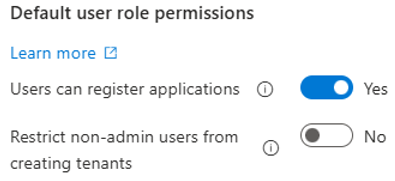
These settings should be changed as shown in the below screenshot.
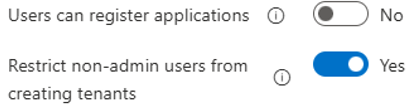
User Defaults Actions:
- Set “Users can register applications” from Yes to No
- Set “Restrict non-admin users from creating tenants” from No to Yes.
User Device Setting Defaults
Users have the default ability to Entra join devices without requiring MFA.
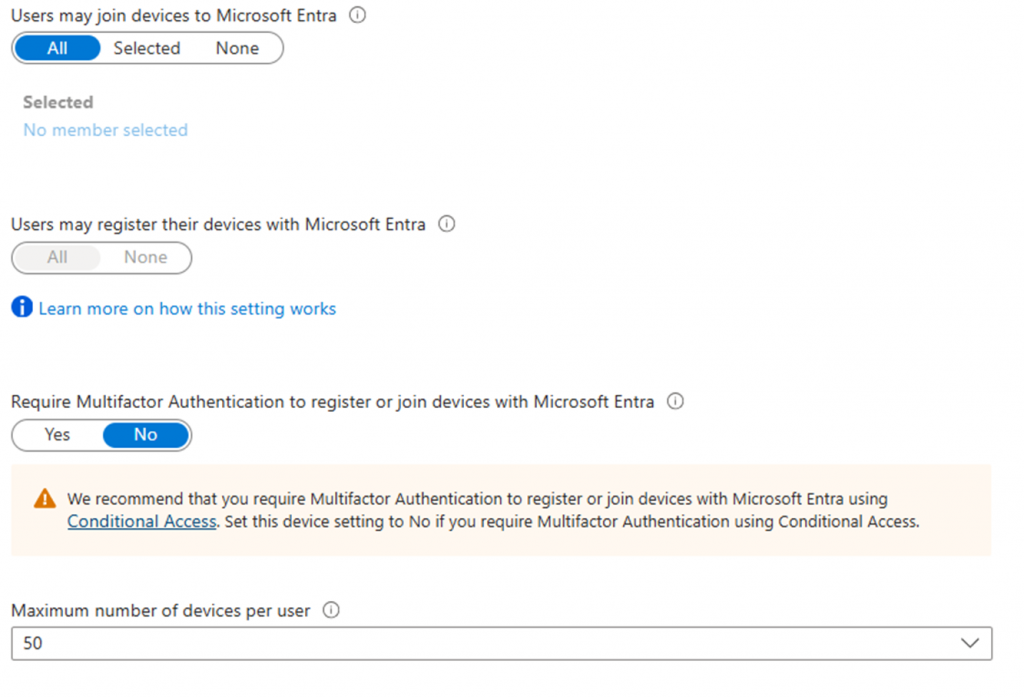
User Device Setting Actions:
- Set “Users may join devices to Microsoft Entra” to “Selected” and add a group that is allowed to join devices to Entra.
- Either configure a Conditional Access policy to require MFA when joining devices to Entra or set the configuration “Require Multifactor Authentication to register or join devices with Microsoft Entra” to “Yes”.
Guest Defaults
Guest users have the same ability to view Entra ID

This setting should be changed as shown below.

Guest Defaults Actions:
- Change the Guest user access restrictions from “Guest users have the same access as members (most inclusive)” to “Guest user access is restricted to properties and memberships of their own directory objects (most restrictive)”.
User Application Consent and Permission Defaults
Originally in Azure AD/Entra ID, users had default rights to consent to permissions. This configuration persist in many current environments.
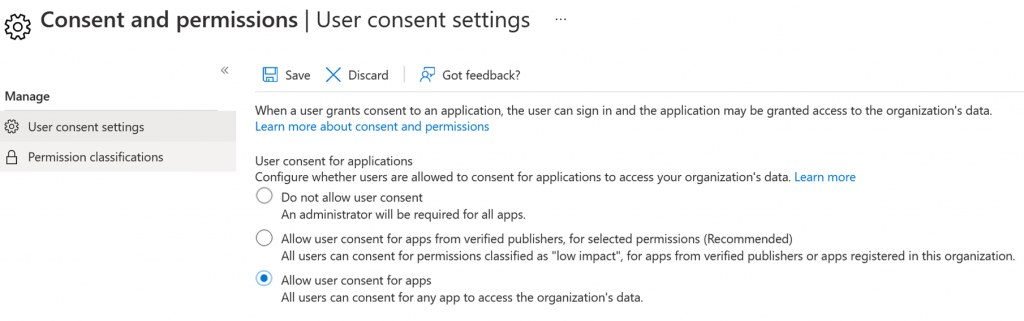
This has changed to the following options that are available now.
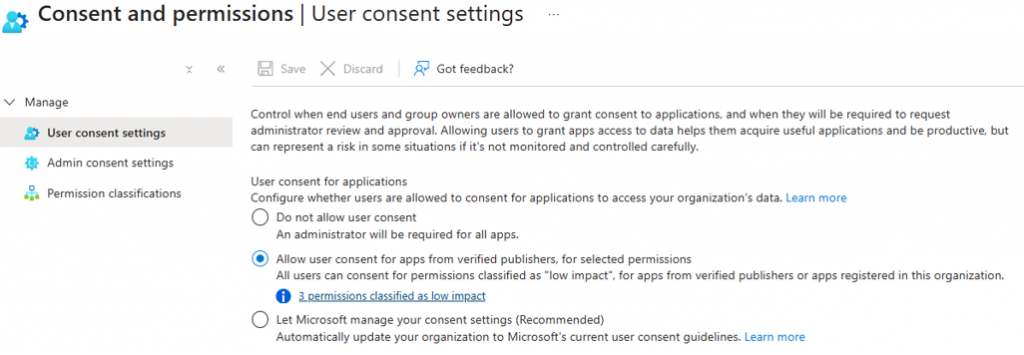
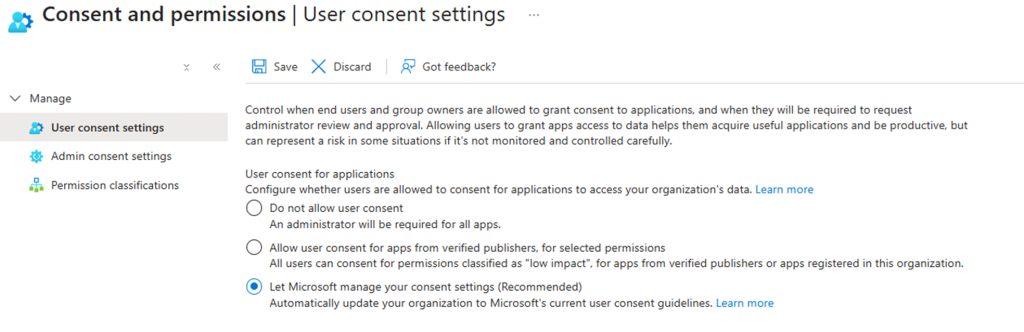
User Application Consent and Permission Recommendations:
Set user consent for applications to either “Allow user consent for apps from verified publishers, for selected permissions” or the better option which is “Let Microsoft manage your consent settings (Recommended).”
Secure Entra ID Roles
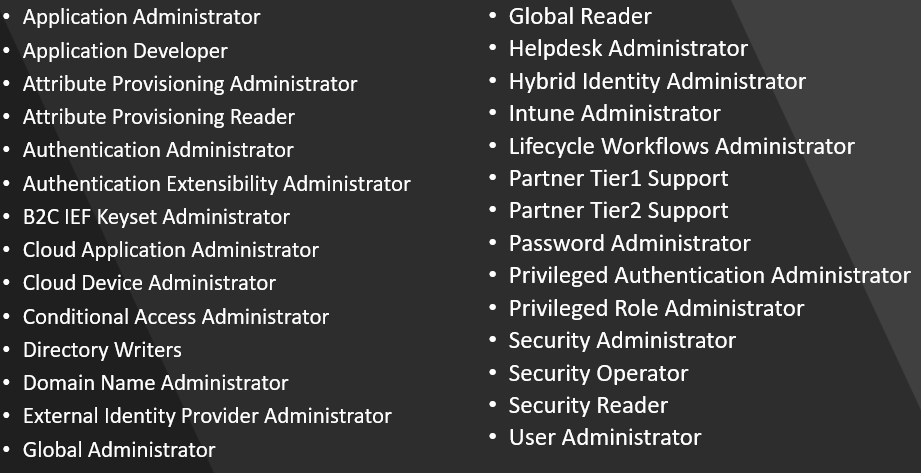
There are 117 Entra ID roles (as of October 2025). This makes it challenging to know what to protect and at what level.
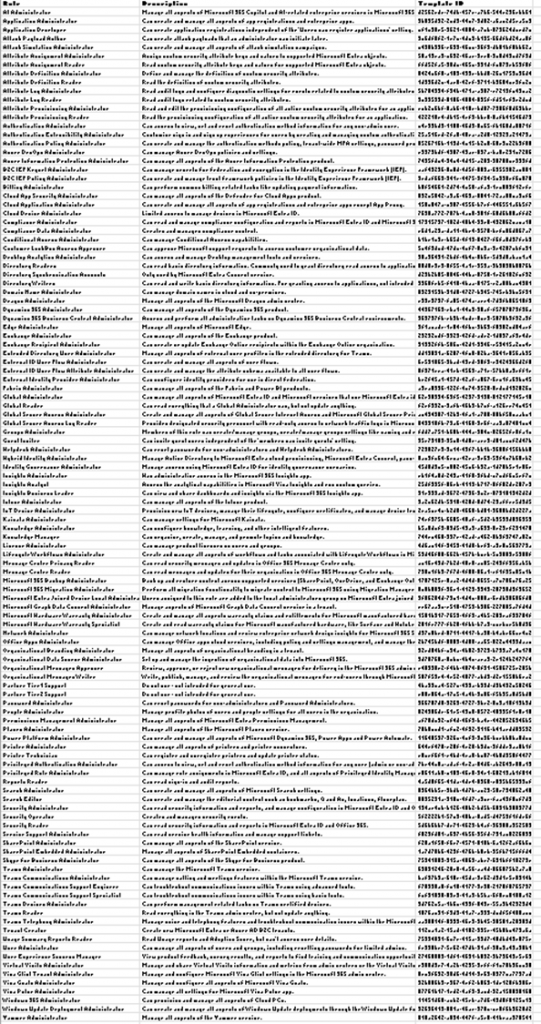
Microsoft has tagged 28 roles as “Privileged“. These roles should be protected, though not at the same level. For example, Global Reader isn’t the same as the Global Administrator role and the level of protection for accounts in Global Administrator should be higher than that of Global Reader.
Tier 0 Entra ID Roles
There are five (5) roles that should be protected at the highest level (like Tier 0).
Ensure that members of these roles are required to always use MFA (preferably FIDO2) and the membership is very limited.
- Global Administrator
- Full admin rights to the Entra ID, Microsoft 365, and 1-click full control of all Azure subscriptions
- From Azure AD to Active Directory (via Azure) – An Unanticipated Attack Path (2020)
- Hybrid Identity Administrator
- “Can create, manage and deploy provisioning configuration setup from Active Directory to Microsoft Entra ID using Cloud Provisioning as well as manage Microsoft Entra Connect, Pass-through Authentication (PTA), Password hash synchronization (PHS), Seamless Single Sign-On (Seamless SSO), and federation settings.”
- Partner Tier2 Support
- “The Partner Tier2 Support role can reset passwords and invalidate refresh tokens for all non-administrators and administrators (including Global Administrators). “
- “not quite as powerful as Global Admin, but the role does allow a principal with the role to promote themselves or any other principal to Global Admin.” – The Most Dangerous Entra Role You’ve (Probably) Never Heard Of
- Privileged Authentication Administrator
- Microsoft: “do not use.”
- “Set or reset any authentication method (including passwords) for any user, including Global Administrators. … Force users to re-register against existing non-password credential (such as MFA or FIDO) and revoke remember MFA on the device, prompting for MFA on the next sign-in of all users.”
- Privileged Role Administrator
- “Users with this role can manage role assignments in Microsoft Entra ID, as well as within Microsoft Entra Privileged Identity Management. … This role grants the ability to manage assignments for all Microsoft Entra roles including the Global Administrator role. “
Secure Privileged Role Membership
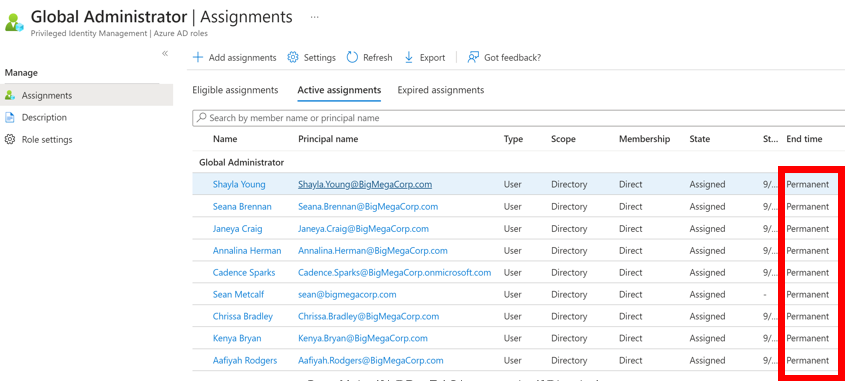
Ensure there are no standard user accounts as members in highly privileged roles.
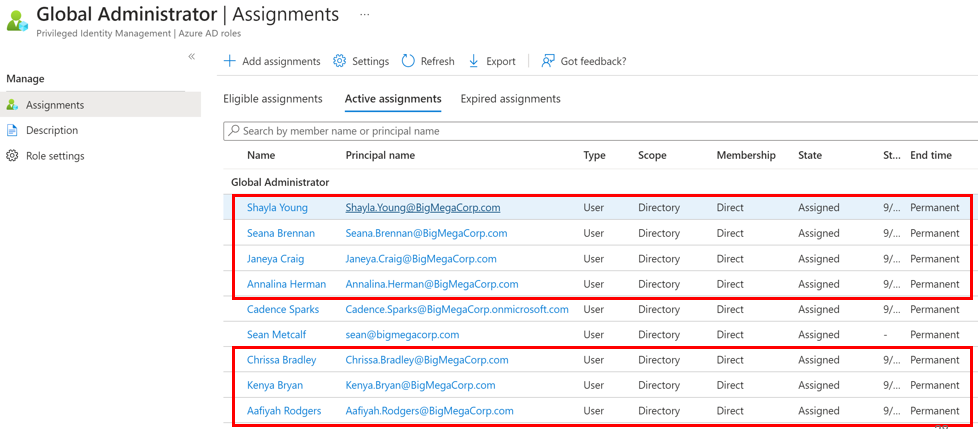
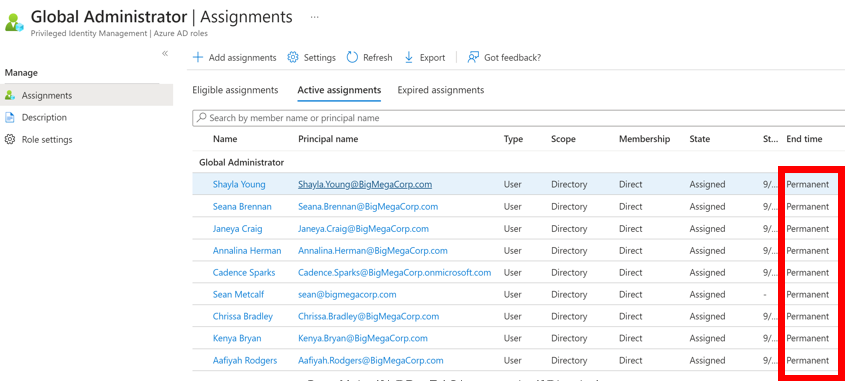
Ensure that role members are eligible, not permanent.
Ensure that members are required to use MFA.

Secure Role Assignable Groups (RAGs)
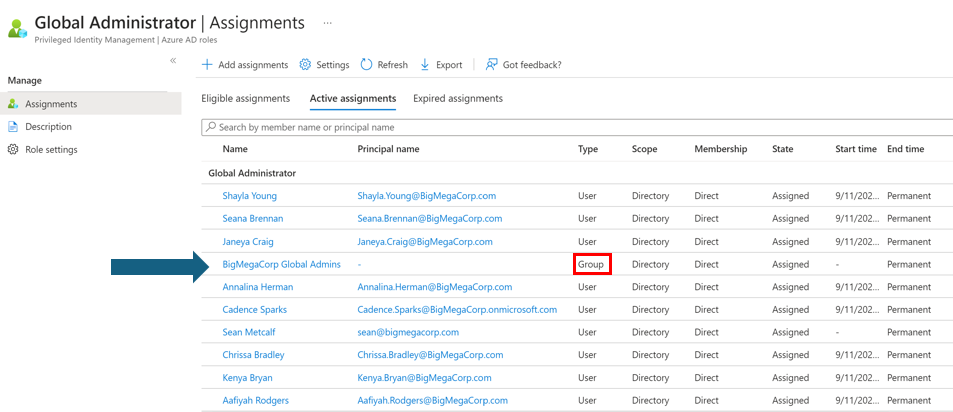
Role Assignable Groups are Security or Microsoft 365 group with the isAssignableToRole property set to true and cannot be dynamic. They were created to solve the potential issue where groups are added to an Entra ID role and a group admin could modify membership. Only Global Administrators or Privileged Role Administrators can create Role Assignable Groups and manage them (membership). Role Assignable Group owners can manage them. There is an application permission (Graph:RoleManagement.ReadWrite.Directory) that provides management rights as well. There is a 500 role-assignable groups maximum in an Entra ID tenant (creation maximum). Only a Privileged Authentication Administrator or a Global Administrator can change the credentials or reset MFA or modify sensitive attributes for members & owners of a role-assignable group.
Group Nesting in Entra ID
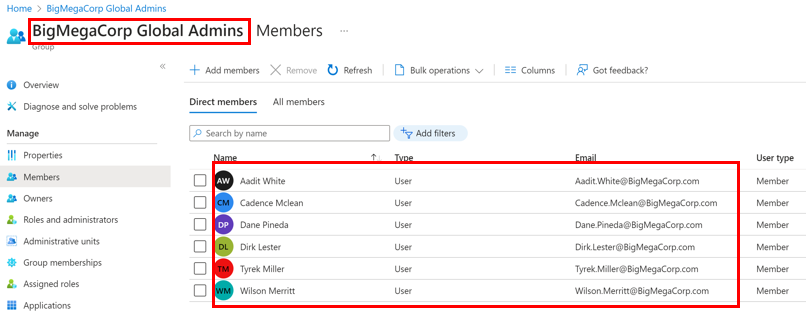
Role Assignable Group Owners
The owners configured on a role assignable group are able to manage the membership of the group. Ensure that the owners are admin accounts and protected at the same level as the role the role assignable group is a member of.
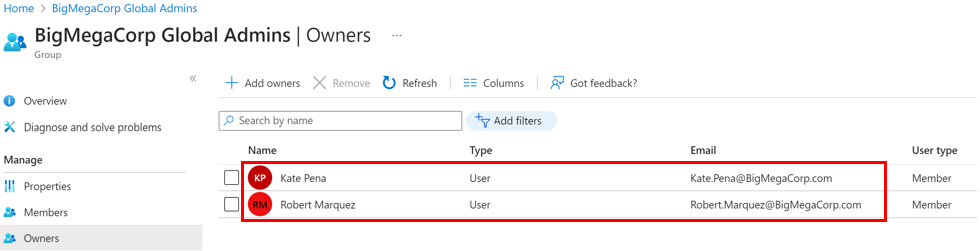
Secure Highly Privileged Applications
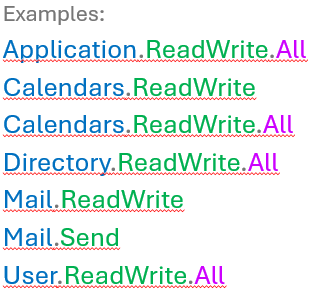
The permission structure for Entra ID permissions:

Tier 0 Applications
These applications have effective full administrative rights or capability to gain full administrative rights to Entra ID. Limit applications that have these permissions.
- Directory.ReadWrite.All
- “Directory.ReadWrite.All grants access that is broadly equivalent to a global tenant admin.” *
- AppRoleAssignment.ReadWrite.All
- Allows the app to manage permission grants for application permissions to any API & application assignments for any app, on behalf of the signed-in user. This also allows an application to grant additional privileges to itself, other applications, or any user.
- RoleManagement.ReadWrite.Directory
- Allows the app to read & manage the role-based access control (RBAC) settings for the tenant, without a signed-in user. This includes instantiating directory roles & managing directory role membership, and reading directory role templates, directory roles and memberships.
- Application.ReadWrite.All
- Allows the calling app to create, & manage (read, update, update application secrets and delete) applications & service principals without a signed-in user. This also allows an application to act as other entities & use the privileges they were granted.
- This application permission is Tier 0 when there is at least 1 application that is Tier 0. Then this permission provides an application the ability to add a credential to that application and impersonate it.
Secure Entra ID with Conditional Access Policies
Conditional Access policies apply after first-factor authentication (user name and password). This requires Entra P1 licensing. Conditional Access takes action based on Who is connecting, Where are they connecting from, What app and/or device to which or from which the connection is taking place, and When this applies.
There are some common Conditional Access policies:
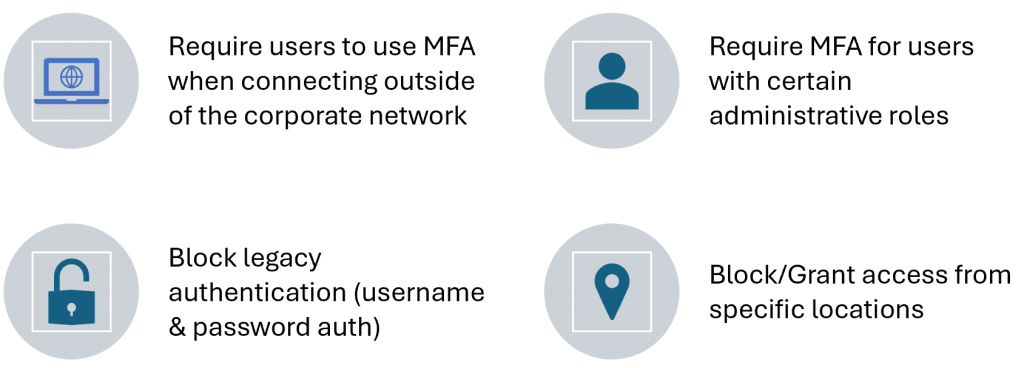
With these typical Conditional Access policies, there are common coverage gaps.
CA Policy Gap #1: Users Require MFA Outside of Corp Network
- CAP requires users to MFA when they are working remotely (not on the corporate network or connected via VPN)
- Assumes no attacker would be on the corporate network
- Attacker can use username/password without having to MFA
CA Policy Gap #2: Admins don’t require MFA
- MFA is required for certain users to access specific applications
- However, there is no CAP that requires MFA for Admins
- Or… CAP only requires members of a few roles use MFA
- Attacker can use username/password without having to MFA
CA Policy Gap #3: Exclusions
- CAP includes several security controls
- MFA required
- AAD Joined &Compliant device
- Location based access
- However, there are exclusions:
- Admins
- VIPs
- Executives
- HR
- Etc
- This creates a significant gap in security posture
- Attackers love being excluded from security controls!
Microsoft Managed Policies (MMP)
- Deployed automatically in reporting mode
- Modification is limited:
- Exclude users
- Turn on or set to Report-only mode
- Can’t rename or delete any Microsoft-managed policies
- Can duplicate the policy to make custom versions
- Microsoft might update these policies in the future
- MMPs turn on (set to enabled) 90 days after introduced to the tenant
- Currently focuses on 3 areas:
- MFA for admins accessing Microsoft Admin Portals
- MFA for per-user MFA configured on users
- MFA and reauthentication for risky sign-ins
Key Conditional Access Policies
- Require MFA for accounts with administrative roles (preferably FIDO2)
- Block legacy authentication (username & password authentication)
- Block location by geography
- Block device code flow*
- Enforce device compliance on all devices
- Restrict access to apps by location
- Require MFA for guest users
Partner Relationships – aka Delegated Administration
- A configured partner can have admin rights to a customer tenant (“delegated administration”).
- This is provided when the partner requests access to the customer environment.
- When the customer accepts this request:
- “Admin agent” role in partner tenant is provided effective “Global Administrator” rights to customer tenant.
- “Helpdesk Agent” role in partner tenant is provided effective “Helpdesk Administrator” (Password Administrator) rights to customer tenant.
- These are the only options.
- They apply to all customer environments – there is no granular configuration.
- A partner with dozens of customers will result in all partner accounts in these groups having elevated rights in all customer environments. Shift to granular delegated admin privileges (GDAP) ASAP!
Check Partner Configuration for your tenant here:
https://portal.azure.com/#view/Microsoft_AAD_IAM/ActiveDirectoryMenuBlade/~/PartnerRelationships
Granular Delegated Admin Privileges (GDAP)
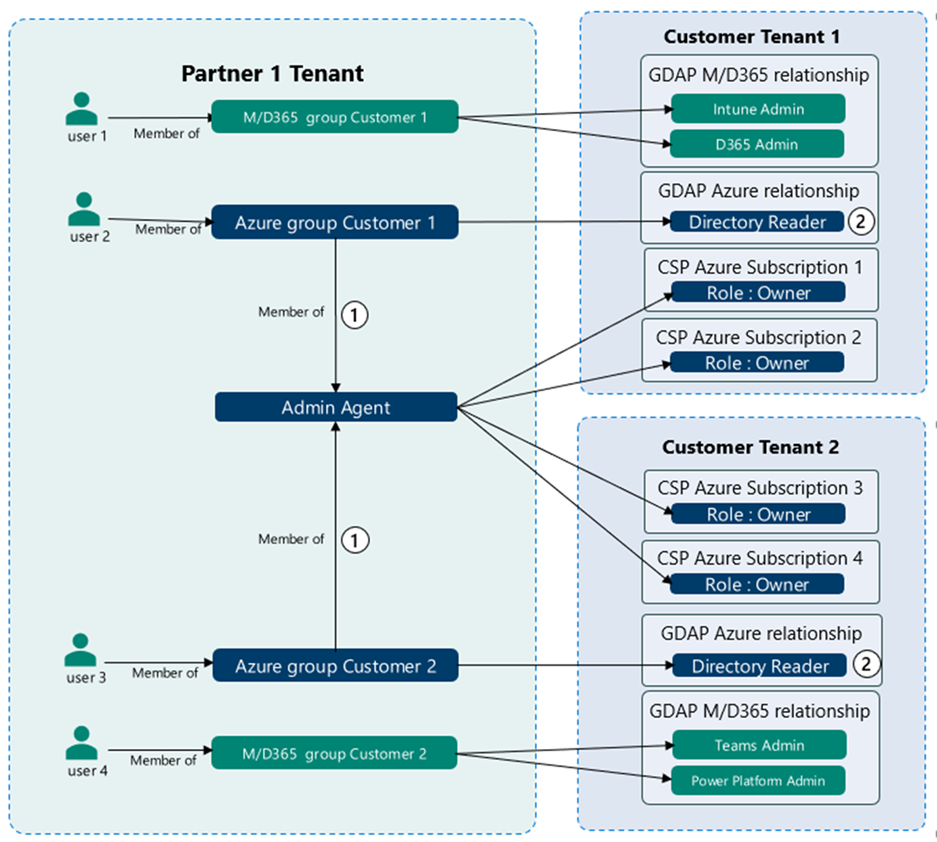
Secure Entra Connect
Compromising Entra Connect:
- Compromise Active Directory
- Get admin rights on Entra Connect server (or SQL db)
- OU admin rights
- Local admin rights
- GPO modify rights
- Get local admin password on other systems (when not unique)
- Gain control of management system
- Microsoft SCCM (or similar)
- Vulnerability scanner
- Compromise VMware (or other virtual platform)
From Entra Connect to Active Directory
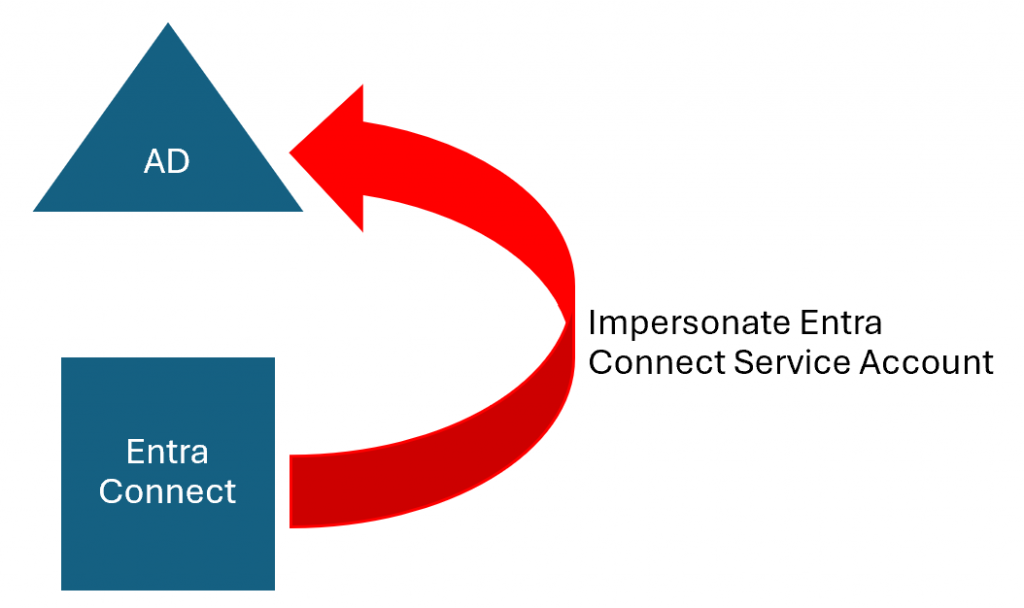
From Entra Connect to Entra ID
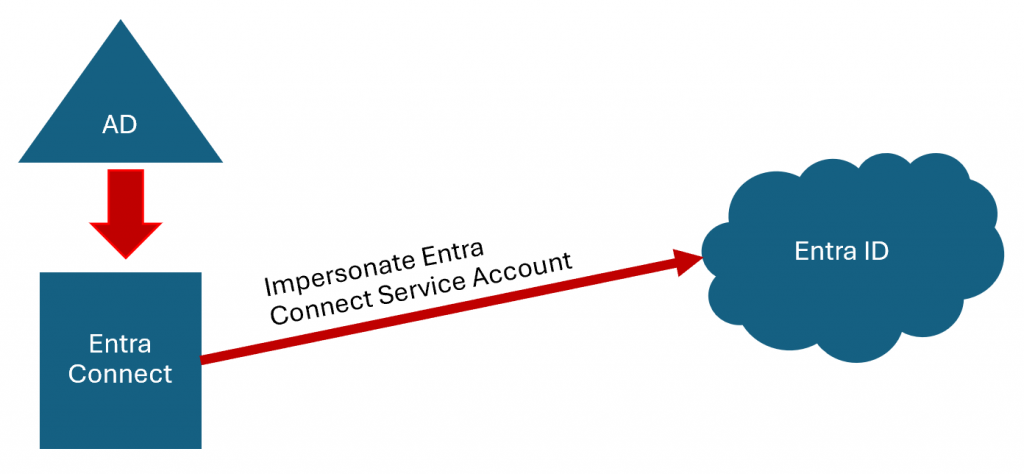
Defending Entra Connect
- Treat the Entra Connect server, SQL server/database, & service account as Tier 0 (like Domain Controllers).
- Ensure that the Entra Connect server & SQL server/database is in a top-level admin OU.
- Limit the group policies that apply to Entra Connect related systems.
- Restrict local admin rights on Entra Connect related systems.
Securing Seamless Single Sign-On (SSSO)
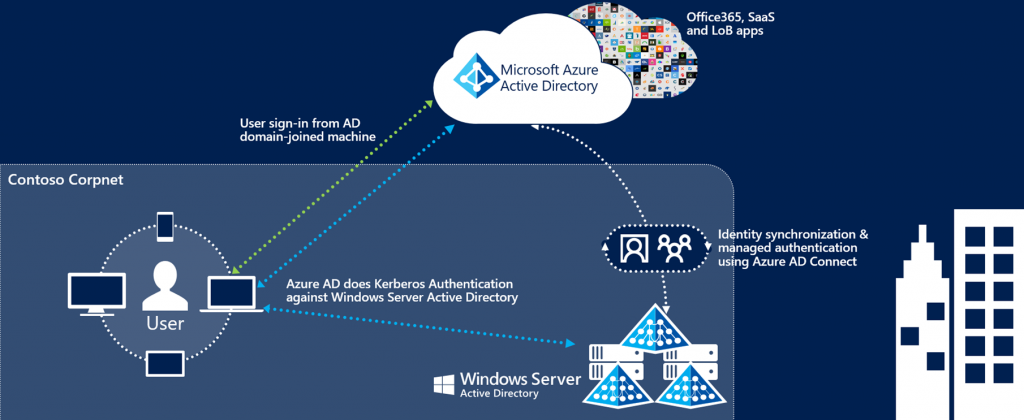
Attacking Azure AD Seamless Single Sign-On
- Managed by Azure AD Connect
- “Azure AD exposes a publicly available endpoint that accepts Kerberos tickets and translates them into SAML and JWT tokens”
- Compromise the Azure AD Seamless SSO Computer Account password hash (“AZUREADSSOACC “)
- Generate a Silver Ticket for the user you want to impersonate and the service ‘aadg.windows.net.nsatc.net ‘
- Inject this ticket into the local Kerberos cache
- Azure AD Seamless SSO computer account password doesn’t change
Securing Seamless Single Sign-On (SSSO)
- For Windows 10, Windows Server 2016, and later versions, it’s recommended to use SSO via primary refresh token (PRT).
- For Windows 7 and Windows 8.1, it’s recommended to use Seamless SSO
- Ensure the Azure AD Seamless Single Sign-On key (password) changes several times a year.
Securing Microsoft Pass-Through Authentication (PTA)
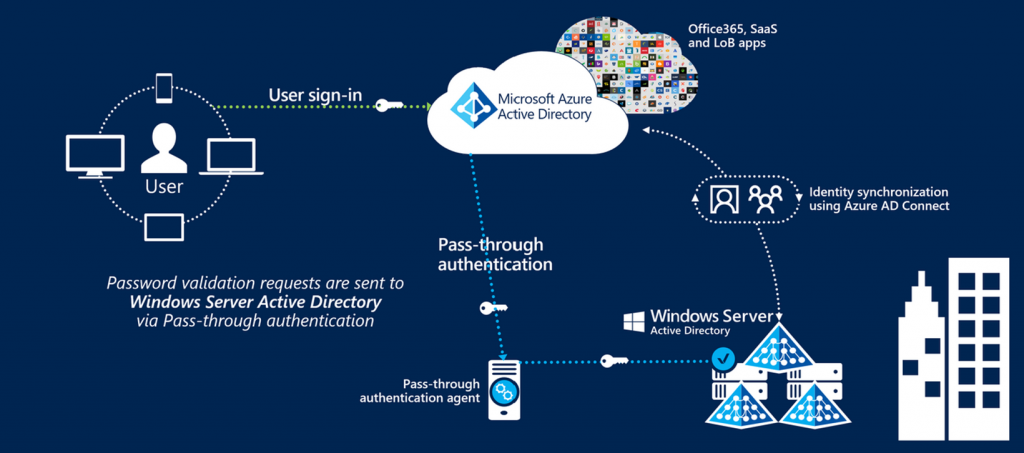
- Managed by Azure AD Connect
- Compromise server hosting PTA (typically Entra Connect server)
- Entra ID sends the clear-text password (not hashed!) to authenticate the user.
- Inject DLL to compromise credentials used for PTA
Securing Pass Through Authentication (PTA)
Treat Entra Connect as a Tier 0 asset (like a Domain Controller)
Secure Entra ID Quickly Checklist
- Set “Users can register applications” to No
- Set “Restrict non-admin users from creating tenants” to Yes
- Set “Users can create security groups” to No
- Set Guest user access restrictions to “Guest user access is restricted to properties and memberships of their own directory objects (most restrictive)”
- Restrict who can join devices to Microsoft Entra & require MFA
- Set Guest invite settings to “Only users assigned to specific admin roles can invite guest users”
- Set User consent settings to “Let Microsoft manage your consent settings (Recommended)”
- Review Tier 0 role membership and ensure members are admin accounts, are PIM Eligible, & are not synchronized from on-prem
- If you’re using Role Assignable Groups, ensure Owners are not set on Tier 0 roles
- Scrutinize any applications with Tier 0 Application permissions
- Ensure that Conditional Access requires MFA for Tier 0 role members for every authentication, preferably FIDO2/Microsoft Authenticator push (service accounts & service principles excepted).
- Remove any standard Delegated Administration and shift to Granular Delegated Admin Privileges (GDAP)
- Treat Entra Connect as a Tier 0 asset (like a Domain Controller)
- Ensure Cloud Admins are using a separate browser for admin activities (minimum) or connecting to a dedicated cloud admin server (recommended)
- Ensure there is at least 1 emergency access admin account configured with a FIDO2 key(s).
Sean’s Entra ID Security List on Twitter/X

(Visited 11 times, 11 visits today)
如有侵权请联系:admin#unsafe.sh