嗯,用户让我总结这篇文章的内容,控制在一百个字以内,而且不需要用“文章内容总结”或者“这篇文章”这样的开头。首先,我需要仔细阅读文章,抓住主要信息。 文章主要讲的是macOS Tahoe版本引入的新功能:通过SSH解锁FileVault加密的Mac。FileVault是苹果的全盘加密技术,而SSH远程登录在Apple Silicon Macs上现在可以在统一登录界面使用。 接下来,文章提到了具体的步骤和前提条件。比如需要另一台电脑运行SSH,目标Mac必须是Apple Silicon处理器,并且运行macOS Tahoe或更高版本。此外,FileVault必须启用,SSH也必须开启。 然后,连接过程是通过SSH命令连接到目标Mac,输入用户名和密码来解锁。成功后,SSH会自动断开,Mac解锁。 用户的需求是让总结控制在100字以内,并且直接描述内容。所以我要提炼出关键点:macOS Tahoe允许通过SSH解锁FileVault加密的Mac,前提条件包括Apple Silicon、SSH开启等。 可能还要注意不要遗漏重要信息,比如这是针对企业的新功能,可能涉及到安全性和管理便利性。 最后,确保语言简洁明了,不使用复杂的术语,让读者一目了然。 </think> macOS Tahoe 允许通过 SSH 在统一登录界面解锁 FileVault 加密的 Mac。需满足 Apple Silicon 处理器、SSH 启用等条件,并通过 SSH 会话输入本地用户名和密码完成解锁。 2025-10-11 18:49:4 Author: derflounder.wordpress.com(查看原文) 阅读量:155 收藏
Home > FileVault 2, Mac administration, macOS > Unlocking FileVault via SSH on macOS Tahoe
Unlocking FileVault via SSH on macOS Tahoe
One of the changes Apple has introduced with macOS Tahoe is the ability to use SSH at the unified login screen available on Apple Silicon Macs. Apple has built on this to provide a way to allow a FileVault-encrypted Mac to be unlocked via an SSH session. Apple mentions this new capability as part of the following KBase article:
- What’s new for enterprise in macOS Tahoe 26: https://support.apple.com/124963
As part the KBase article, the following man page is referenced:
apple_ssh_and_filevault

This can be accessed using the following command:
This file contains hidden or bidirectional Unicode text that may be interpreted or compiled differently than what appears below. To review, open the file in an editor that reveals hidden Unicode characters.
Learn more about bidirectional Unicode characters
| man apple_ssh_and_filevault |

For more details, please see below the jump.
To unlock FileVault on macOS Tahoe using SSH, you can use the procedure described below:
Pre-requisites:
- Second computer available which can run SSH.
- Target Mac must be using an Apple Silicon processor.
- Target Mac must be running macOS Tahoe or later.
- Target Mac must have FileVault encryption enabled.
- Target Mac must have SSH enabled.
1. Connect from the second computer to the target Mac using the username and network address of the target Mac.
For this example, the target Mac has the following account and network address:
- Account: username
- Network address: computername.local
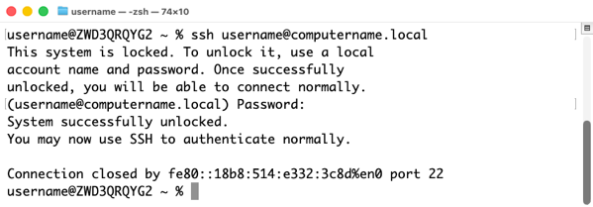
In this example, the following command is being used to connect from the second computer to the target Mac using SSH:
This file contains hidden or bidirectional Unicode text that may be interpreted or compiled differently than what appears below. To review, open the file in an editor that reveals hidden Unicode characters.
Learn more about bidirectional Unicode characters
2. When you connect, you should be informed that the target Mac is locked and that you’ll need to a local username and password to unlock it.
In this example, we’re connecting with the username of an account which is enabled on the Mac to unlock FileVault. Because of this, we should only need to provide the password for that account.

3. Once the password has been provided, the Mac unlocks FileVault and automatically closes the SSH connection between the second computer and the target Mac.

On the target Mac, you should see activity similar to this occurring on the login screen.
4. After a short amount of time, the target Mac should be unlocked. At this point, you should be able to connect again from the second computer to the target Mac using SSH and have access to all expected functionality.

如有侵权请联系:admin#unsafe.sh