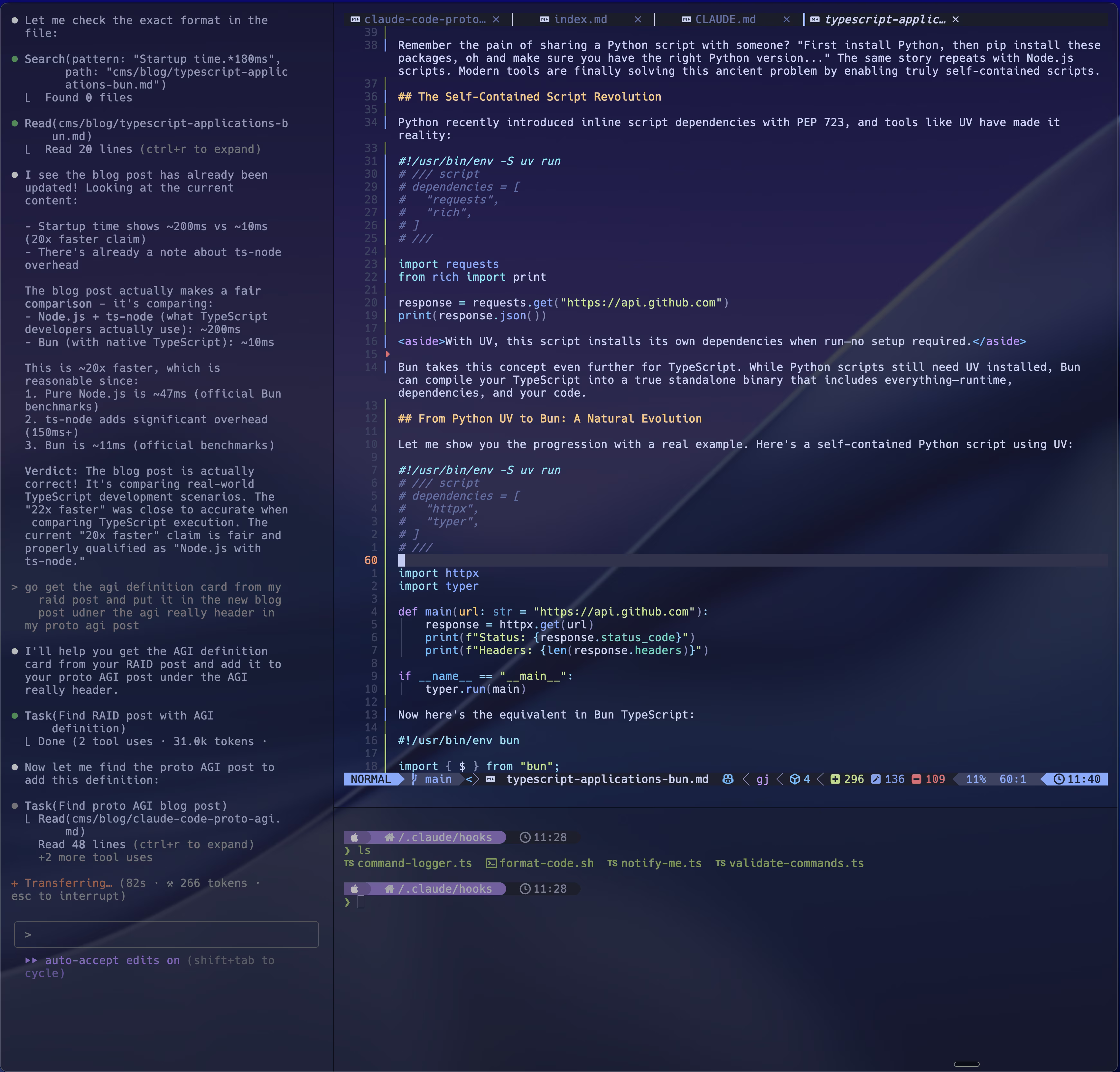
How to Integrate Claude Code with Neovim Using Ghostty Terminal Panes
文章介绍了一种让Neovim用户无需使用VS Code或Cursor即可享受Claude Code功能的方法:通过Ghostty终端创建三个面板(左侧Claude Code、右侧Neovim、底部终端),并配置快捷键实现快速切换。 2025-7-8 10:0:0 Author: danielmiessler.com(查看原文) 阅读量:43 收藏
文章介绍了一种让Neovim用户无需使用VS Code或Cursor即可享受Claude Code功能的方法:通过Ghostty终端创建三个面板(左侧Claude Code、右侧Neovim、底部终端),并配置快捷键实现快速切换。 2025-7-8 10:0:0 Author: danielmiessler.com(查看原文) 阅读量:43 收藏
No more Cursor FOMO
July 8, 2025
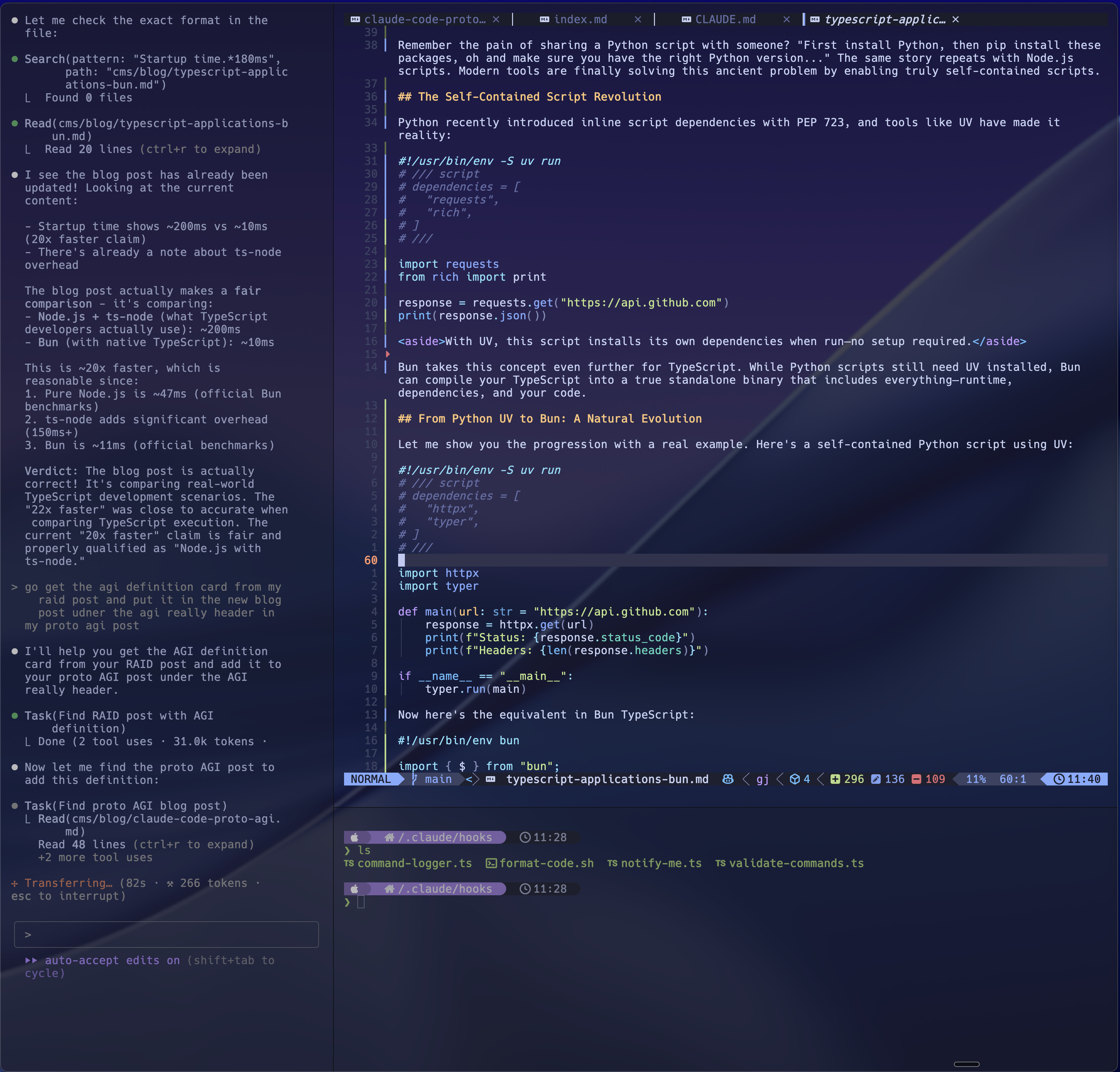
If you're a Neovim user feeling left out watching everyone use Claude Code with VS Code, here's my dead simple solution: three terminal panes.
The Setup
One Ghostty window, three panes:
- Left: Claude Code
- Right: Neovim
- Bottom: Terminal
The Configuration
Add these to your Ghostty config:
toml
keybind = ctrl+h=goto_split:left
keybind = ctrl+j=goto_split:bottom
keybind = ctrl+k=goto_split:top
keybind = ctrl+l=goto_split:right
Now use Control + vim keys to jump between panes instantly. No mouse, no window switching.
Why It Works
This setup eliminates the need for VS Code or Cursor. You keep your Neovim config, your muscle memory, and gain AI assistance exactly when you need it.
Getting Started
- Install Ghostty (or any terminal with panes)
- Add the keybindings
- Open three panes
- Start Claude Code, Neovim, and a terminal
That's it. We get all the CC goodness without losing vim!
文章来源: https://danielmiessler.com/blog/claude-code-neovim-ghostty-integration?utm_source=rss&utm_medium=feed&utm_campaign=website
如有侵权请联系:admin#unsafe.sh
如有侵权请联系:admin#unsafe.sh