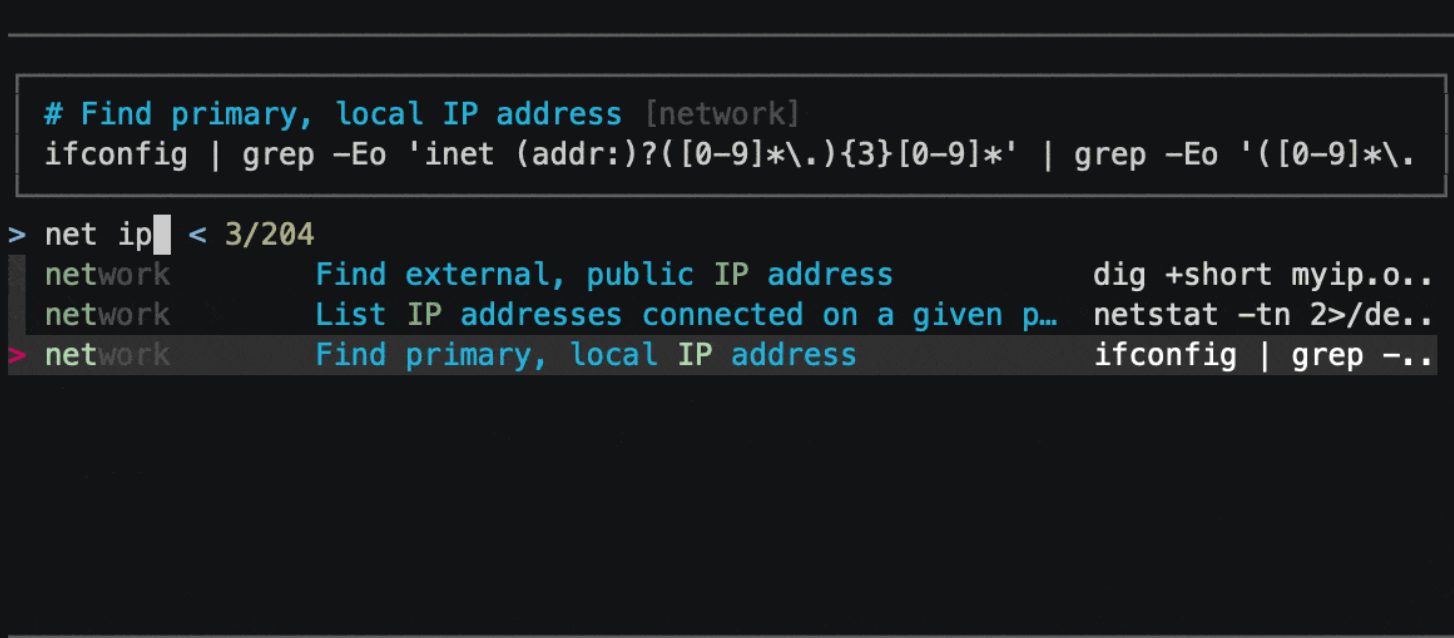
navi allows you to browse through cheatsheets (that you may write yourself or download from maintain 2022-8-9 18:51:48 Author: hakin9.org(查看原文) 阅读量:42 收藏
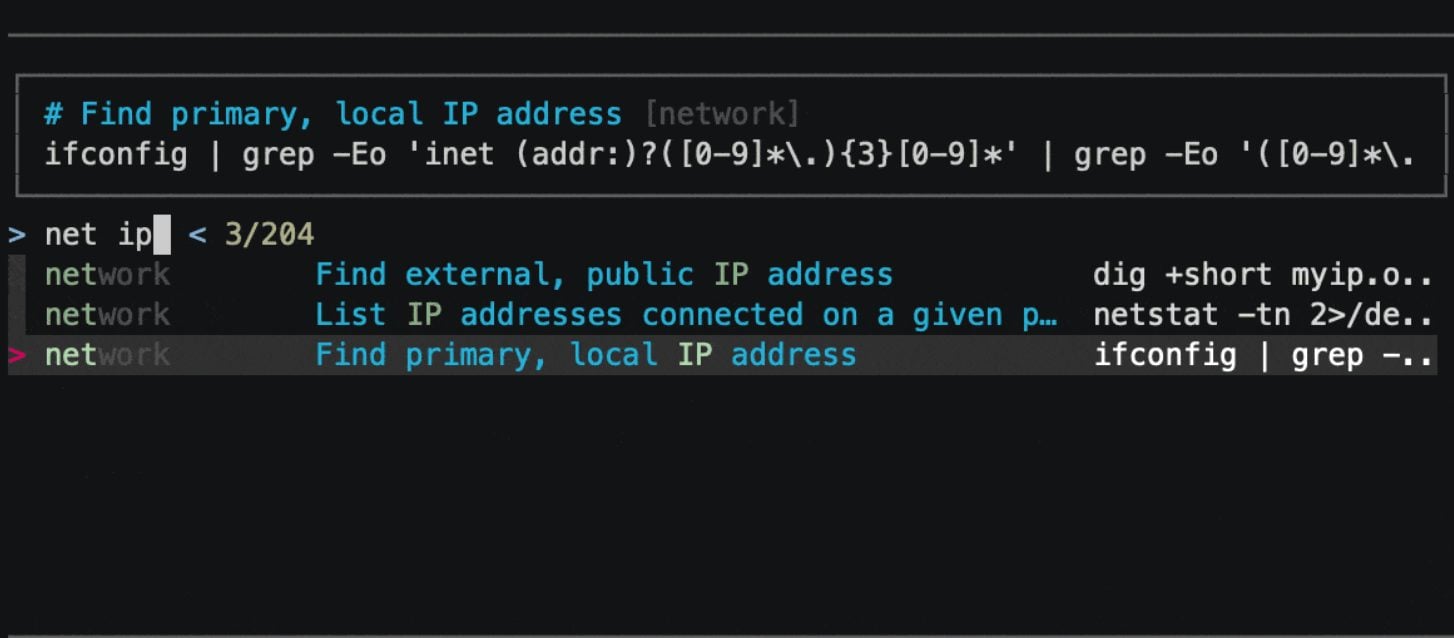
navi allows you to browse through cheatsheets (that you may write yourself or download from maintainers) and execute commands. Suggested values for arguments are dynamically displayed in a list.
Pros
- it will spare you from knowing CLIs by heart
- it will spare you from copy-pasting output from intermediate commands
- it will make you type less
- it will teach you new one-liners
It uses fzf, skim, or Alfred under the hood and it can be either used as a command or as a shell widget (à la Ctrl-R).
Installation
Installing the main binary
Using Homebrew
brew install naviUsing Gentoo
Be sure to enable the GURU overlay.
emerge -a app-misc/naviUsing nix
nix-env -iA nixpkgs.naviUsing cargo
cargo install --locked naviUsing choco
For Windows users, using PowerShell
Install the package via choco
Create
$env:USERPROFILE\AppData\Roaming\navi\config.yamland overrideshell.commandas per config_file_example.yamlstyle: tag: color: cyan comment: color: grey snippet: color: white shell: command: powershellRemark: Above example also adds custom colors for better readability in case you use standard blue for your Powershell
Using install script
bash <(curl -sL https://raw.githubusercontent.com/denisidoro/navi/master/scripts/install)

# (optional) to set directories:
# BIN_DIR=/usr/local/bin bash <(curl -sL https://raw.githubusercontent.com/denisidoro/navi/master/scripts/install)
Downloading pre-compiled binaries
- download the correct binary here
- extract the content to your
$PATH
Building from source
git clone https://github.com/denisidoro/navi ~/.navi
cd ~/.navi
make install

# (optional) to set the install directory:
# make BIN_DIR=/usr/local/bin install
Compile time environment variables
navi supports environment variables at compile time that modify the behavior of the binary at runtime:
NAVI_PATH(directory path value): If thecheatsdirectory in the user's directory does not exist, navi uses this path (if it exists), as a fallback location to look for cheat files. Use case: system-wide installed, shared used cheatsheets folder.NAVI_CONFIG(file path value): If theconfig.yamlfile in the user's directory does not exist, navi uses this path (if it exists), as a fallback location to look for a configuration file. Use case: system-wide installed, shared used configuration file.
Other package managers
You can find navi for more package managers by clicking on the image below:

Feel free to be the maintainer of navi for any package manager you'd like!
Installing the shell widget
If you want to install it, add this line to your .bashrc-like file:
# bash
eval "$(navi widget bash)"

# zsh
eval "$(navi widget zsh)"

# fish
navi widget fish | source

# elvish
eval (navi widget elvish | slurp)
By default, Ctrl+G is assigned to launching navi.
There's currently no way to customize the widget behavior out-of-the-box. If you want to change the keybinding or the navi flags used by the widget, please:
- run, e.g.,
navi widget bashin your terminal - copy the output
- paste the output in your
.bashrc-like file - edit the contents accordingly
Usage
There are multiple ways to use navi:
- by typing
naviin the terminal- pros: you have access to all possible subcommands and flags
- as a shell widget for the terminal
- pros: the shell history is correctly populated (i.e. with the actual command you ran instead of
navi) and you can edit the command as you wish before executing it
- pros: the shell history is correctly populated (i.e. with the actual command you ran instead of
- as aliases
- as a shell scripting tool
- as an Alfred workflow
In particular, check these instructions if you want to replicate what's shown in the demo above.
Cheatsheet repositories
Running navi for the first time will help you download and manage cheatsheets.
You can also:
- browse through featured cheatsheets
- import cheatsheets from git repositories
- write your own cheatsheets (and share them, if you want)
- use cheatsheets from other tools, such as tldr and cheat.sh
- auto-update repositories
Cheatsheet syntax
Cheatsheets are described in .cheat files that look like this:
% git, code

# Change branch
git checkout <branch>

$ branch: git branch | awk '{print $NF}'
The full syntax and examples can be found here.
Customization
You can:
More info
Please run the following command to read more about all possible options:
navi --helpIn addition, please check the /docs folder.
Trying out online
If you don't have access to a Unix shell at the moment and you want to live preview navi, head to this playground. It'll start a docker container with instructions for you to install and use the tool. Note: login required.
Similar tools
There are many similar projects out there (beavr, bro, cheat, cheat.sh, cmdmenu, eg, how2, howdoi and tldr, to name a few).
They are excellent projects, but navi remains unique in the following ways:
- it's natural to write cheatsheets tailored to your needs
- arguments are neither hardcoded nor a simple template
Etymology
Navi is a character from The Legend of Zelda Ocarina of Time that provides Link with a variety of clues to help him solve puzzles and make progress in his quest.
Support the project and author: https://github.com/denisidoro/navi#motivation
如有侵权请联系:admin#unsafe.sh