Get a quick walkthrough of the dockerfile linter tool used to discover and resolve violations of expert-designed best-practice guidelines.
Hello World! Let's say you have enabled security measures on your docker's private registry or the engine api. But how would you ensure that the developers or DevOps team would follow the best practices?
In this post, I will discuss the usage of the Dockerfile Linter tool to ensure the best practices and security in Dockerfile while building images.
Note: This will check for the contents in the Dockerfile, not the files you are adding. If you are adding any secret file, it will not be scanned by the linters.
There are several other tools which do the same but have different levels of verbosity and explanation. In the end, every tool has inherited the rules from the Dockerfile best practices. However, I would recommend you to go through the following labs to practice them as well – Dockerlint, Dockerfilelint and Hadolint.
In this lab, you will see dockerfilelinter tool is installed and it requires the file from -f or --file argument.
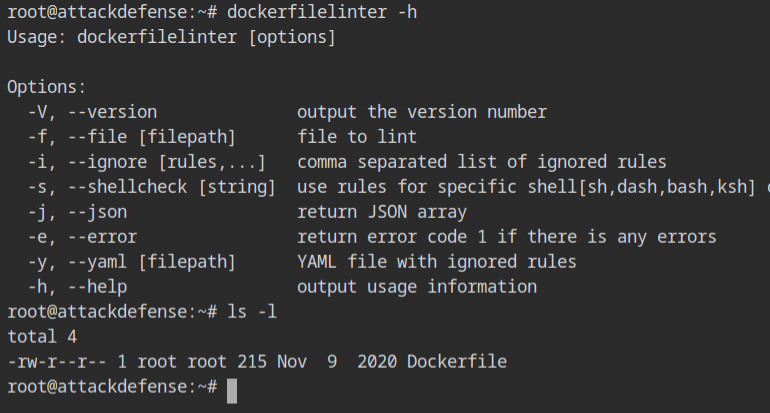
There is a Dockerfile in the present working directory. Provide it to the linter program. You will see the following output where there is a line number and corresponding error message explaining the potential fix.
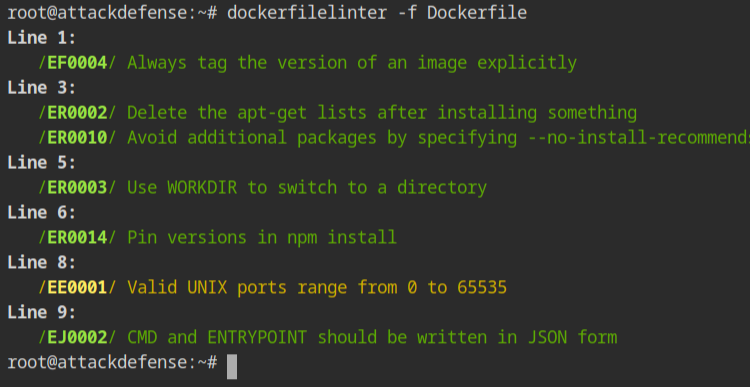
DockerfileFix the above errors in the Dockerfile,
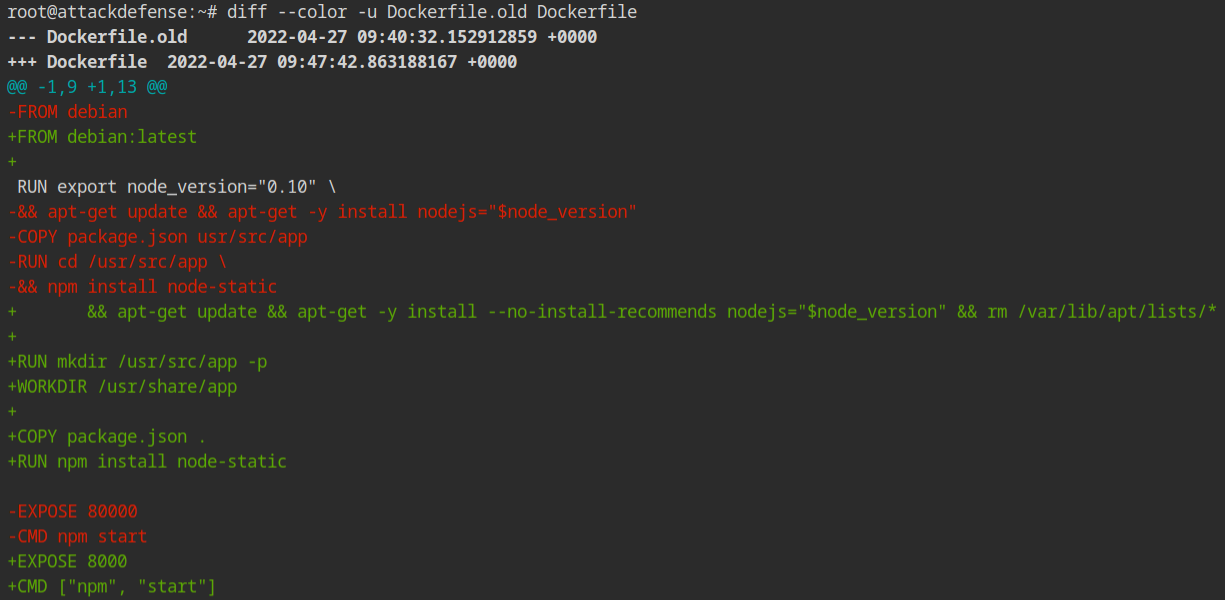
- Line 1 – Add the
latesttag with the parent image. This is to just try the accuracy of the tool. - Line 3 – Add
--no-install-recommendsin the apt install, command to prevent installing optional dependencies. This is basically required to prevent docker images from bloating with unnecessary packages. - Line 5 – Instead of using the cd command, use the
WORKDIRto set the current working directory, for clarity while reading the instructions. - Line 8 – You can have the port numbers from 0 to 65535 only. In this line, change 80000 to some other, let's use 8000.
- Line 9 – The prefered format for writing the CMD or ENTRYPOINT instruction should be in JSON array format. Change the
CMD npm starttoCMD ["npm", "start"]
Note: Dockerfile.old is nothing but the copied version of the initial Dockerfile contents
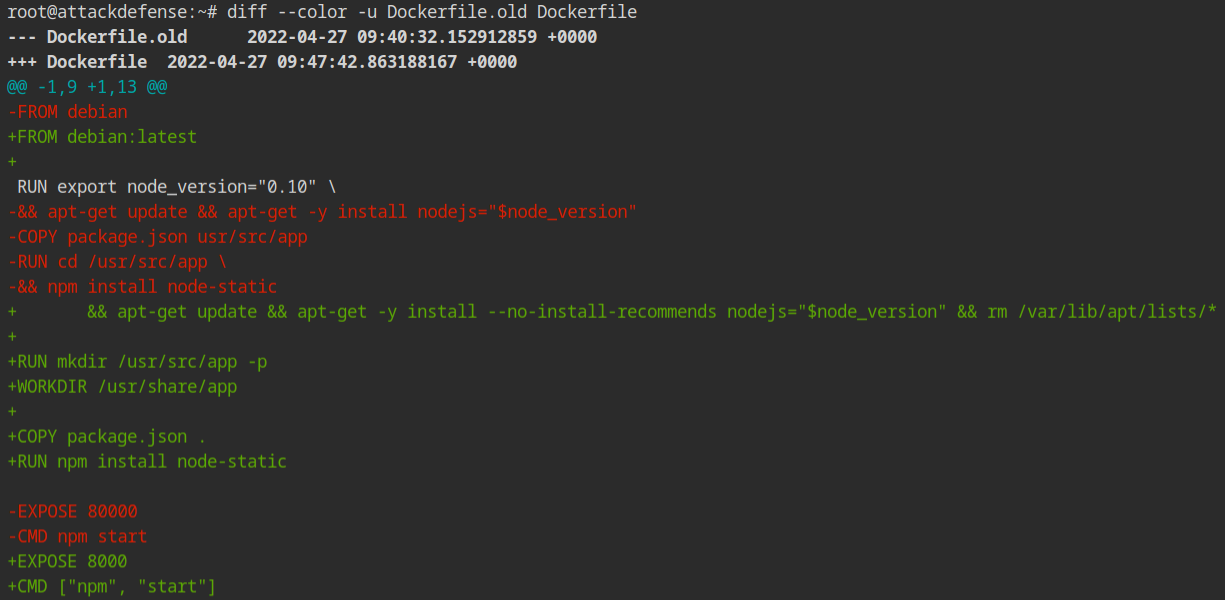
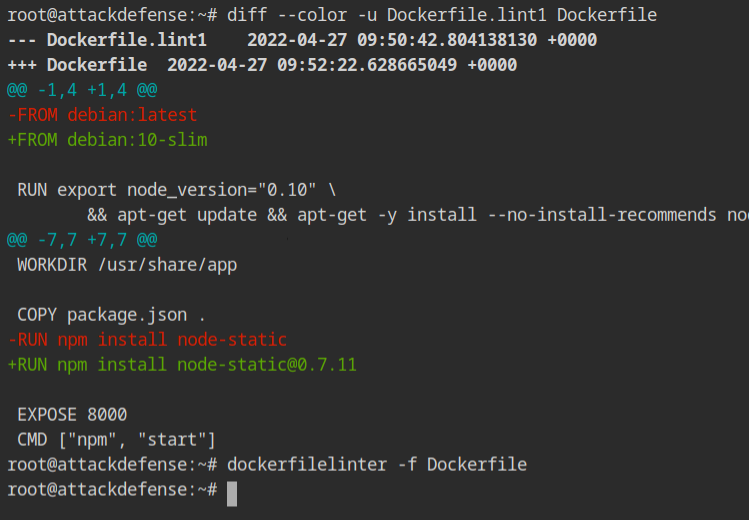
Dockerfile and compare with the Dockerfile.oldOnce the above is done, again run the dockerfile linter command on the same Dockerfile. This time you will see very few errors. You will see in Line 1, that the latest tag is still not fixed.

-
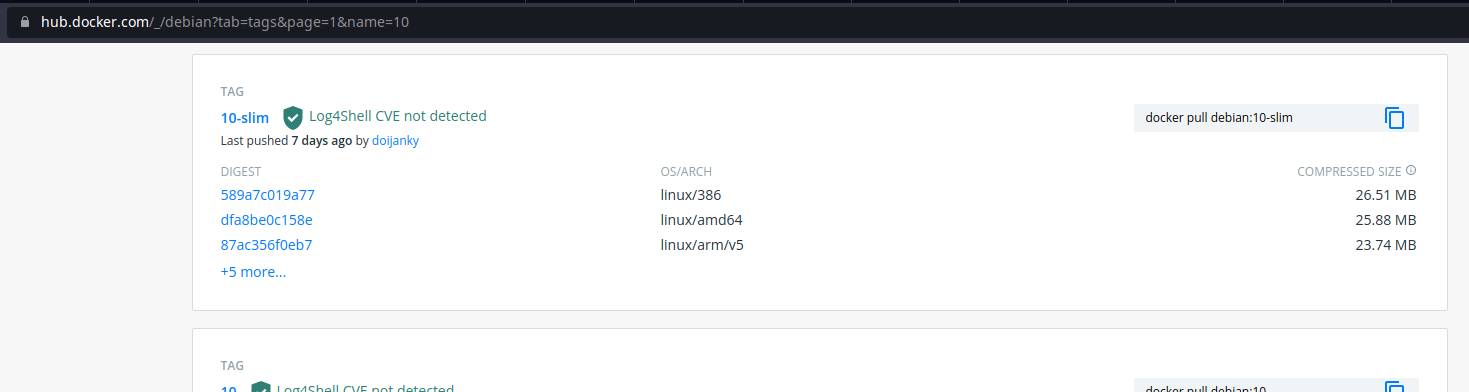
Line 1 — Recall that by default images will have the latest tag, therefore change the tag to some other. This is because the latest tag keeps on changing whenever and doesn't guarantee stability.
If you don't know where to find the tags, consider looking at the docker hub repository
-
Line 10 — Like the tag in the parent image provides stability, so does the version in the npm packages. Install the version of the node-static package with a specific version from the npm registry.
This time when you will run the linter on the Dockerfile, it will exit with no output. This means that all the errors are fixed and you are good to go.